Overview
Merge Documents combines multiple PDF files into a single output PDF. You can add files individually or add all PDFs from a folder, reorder them, and optionally create bookmarks for each source document.
The Interleave Pages option provides an alternative merge mode where pages from two documents are interleaved in an alternating pattern (A1, B1, A2, B2, ...). This is particularly useful for reassembling double-sided scans where odd and even pages were scanned separately.
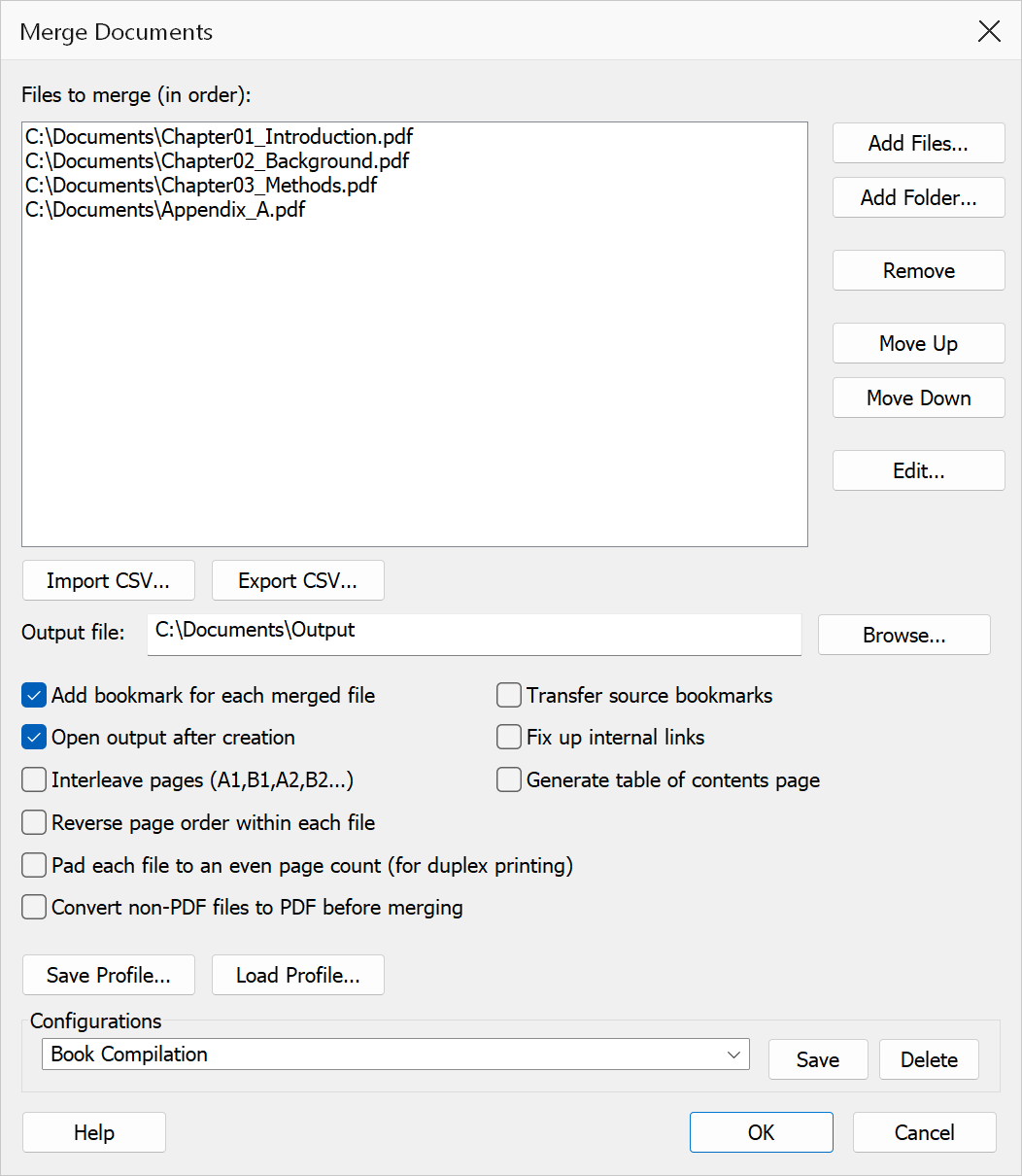
How to use
- Go to Extensions > Mapsoft > Merge & Rename > Merge Documents.
- Build the file list using Add Files or Add Folder.
- Use the Move Up and Move Down buttons to arrange the merge order.
- Set the Output file path for the merged PDF.
- Optionally enable Auto-bookmark to create a bookmark for each source file.
- Optionally enable Interleave Pages to alternate pages from two documents.
- Click OK to perform the merge.
Options
| Option | Description |
|---|---|
| File list | The list of files to merge, in the order they will appear in the output. Use Add Files, Add Folder, Remove, Move Up, and Move Down to manage the list. Double-click or press Edit to configure per-file settings. |
| Edit | Opens the Edit Merge Entry dialog for the selected file, where you
can set a page range (e.g. 1-5,7,9-12), a custom bookmark title, and
an odd/even page filter. |
| Import CSV / Export CSV | Import a file list from a CSV file or export the current list. CSV columns:
FilePath,PageRange,BookmarkTitle,PageFilter (0=all, 1=odd, 2=even). |
| Output file | Path for the merged output PDF. Click Browse to select a location. |
| Add bookmark for each merged file | Creates a bookmark at the start of each source document's pages, using the file name (or custom bookmark title) as the bookmark title. |
| Transfer source bookmarks | Copies existing bookmark trees from each source document into the merged output. When combined with auto-bookmark, source bookmarks are placed under each file's bookmark as children. |
| Open output after creation | Opens the merged PDF in Acrobat after the operation completes. |
| Fix up internal links | Adjusts GoTo link destinations within each merged document so they point to the correct pages in the output. Without this option, internal links may point to wrong pages after merging. Works with per-file page ranges and with Reverse page order; a link whose target page was not included in the merge is left untouched rather than repointed. |
| Interleave Pages | Pages are taken one at a time from each file in turn (A1, B1, A2, B2, ...) rather than appended file after file. Works with two or more files; with two it is the usual way to reassemble a double-sided scan whose sides were scanned separately. |
| Generate table of contents page | Inserts a TOC page at the front of the merged output listing all source files and their starting page numbers. |
| Reverse page order within each file | Reverses the page order of each source document's pages in the output. |
| Pad each file to an even page count | Appends a blank page after any source document that ends on an odd page, so the next document begins on a right-hand (recto) page when printed double-sided. |
| Convert non-PDF files to PDF before merging | Allows merging of Word, Excel, PowerPoint, images, HTML, and text files by converting them to PDF via Acrobat before merging. |
Per-File Settings
Select a file in the list and click Edit (or double-click) to open the Edit Merge Entry dialog with these options:
| Setting | Description |
|---|---|
| Page range | Specify which pages to include from this file, e.g. 1-5,7,9-12.
Leave blank to include all pages. |
| Bookmark title | Custom bookmark title for this file. If blank, the filename is used. |
| Page filter | All pages, Odd only, or Even only. Applied after the page range filter. |
Tip
Use Import CSV to batch-configure merge lists with per-file page ranges and bookmark titles. This is especially useful for automated workflows or when merging many files with specific page selections.
Note
Interleave Pages needs at least two files. It uses a separate engine that ignores per-file settings and the other merge options, so those controls are disabled while it is switched on.