Overview
Delete Pages by Text Search scans every page in the active PDF and permanently removes any page whose extracted text matches the search criteria you provide.
Warning
This operation is destructive. Matching pages are deleted immediately and cannot be recovered from within Acrobat. Always save a backup of your document before using this feature.
How to use
- Open the PDF you want to process.
- Go to Plug-Ins > Pages > Delete Pages by Text Search.
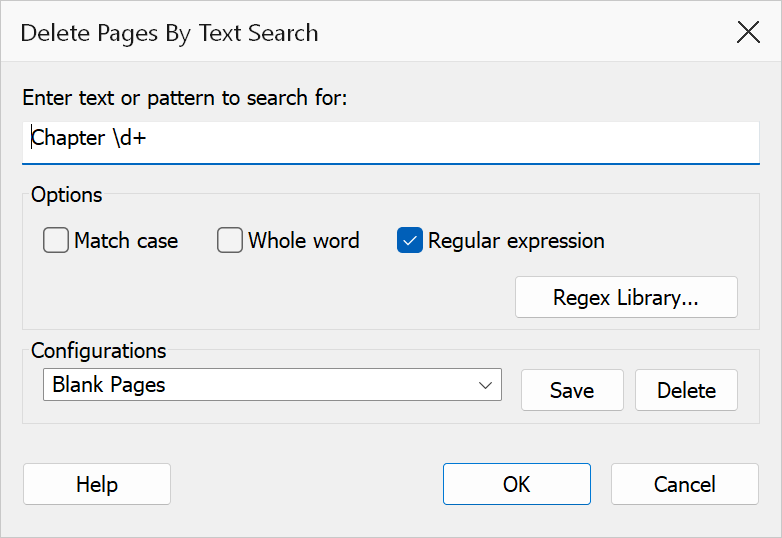
- Enter the text or pattern to search for.
- Select the desired search options (match case, whole word, regular expression).
- Click OK to delete all pages that contain matching text.
Search options
| Option | Description |
|---|---|
| Match case | Only matches text with identical letter casing. When unchecked, the search is case-insensitive. |
| Whole word | Matches complete words only, using word boundaries. Prevents partial matches inside longer words. |
| Regular expression | Treats the search text as a regex pattern. When unchecked, the search text is treated as a literal string and special regex characters are escaped automatically. |
Regex library
When Regular expression is enabled, the Regex Library button becomes available. Click it to browse and select from a collection of pre-built regular expression patterns. The selected pattern is inserted into the search field automatically.
Tip
Use the regex option with a pattern like ^INTENTIONALLY BLANK$ to remove
placeholder pages inserted during document assembly.
Note
The search operates on the extracted text layer of each page. Pages that contain only images (without OCR text) will not match any text search criteria.
Confirmation
This command changes the document irreversibly, so it asks you to confirm before anything is modified. The prompt states what will be affected — where the command can count the items in advance, it quotes the exact number. Nothing is changed until you accept it, and choosing Cancel leaves the document untouched.