Overview
Search and Replace Bookmark URLs performs bulk updates on the URL actions attached to bookmarks. It is designed for tasks such as migrating bookmark URLs from an old domain to a new one, or correcting paths across an entire bookmark tree.
This command changes web addresses only. It does not touch bookmark titles — for those, use Search and Replace Bookmarks.
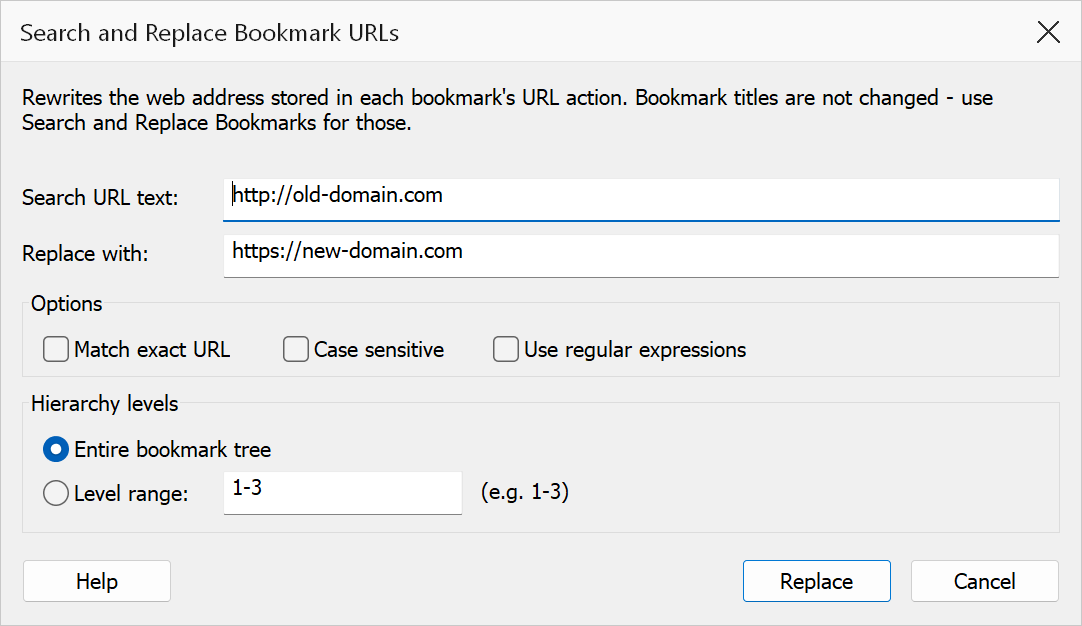
How to use
- Open the PDF that contains bookmarks with URL actions.
- Go to Plug-Ins > Bookmarks > Search & Find > Search and Replace Bookmark URLs.
- Enter the text to search for in the Search URL text field.
- Enter the replacement text in the Replace field (leave empty to remove the matched text).
- Set matching rules and scope.
- Click Replace to apply the updates.
Search options
| Option | Description |
|---|---|
| Match exact URL | Replaces only when the entire URL text matches the search string exactly (no partial/substring matches). |
| Case sensitive | Respects capitalisation in the search string. |
| Use regular expressions | Treats the search text as a regular expression pattern for advanced matching. |
Scope
| Option | Description |
|---|---|
| Entire tree | Searches all bookmarks in the document. This is the default. |
| Level range | Restricts the search to bookmarks within a specified range of levels. Enter levels
as a comma-separated list or range, e.g. 1-3 or 2,4.
The level range field is only enabled when this option is selected. |
Tip
To migrate all bookmarks from http://old-domain.com to
https://new-domain.com, enter the old domain in the search field and the
new domain in the replace field with no additional options.
Note
The search field is required — the Replace button is disabled until search text is provided. When using Level range scope, a valid range must also be entered before the button becomes active. Only bookmarks with URL actions are affected: if none of your bookmarks has one, the command reports that and changes nothing.