Overview
Set Bookmark Expansion controls which bookmark levels are expanded or collapsed in the bookmark pane. Use it to quickly open or close specific levels when working with large bookmark trees.
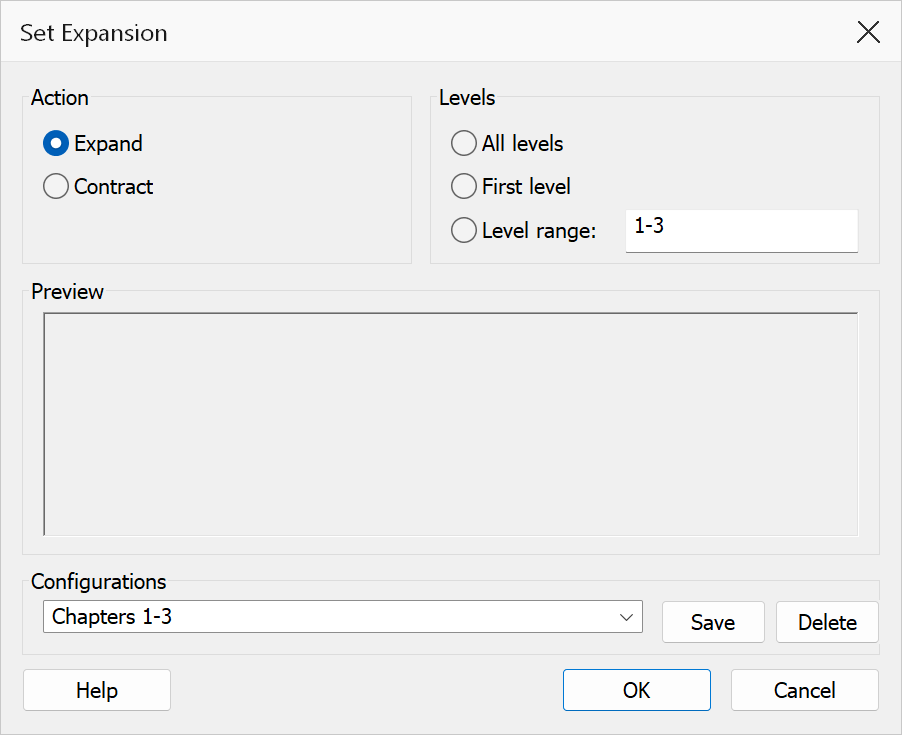
How to use
- Open a PDF that contains bookmarks.
- Go to Plug-Ins > Bookmarks > Set Expansion.
- Choose the level scope (All levels, First level, or a Range of levels).
- Select whether to Expand or Contract the chosen levels.
- Review the live preview to see how the bookmark tree will look.
- Click OK to apply.
Action
| Option | Description |
|---|---|
| Expand | Opens the selected bookmark levels so their children are visible in the bookmark pane. |
| Contract | Collapses the selected bookmark levels so their children are hidden. |
Level scope
| Option | Description |
|---|---|
| All levels | Expand or contract every bookmark level in the tree. |
| First level only | Expand or contract only the top-level bookmarks. Lower levels are not changed. |
| Range of levels | Enter a specific set of levels to target. You can use comma-separated values and
ranges, e.g. 1-3 or 1,3,5. Semicolons are also accepted
as separators. If the start is greater than the end in a range, the values are
automatically swapped. |
Live preview
The dialog includes a preview panel that shows a sample bookmark tree. Levels that will be changed by the current settings are highlighted in colour — green for expand, red for contract — so you can confirm the effect before applying.
Tip
Use First level only with Expand to give readers a clean, top-level overview when they first open the bookmark pane.
Note
This command changes only the expanded/collapsed display state of bookmarks. It does not modify bookmark titles, destinations, or any other properties.
Note
The expanded/collapsed state is stored inside the PDF, so applying it marks the document as changed. Save the file to keep the new state, or use File > Revert to go back to the state it had when you opened it.