Overview
Add Persistent Guides draws dashed guide lines at a set distance in from each page edge. Unlike Acrobat’s built-in guides, which are view-only and are not saved with the document, these are stored in the PDF itself, so they survive saving and reopening and travel with the file to whoever opens it next. They show on screen whether or not you choose to print them.
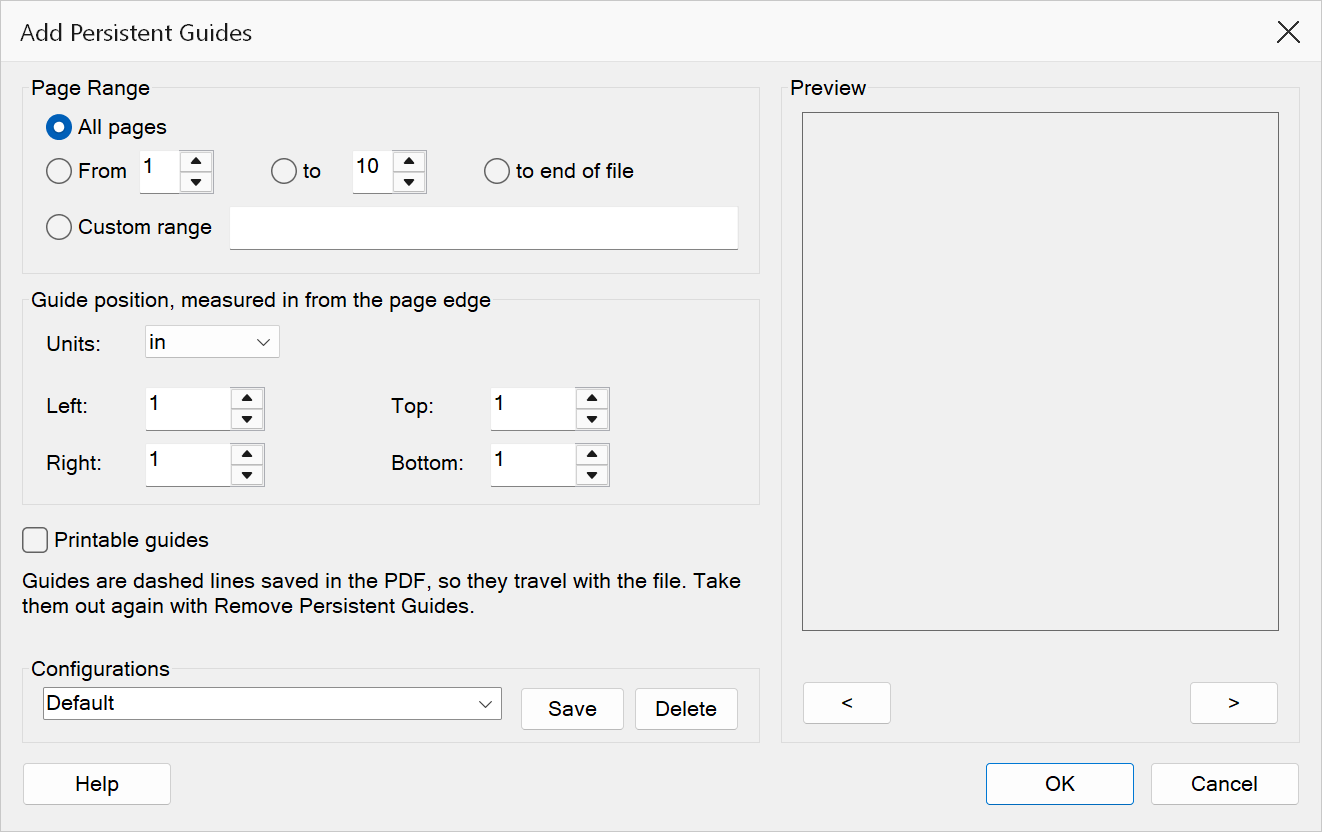
How to use
- Open a PDF document in Acrobat.
- Go to Plug-Ins > Pages > Add Persistent Guides.
- Select the page range on which to place guides.
- Choose the measurement unit.
- Enter how far in from each edge the guides should sit. Leave a box at
0for no guide on that edge. - Tick Printable guides if the guides should appear in printed output as well as on screen.
- Click OK to add the guides.
Options
| Option | Description |
|---|---|
| Page range | The pages on which to add guide lines. Choose All pages, specify
a From / To range, or enter a Custom range such
as 1-3, 7, 12-. |
| Units | Choose between Points, Inches, Centimeters, or Millimeters. All four positions use the selected unit. |
| Left | Position of the vertical guide line measured from the left edge of the page.
Set to 0 to omit. |
| Top | Position of the horizontal guide line measured from the top edge of the page.
Set to 0 to omit. |
| Right | Position of the vertical guide line measured from the right edge of the page.
Set to 0 to omit. |
| Bottom | Position of the horizontal guide line measured from the bottom edge of the page.
Set to 0 to omit. |
| Printable guides | Guides always show on screen. Tick this to include them in printed output too; leave it clear and they stay on screen only. |
Preview
The Preview pane shows a real page from the open document with the guides drawn on it — dashed and light blue, exactly as they will be placed — so the positions can be checked before clicking OK.
The pane follows the page range: it always shows a page the guides will actually land on. Step through the selection with the < and > buttons beneath it, or roll the mouse wheel with the pointer over the pane; the caption below reads Page n of N. If the range selects nothing — or the custom range cannot be read — the caption shows (no pages selected) and navigation is disabled.
Tip
Use printable guides to add visible margin lines to proof copies. Disable the printable option for on-screen reference guides that should not appear in the final output.
Note
Each guide is a line annotation, so a single one can also be selected and deleted with Acrobat’s annotation tools when you only want to lose one of them.
Removing guides again
Plug-Ins > Pages > Remove Persistent Guides takes out every guide this command added, anywhere in the document. It counts them first and asks you to confirm, quoting the number, and leaves other line annotations alone — guides are tagged so they can be told apart from lines drawn with Acrobat’s comment tools.