Overview
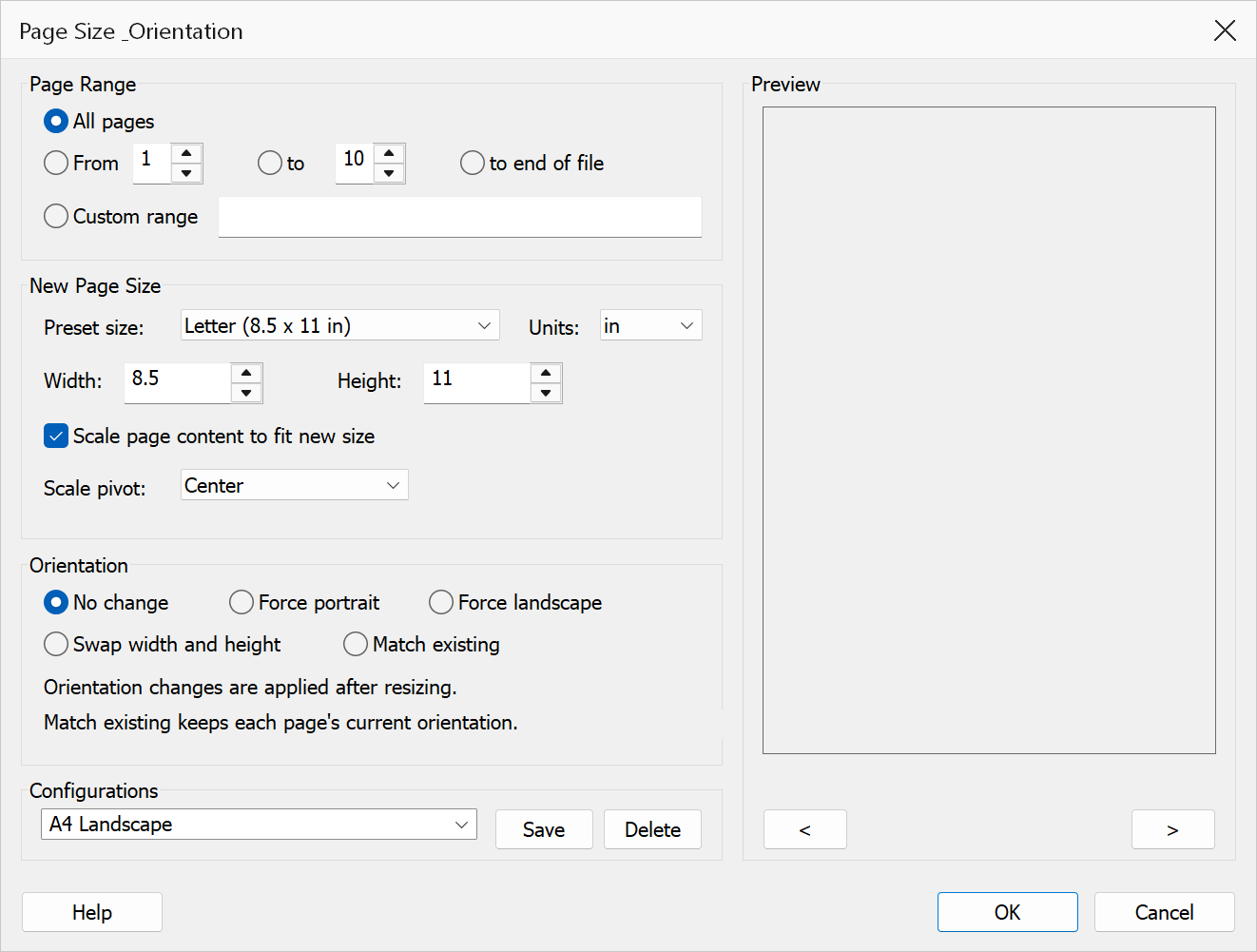
Page Size & Orientation changes the dimensions and orientation of selected pages. You can resize pages to a standard preset or custom dimensions, optionally scale the existing content to fit, and change the page orientation between portrait and landscape — all in a single operation.
This dialog combines what were previously two separate functions: Resize Pages and Change Page Orientation.
How to use
- Open a PDF document in Acrobat.
- Go to Plug-Ins > Pages > Page Size & Orientation.
- Select the page range to modify.
- Choose a preset page size or enter custom width and height values.
- Select the measurement unit.
- Optionally enable Scale content to fit to proportionally resize the page content, and choose a pivot point.
- If needed, choose an orientation change to apply after the resize.
- Click OK to apply the changes.
Page Size options
| Option | Description |
|---|---|
| Page range | The pages to modify. Choose All pages, a
From / To range, To end of file, or a
Custom range (e.g. 1,3,5-12). |
| Preset sizes | Common standard page sizes:
|
| Width / Height | Custom page dimensions in the selected unit. These fields update automatically when you choose a preset, or you can type custom values. |
| Units | Choose between Points, Inches, or Centimetres. |
| Scale content to fit | When enabled, the page content is scaled to fit within the new page dimensions. When disabled, the page boundary changes but the content remains at its original size and position. |
| Pivot point | The anchor point that remains fixed during scaling. Options: Centre, Top-Left, Top-Right, Bottom-Left, Bottom-Right. |
Orientation options
Orientation changes are applied after any page size changes. They work by swapping the page width and height in the MediaBox. The page content is not rotated — only the page dimensions change.
| Option | Description |
|---|---|
| No change | Do not modify page orientation (the default). Use this when you only need to resize. |
| Force Portrait | Forces pages into portrait orientation (height greater than width). Pages that are already portrait are not modified. |
| Force Landscape | Forces pages into landscape orientation (width greater than height). Pages that are already landscape are not modified. |
| Swap width and height | Unconditionally swaps the width and height of each selected page, regardless of current orientation. A portrait page becomes landscape and vice versa. |
| Match existing | Preserves each page's current orientation when resizing. If a page is currently landscape, the new size is applied in landscape (width and height swapped); portrait pages receive the new size as-is. This is especially useful when resizing a mixed-orientation document to a different paper size. |
Tip
To convert a US Letter document to A4 with content properly scaled, choose the A4 preset and enable Scale content to fit. Leave orientation set to No change.
Tip
To change only the orientation without resizing, leave the page size fields at their defaults and select Force Portrait, Force Landscape, or Swap width and height.
Tip
When converting a mixed document (e.g. some pages portrait, some landscape) from Letter to A4, choose Match existing orientation with Scale content to fit enabled. Each page will receive the correct A4 dimensions for its orientation.
Note
Orientation changes swap the page dimensions but do not rotate the content. If you need the content to rotate along with the page, use Rotate instead.
Warning
Resizing pages without scaling content may cause text and graphics to be clipped if the new page size is smaller than the original. Preview the result before saving.
Preview
The Preview pane shows a real page from the open document with the current settings drawn on it, so the result can be checked before clicking OK.
The pane is not restricted to the first page. Step through the document with the < and > buttons beneath it, or roll the mouse wheel with the pointer over the pane; the caption below reads Page n of N. Pages in one document can differ in size, orientation and content, so it is worth checking several of them before applying a change to the whole file. A page that is already landscape, or larger than the rest, will show a very different result from page 1 against the same target size.