Overview
Crop Pages removes specified amounts from each edge of selected pages by setting the PDF crop box (CropBox). The underlying content is not deleted — it is simply hidden outside the visible crop boundary. This is useful for trimming unwanted white space, removing headers or footers, or adjusting the visible area of scanned pages.
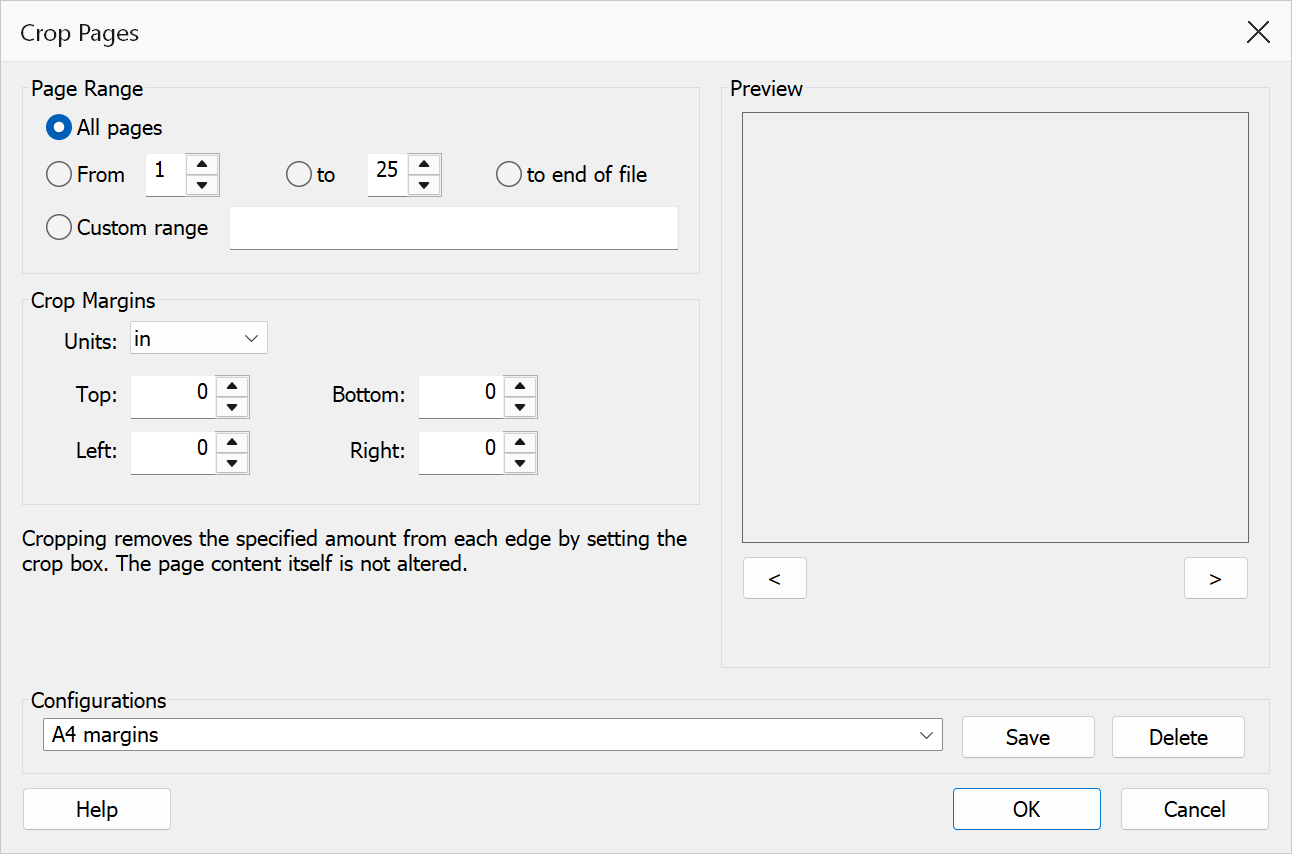
How to use
- Open a PDF document in Acrobat.
- Go to Plug-Ins > Pages > Crop Pages.
- Select the page range to crop.
- Choose the measurement unit.
- Enter the crop amounts for each edge (top, bottom, left, right).
- Click OK to apply the crop.
Options
| Option | Description |
|---|---|
| Page range | The pages to crop. Choose All pages or specify a From / To range. |
| Units | Choose between Points, Inches, or Centimeters. All crop values use the selected unit. |
| Top | The amount to crop from the top edge of each page. |
| Bottom | The amount to crop from the bottom edge of each page. |
| Left | The amount to crop from the left edge of each page. |
| Right | The amount to crop from the right edge of each page. |
Tip
Cropping is non-destructive. The hidden content remains in the PDF and can be restored by setting the crop values back to zero or by using Acrobat’s built-in page cropping tool to reset the CropBox.
Note
If the crop amounts exceed the page dimensions, the operation will be rejected to prevent creating a zero-size page.
Preview
The Preview pane shows a real page from the open document with the current settings drawn on it, so the result can be checked before clicking OK.
The pane is not restricted to the first page. Step through the document with the < and > buttons beneath it, or roll the mouse wheel with the pointer over the pane; the caption below reads Page n of N. Pages in one document can differ in size, orientation and content, so it is worth checking several of them before applying a change to the whole file. A crop that is safe on page 1 can still cut into a header or a page number somewhere later in the document.