Overview
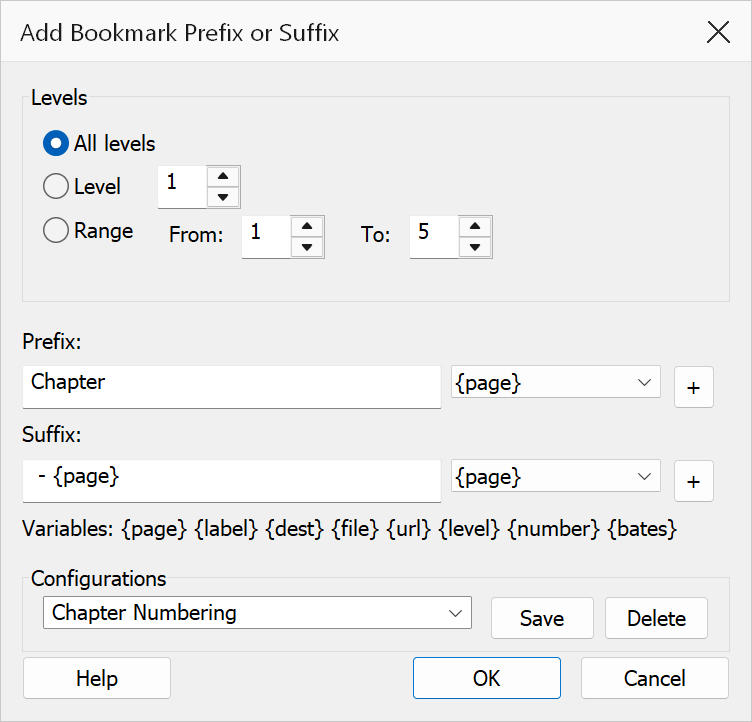
Add Prefix/Suffix to Bookmarks inserts text before and/or after existing bookmark titles in bulk. You can target all bookmark levels, a single level, or a range of levels. Dynamic tokens such as page numbers and named destinations can be included and are resolved per bookmark.
How to use
- Open a PDF that contains bookmarks.
- Go to Plug-Ins > Bookmarks > Add Prefix/Suffix to Bookmarks.
- Choose the level scope (All levels, Single level, or Level range).
- Enter text in the Prefix and/or Suffix fields. Use the variable dropdown and Insert button to add tokens at the cursor position.
- Click OK to apply the prefix and suffix to the selected bookmarks.
Level scope
| Option | Description |
|---|---|
| All levels | Apply to every bookmark in the document. |
| Single level | Apply only to bookmarks at a specific level. Use the spinner or type the level number. |
| Level range | Apply to bookmarks within a start and end level range. The start must not exceed the end level. |
Prefix and Suffix
The Prefix field contains text added to the beginning of each bookmark title. The Suffix field contains text appended to the end. Leave either field blank if you only need one or the other. The original bookmark title is preserved between the prefix and suffix.
Each field has an associated Variables dropdown and Insert button. Select a token from the dropdown and click Insert to place it at the current cursor position within the prefix or suffix field.
Both fields accept text in any language — Cyrillic, Greek, CJK or accented characters are stored in the bookmark titles as full Unicode, regardless of the Windows system language.
Supported tokens
Tokens are replaced per bookmark when the operation runs. If a value is unavailable for a particular bookmark, the token is replaced with an empty string.
| Token | Description |
|---|---|
{page} |
1-based page number of the bookmark destination. |
{label} |
Page label (if defined in the PDF, e.g. “iii” or “A-1”). |
{dest} |
Named destination (if the bookmark uses one). |
{file} |
Linked file path for bookmarks that point to an external file. |
{url} |
Web URL for bookmarks with a URI action. |
{level} |
Bookmark level number (1-based). |
{number} |
Sequential number assigned as bookmarks are processed in order. |
{bates} |
Bates number, if available for the target page. |
Examples
| Prefix | Suffix | Result |
|---|---|---|
[L{level}] |
(blank) | [L2] Introduction |
| (blank) | — {label} |
Chapter 3 — iii |
{number}. |
(blank) | 5. Conclusion |
Warning
Changes are applied immediately after clicking OK and cannot be undone from this dialog. Save your PDF before applying prefixes or suffixes.
Tip
Combine this tool with Search and Replace to first strip unwanted prefixes, then apply new ones consistently.