Overview
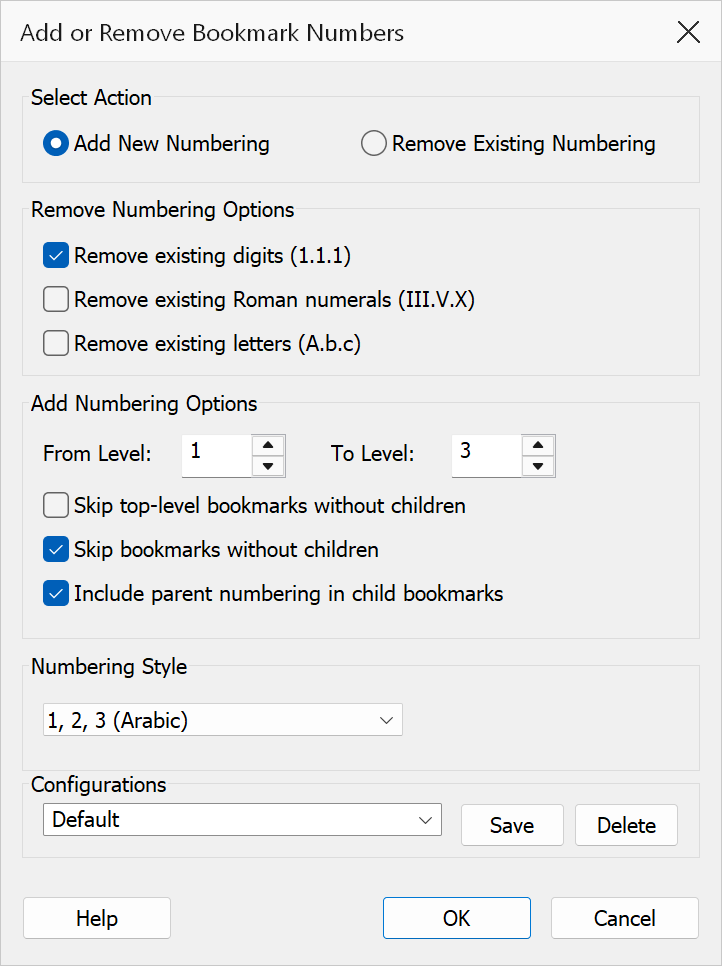
Add/Remove Leading Numbers lets you add structured hierarchical numbering to bookmark titles or strip existing numbering patterns in a single operation. The dialog operates in one of two modes: Add Numbering or Remove Numbering.
How to use
- Open a PDF that contains bookmarks.
- Go to Plug-Ins > Bookmarks > Add/Remove Leading Numbers.
- Select Add Numbering or Remove Numbering.
- Configure the options for the chosen mode.
- Click OK to apply the changes.
Add Numbering mode
Adds hierarchical numbering prefixes to bookmark titles within a specified level range.
| Option | Description |
|---|---|
| Numbering style | Choose from the following styles:
|
| Start level | The first bookmark level to number (1–10). |
| End level | The last bookmark level to number (1–10). Must be greater than or equal to the start level. |
| Include parent numbers | When checked, builds hierarchical numbers that include the parent level
(e.g. 2.3.1 instead of just 1). |
| Skip top level without children | When checked, does not number top-level bookmarks that have no children. |
| Skip bookmarks with no children | When checked, only numbers bookmarks that have child bookmarks beneath them. |
Remove Numbering mode
Strips existing leading numbering from bookmark titles. Select one or more numbering styles to remove; OK stays disabled until at least one style is ticked.
The separator that follows the number is removed with it. Recognised separators are a
period (1.), colon (1:), closing parenthesis (1)
or (1)) and a dash (1 -, 1 –,
1 —). A colon or dash only counts as a separator when a space
follows, so titles such as 1:1 Scale or 3-D Modeling are
left intact.
| Option | What it removes | Examples |
|---|---|---|
| Digits | Arabic digit prefixes | 1., 1.2., 3, 4:, (5) |
| Roman numerals | Roman numeral prefixes | I., iv., IX., III:, (iv) |
| Letters | Alphabetic prefixes | A., b., C), D:, (e) |
Example
Before (add digits, include parent):
Chapter One→1 Chapter OneIntroduction→1.1 IntroductionMethods→1.2 Methods
Before (remove digits):
2.3 Methods→Methods
Warning
Changes are applied immediately and cannot be undone from this dialog. Save your PDF before adding or removing numbering.
Tip
To re-number bookmarks that already have mixed numbering styles, first use Remove Numbering to strip all existing prefixes, then use Add Numbering with your preferred style.
Note
Level values are 1-based in the dialog and are validated to a range of 1 to 10. If the start level exceeds the end level, the dialog will show an error.