Overview
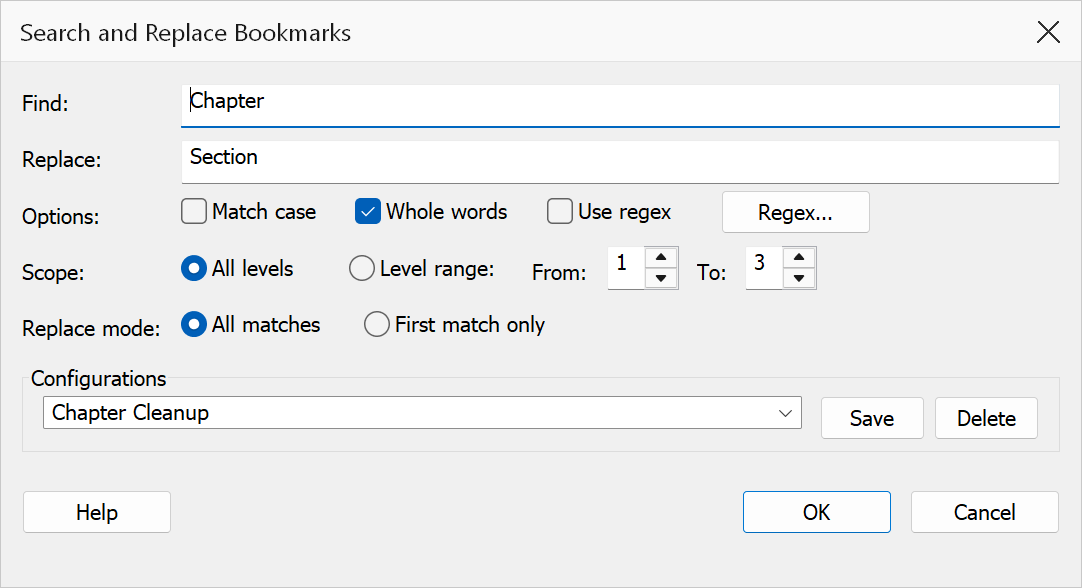
Search and Replace finds text in bookmark titles and replaces it with new text. Use this tool to correct repeated typos, rename sections, strip unwanted characters, or apply consistent naming conventions across the bookmark tree.
How to use
- Open a PDF that contains bookmarks.
- Go to Plug-Ins > Bookmarks > Search and Replace.
- Enter the text to find in the Find field.
- Enter the replacement text in the Replace field. Leave it blank to delete matched text.
- Set matching options and scope as needed.
- Click OK to apply all replacements.
Matching options
| Option | Description |
|---|---|
| Match case | When checked, the search is case-sensitive. “Chapter” will not match “chapter”. |
| Match whole words only | When checked, only complete words are matched. Searching for “art” will not match “start”. |
| Use regular expressions | When checked, the Find field is treated as a regular expression pattern. This enables advanced pattern matching such as character classes, quantifiers, and capture groups. |
Regex library
Click the Regex Library button to open a collection of saved regular expression patterns. Selecting a pattern inserts it into whichever field (Find or Replace) was last focused. When a pattern is inserted, the Use regular expressions checkbox is automatically enabled.
Scope
| Option | Description |
|---|---|
| Entire tree | Search and replace across all bookmark levels. |
| Level range | Restrict the operation to bookmarks within a range of levels. Enter a start and end level between 1 and 99. The start level must be less than or equal to the end level. |
Replace mode
| Option | Description |
|---|---|
| Replace all | Replaces every occurrence of the matched text within each bookmark title. |
| Replace first | Replaces only the first occurrence in each bookmark title. |
Warning
Replacements are applied immediately to all matching bookmarks. There is no undo in this dialog. Save your PDF before performing bulk replacements.
Tip
To remove text without replacing it, leave the Replace field empty.
For example, find DRAFT - and leave Replace blank to strip the prefix
from all bookmark titles.