Overview
Cleanup Bookmark Titles performs common text tidying operations on bookmark titles, such as trimming whitespace, collapsing double spaces, and capitalising the first character. You can apply the cleanup to all bookmarks or restrict it to a specific range.
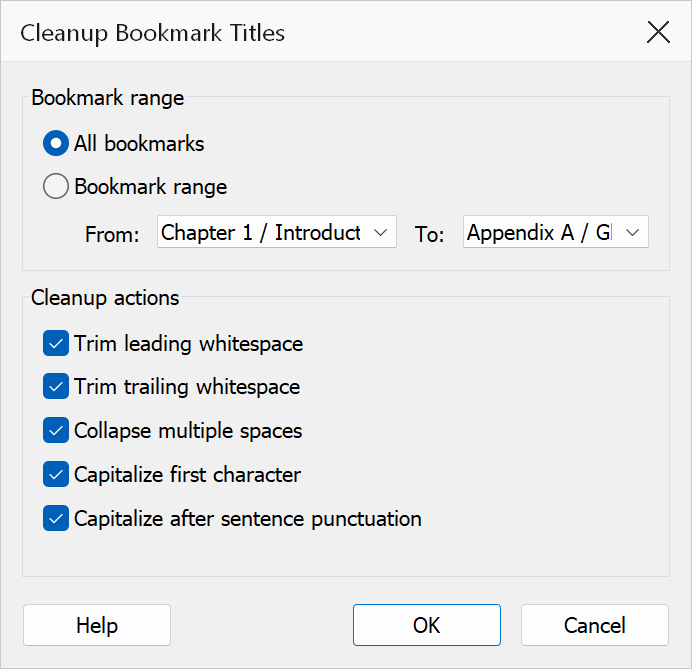
How to use
- Open the PDF containing the bookmarks you want to clean.
- Go to Plug-Ins > Bookmarks > Cleanup Bookmark Titles.
- Select one or more cleanup operations using the checkboxes.
- Choose whether to apply to all bookmarks or a custom range.
- Click OK to apply the changes.
Cleanup options
| Option | Description |
|---|---|
| Trim start | Removes leading whitespace from bookmark titles. |
| Trim end | Removes trailing whitespace from bookmark titles. |
| Collapse double spaces | Replaces runs of multiple spaces within a title with a single space. |
| Capitalise first character | Converts the first alphabetic character of each bookmark title to uppercase. |
| Capitalise after period | Converts the first letter after a period to uppercase, treating each sentence boundary correctly. |
All five options are enabled by default. Uncheck any options you do not need.
Bookmark range
| Option | Description |
|---|---|
| All bookmarks | Apply the cleanup to every bookmark in the document. |
| Custom range | Limit the cleanup to a subset of bookmarks using the From and To dropdowns. These list bookmarks by their full path so you can identify the correct start and end points. The dropdowns default to the first and last bookmark respectively. |
Warning
Changes are applied directly to bookmark titles and cannot be undone from this dialog. Save the PDF before running a cleanup if you want to be able to revert.
Tip
Run Cleanup Bookmark Titles as a first step before applying case changes or adding numbering to ensure consistent spacing and punctuation.