Overview
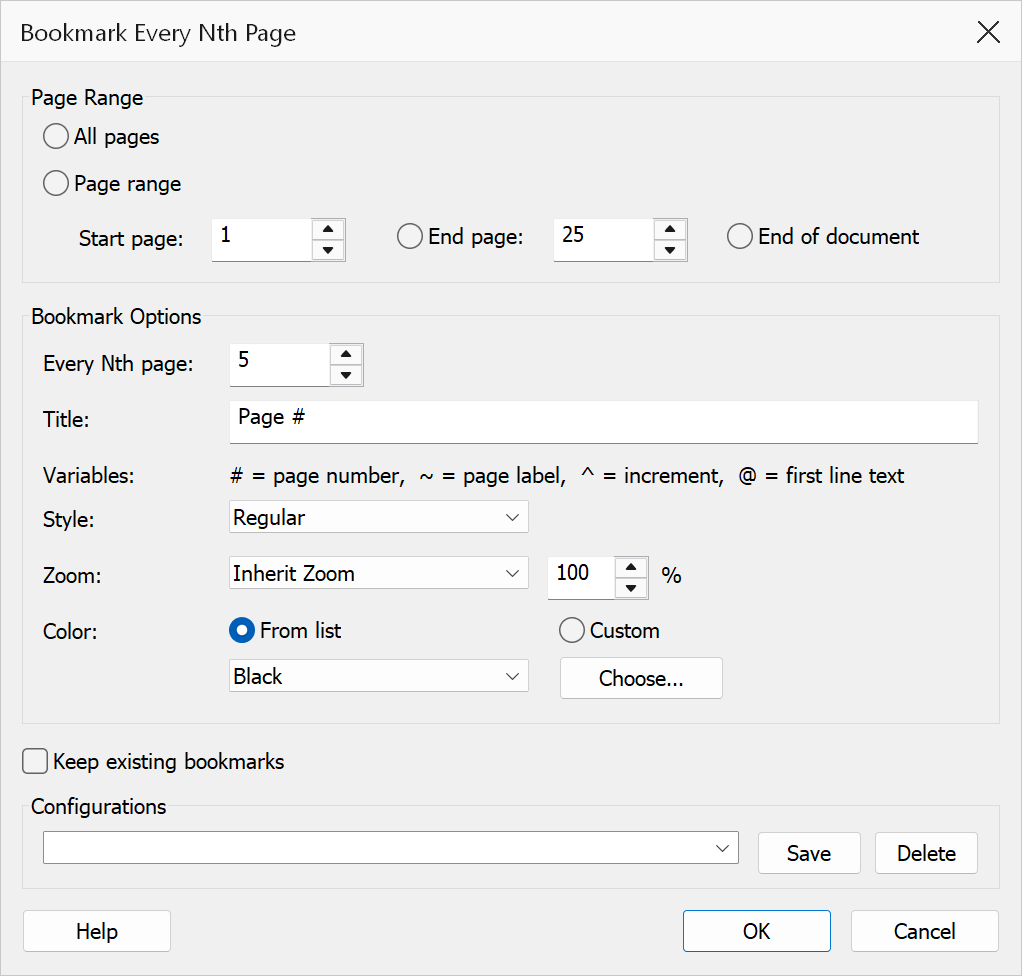
Bookmark Every Nth Page creates a series of bookmarks at regular page intervals. You specify a page range, the interval (N), a title template, and optional formatting such as text style, color, and zoom level. This provides a quick way to add navigation checkpoints throughout a long document.
How to use
- Open a PDF document.
- Go to Plug-Ins > Bookmarks > Bookmark Every Nth Page.
- Choose All pages, or Page range to bookmark part of the document.
- For a page range, set the Start page (1-based), then either set an End page or select End of document.
- Enter the Every Nth page value (the interval between bookmarks).
- Enter a bookmark title template.
- Configure the text style, color, and zoom options.
- Click OK to create the bookmarks.
Page range
| Option | Description |
|---|---|
| All pages | Bookmarks the whole document. The start and end options below are disabled while this is selected. |
| Page range | Limits bookmarking to the range set by the start and end options below. |
| Start page | The first page to include (1-based). Must be 1 or greater. |
| End page | Sets an explicit end page for the bookmark range. |
| End of document | Extends bookmarking through the last page of the document. |
| Every Nth page | The interval between bookmarks. For example, 5 creates a bookmark
at pages 1, 6, 11, 16, and so on (starting from the start page). Must be at
least 1. |
Formatting options
| Option | Description |
|---|---|
| Bookmark title | The text used for each generated bookmark. Use # as a placeholder
for the page number if desired. |
| Text style | Choose Regular, Bold, Italic, or Bold Italic for the bookmark text. |
| Text color | Pick a colour for the bookmark title from a preset list, or select Custom and use the colour picker to choose any colour. |
| Zoom | The destination zoom type for each bookmark. Options include Inherit Zoom, Fit Page, Fit Width, Fit Height, and Custom Zoom. When Custom Zoom is selected, enter a zoom percentage in the adjacent field. |
Additional options
| Option | Description |
|---|---|
| Keep existing bookmarks | When checked, the current bookmark tree is preserved and new bookmarks are added. When unchecked, existing bookmarks are removed first. |
Tip
Set the title to Page # and N to 1 to quickly create a
bookmark for every page in the document.
Warning
Clearing Keep existing bookmarks removes all current bookmarks before generating new ones. This cannot be undone.