Overview
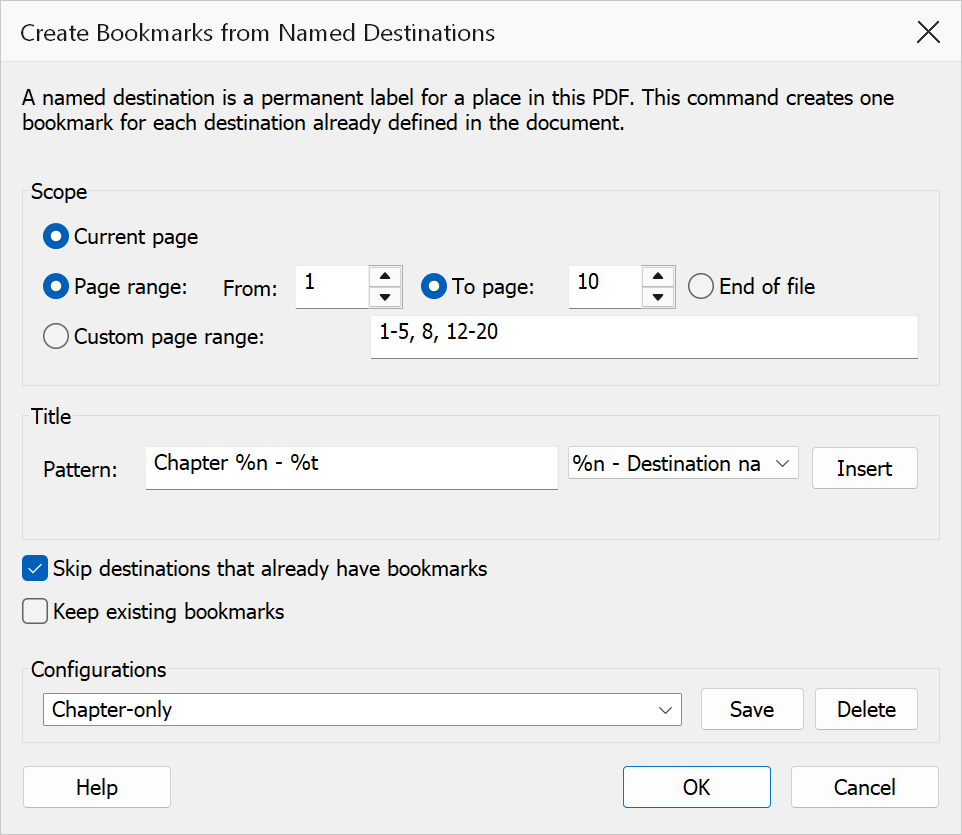
Create Bookmarks From Named Destinations scans the document’s named destination dictionary and generates bookmarks for each entry. This is useful when a PDF already contains named destinations (often created during conversion from Word, LaTeX, or other authoring tools) but lacks a corresponding bookmark tree.
How to use
- Open a PDF that contains named destinations.
- Go to Plug-Ins > Bookmarks > Create Bookmarks From Named Destinations.
- Select a scope: current page, page range, or custom range.
- Configure the title pattern using available placeholders.
- Set bookmark options and click OK.
Scope
| Option | Description |
|---|---|
| Current page | Creates bookmarks only for named destinations that resolve to the currently active page. |
| Page range | Restricts processing to destinations within a start/end page range. Choose To end of file or specify an explicit end page. |
| Custom range | Enter a comma-separated list of pages and ranges, e.g. 1-5,10,15-20. |
Title pattern
Customise the bookmark title using a pattern with placeholders. The default pattern is
{dest}, which uses the named destination identifier as the title.
| Placeholder | Description |
|---|---|
{dest} | The named destination identifier string. |
{page} | The one-based page number the destination resolves to. |
{label} | The PDF page label (if defined). |
Use the variable dropdown and Insert button to add placeholders at the cursor position in the title pattern field.
Bookmark options
| Option | Description |
|---|---|
| Skip destinations that already have bookmarks | When checked, named destinations that already correspond to an existing bookmark are skipped, avoiding duplicates. |
| Keep existing bookmarks | When checked, the current bookmark tree is preserved and new bookmarks are added. When unchecked, existing bookmarks are removed first. |
Tip
Use a pattern like {dest} (page {page}) to include both the destination
name and page number in each bookmark title for easier navigation.
Note
If the title pattern contains placeholders that are not supported by this workflow, the tool will warn you before proceeding.
Warning
Clearing Keep existing bookmarks removes all current bookmarks before generating new ones. This cannot be undone.