Overview
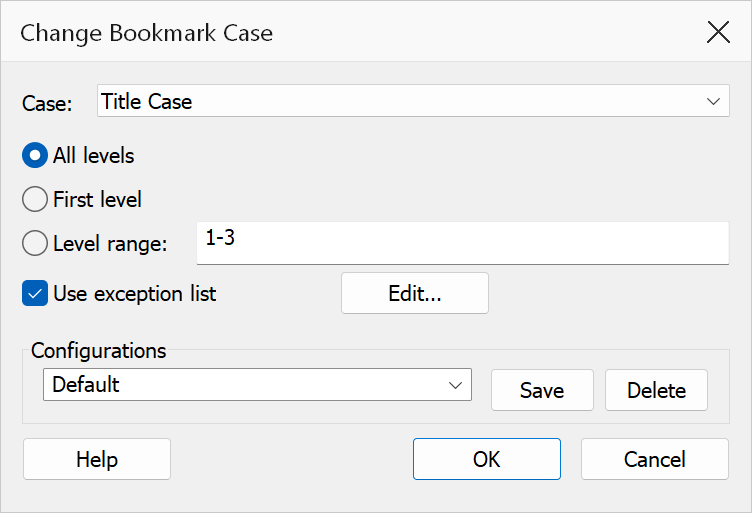
Change Bookmark Case converts the capitalisation style of bookmark titles in bulk. You can apply the change to the entire bookmark tree, only the first level, or a specific range of levels.
How to use
- Open a PDF that contains bookmarks.
- Go to Plug-Ins > Bookmarks > Change Bookmark Case.
- Select a case style from the dropdown.
- Choose the level scope.
- Optionally configure the exception word list (available for Title Case).
- Click OK to apply the changes.
Case styles
| Style | Example | Description |
|---|---|---|
| UPPER CASE | INTRODUCTION TO THE GUIDE |
Converts all letters to uppercase. |
| Title Case | Introduction to the Guide |
Capitalises the first letter of each word. Exception words (articles, prepositions) can be kept lowercase. |
| Sentence case | Introduction to the guide |
Capitalises only the first letter of the title. |
| lower case | introduction to the guide |
Converts all letters to lowercase. |
Level scope
| Option | Description |
|---|---|
| All levels | Apply the case change to every bookmark in the tree. |
| First level only | Apply the change only to top-level bookmarks. |
| Range of levels | Apply the change to a specific set of levels. Enter a range such as
1-3 or a comma-separated list like 1,2,4. If the
range is invalid, the dialog will prompt you to correct it. |
Exception word list
When Title Case is selected, you can enable an exception word list. Words in this list are kept in their original (lowercase) form rather than being capitalised. This is useful for articles, conjunctions, and prepositions such as “a”, “the”, “and”, “of”, etc.
The default exception word list is:
a, an, and, as, at, but, by, e.g., etc., for, from, in, into, nor, of, on, or,
        over, per, the, to, upon, vs, v.s., with
Click Edit to customise the comma-separated list. Your changes are saved between sessions. The exception word list checkbox and edit button are only enabled when Title Case is selected.
Warning
Case changes are applied immediately to all targeted bookmarks. There is no undo within this dialog. Save your PDF before applying bulk case changes.
Tip
Use Title Case with the exception word list to produce professional, publication-ready bookmark titles in a single operation.