Overview
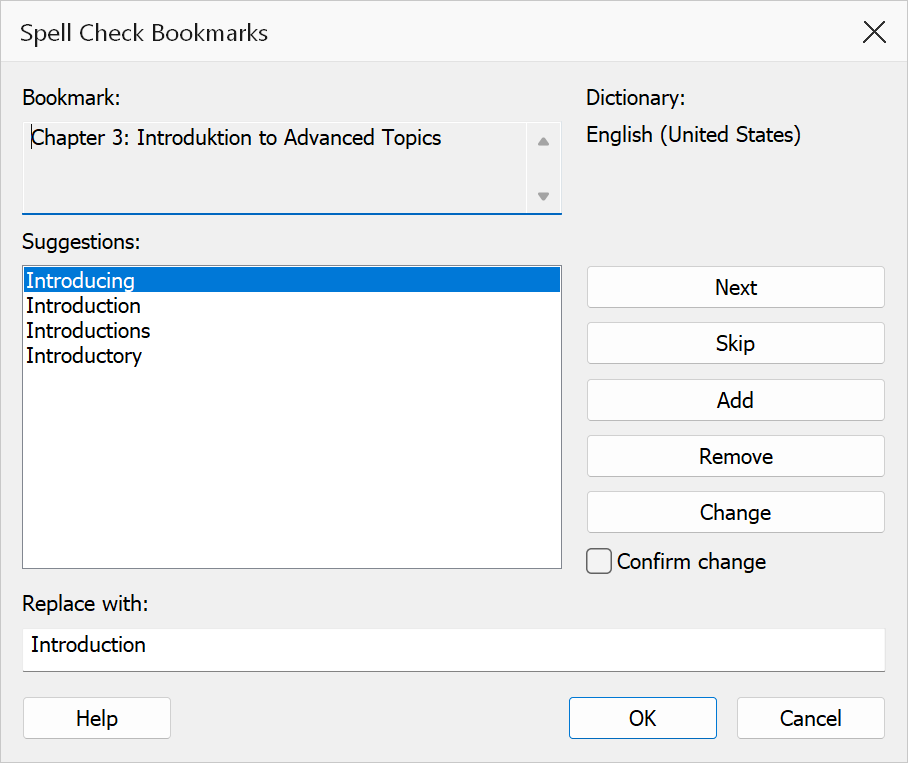
Spell Check Bookmarks reviews every bookmark title in the active PDF word-by-word, highlights potential spelling errors, and lets you correct them interactively. The checker uses Acrobat's built-in spelling engine and supports selectable dictionaries.
How to use
- Open a PDF that contains bookmarks.
- Go to Plug-Ins > Bookmarks > Spell Check Bookmarks.
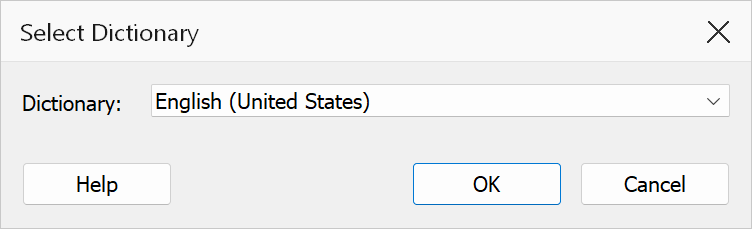
- If this is the first time, select a spell-check dictionary when prompted. Your choice is saved for future sessions.
- The dialog automatically advances to the first misspelled word, which is highlighted in the bookmark text field.
- Review the suggestions list and choose a correction, or type a custom replacement in the Change text field.
- Click Change to apply the replacement and move to the next error.
- Continue until the checker reports that the spell check is complete.
Dialog controls
| Control | Description |
|---|---|
| Bookmark text | Read-only view of the current bookmark title. The misspelled word is selected (highlighted) within the text. |
| Suggestions list | A list of suggested corrections from the spelling engine. Click a suggestion to copy it into the Change text field. Double-click a suggestion to apply it immediately. |
| Change text | Type a custom replacement when none of the suggestions are suitable. |
| Change | Replaces the highlighted word with the text in the Change field and advances to the next error. This button is disabled until replacement text is available. |
| Next | Skips the current misspelled word and moves to the next spelling issue. |
| Skip | Skips the current bookmark entirely and continues to the next bookmark. |
| Add to dictionary | Adds the flagged word to the user dictionary so it will not be flagged again during this session. |
| Remove from dictionary | Removes a previously added word from the user dictionary so it will be flagged again. |
| Confirm change | When checked, a confirmation prompt appears before each bookmark title is updated. This setting is remembered between sessions. |
| Dictionary | Displays the currently selected spell-check dictionary. The dictionary can be changed in the Mapsoft Preferences. |
Dictionaries
On first use, the spell checker prompts you to select a dictionary. The Dictionary Selection dialog lists all available Acrobat spelling dictionaries installed on your system. Select the language that matches your bookmark content and click OK. Your choice is saved and reused in future sessions; to change it later, open Mapsoft Preferences.
Tip
Enable Confirm change when working with documents that contain technical terms or abbreviations to avoid accidentally replacing valid words.
Note
The spell checker reviews bookmark titles only, not page content. If the PDF has no bookmarks, the dialog will not open. Words added to the user dictionary persist only for the current spell-check session.