Overview
Change Text Color recolours text that is already on the page. By default it changes every text run on the pages you select, which is the quickest way to force a whole document to solid black — for a court filing that requires black text, for a document heading to a photocopier or a black-and-white printer, or to replace four-colour “rich black” body text that mis-registers on press.
To change only some of the text, press Scan pages. It lists every combination of colour, font and size the document actually uses, each row showing a sample of the text that uses it, and you tick the rows you want. You never have to know what colour model the document was made in.
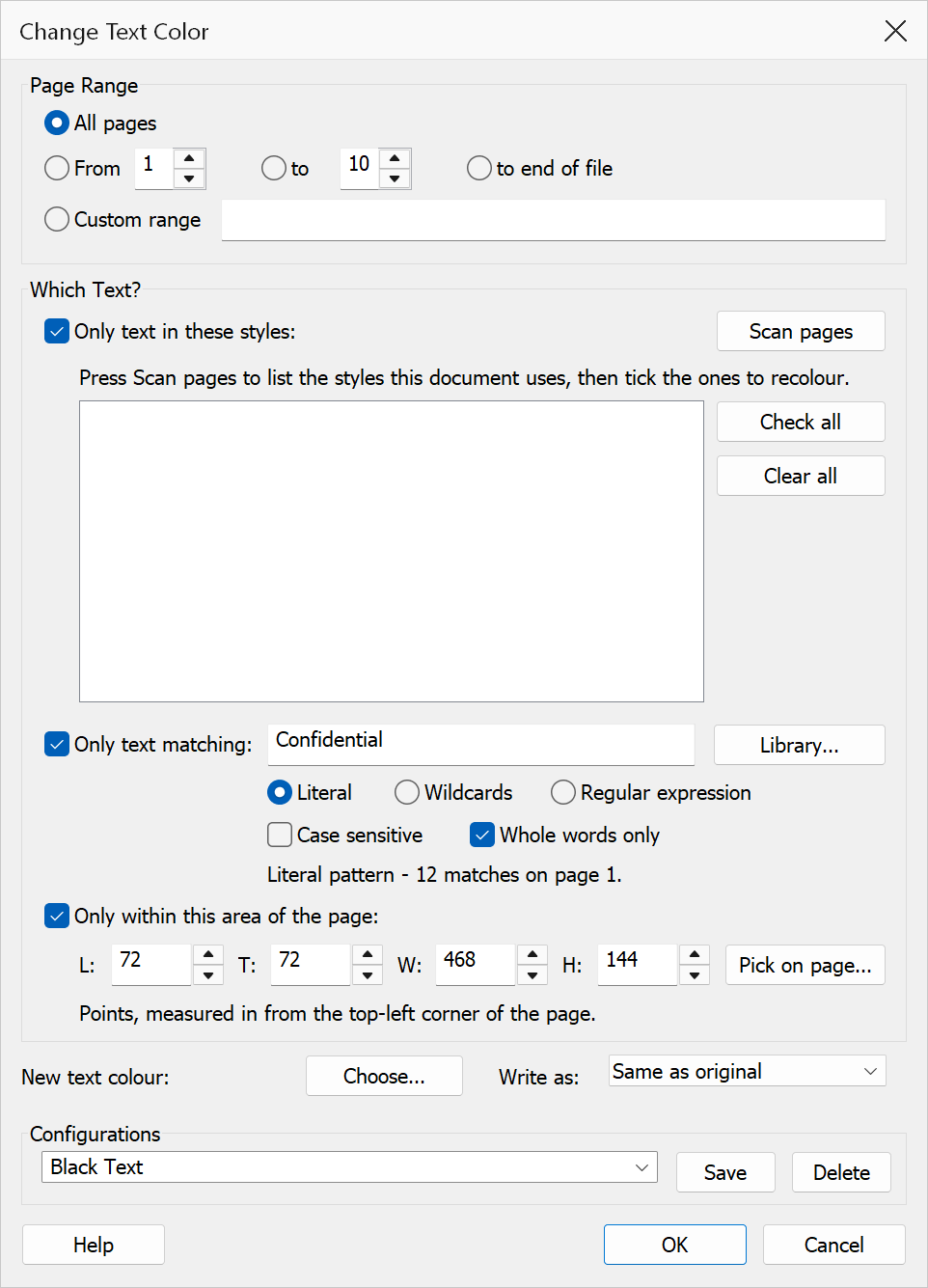
How to use
- Open a PDF document in Acrobat.
- Go to Plug-Ins > Mapsoft > Pages > Change Text Color.
- Select the page range to process.
- Press Scan pages and tick the styles you want to change. Ticking a row switches the style filter on for you. Skip this to recolour all the text.
- Next to New text colour, click Choose… and pick the colour to change the text to.
- Click OK. The command counts what it is about to change and asks you to confirm before touching the document.
Options
| Option | Description |
|---|---|
| Page range | The pages to process: All pages, a From / To range,
From a page to end of file, or a
Custom range such as 1,3,7-9. |
| Scan pages | Reads the selected pages and lists the text styles they use. A style is one
combination of colour, font and point size; each row shows a swatch, the font and
size, a sample of the text, and how many runs of text use it. This is the usual
starting point and needs nothing switched on first.
Rows are grouped by colour, heaviest colour first, because one colour used at several sizes is several rows — a heading colour used at 10, 12, 14, 16 and 18pt is five of them. Keeping them together is what makes the whole set visible. The line above the list gives the running totals, for example 43 style(s) in 12 colour(s) – 6 ticked; the list scrolls, so check that count rather than assuming what you can see is all there is. |
| Only text in these styles | Recolour only the ticked rows. Ticking a row switches this on for you. Leave it unticked to recolour every piece of text on the selected pages. |
| Right-click a row | Opens a menu for ticking several rows at once, naming the values from the row you clicked: Tick all with colour #1E3BFF, Tick all in font Arial-BoldMT, Tick all at size 18.0pt, and the matching Untick commands. A style is one colour at one font at one size, so a heading colour used at three sizes is three rows; this is how you take all of them in one go. Invert ticks is there too, for “everything except the body text”. |
| Only text matching | Narrow the change to text matching a pattern — a phrase, a party name, a
reference code. Choose Literal, Wildcards
(* for any run of characters, ? for one), or
Regular expression. A message under the box tells you at once whether
the pattern is valid. Library… offers ready-made expressions. |
| Only within this area of the page | Narrow the change to a rectangle, measured in points from the top-left corner of each page (72 points = 1 inch). Good for a header or footer band. Pick on page… lets you drag the rectangle out on a picture of the page instead of typing numbers. |
| New text colour | The colour the matching text is changed to. Click Choose… to open the standard Windows colour picker. |
| Write as | Which colour model the new colour is written in: RGB, CMYK or Grayscale. Choose CMYK for a document bound for print, so its text is not converted to RGB and its separations still come out as expected. |
| Configurations | Save the page range, the chosen styles and the new colour under a name so you can reuse them, including as an Action Wizard step. |
Spot and ICC colours
Styles are listed whatever colour space the document uses — DeviceRGB, CMYK, ICC,
Indexed, Lab or a spot (Separation) ink. A spot colour is shown by its ink name, for
example Spot: Black 100%, because its true appearance on screen depends on a
transform this dialog does not evaluate; its swatch is marked
(approx) where one is shown at all. The row still identifies that text
exactly, so ticking it recolours precisely the right runs. Older manuals often set their
body text in a spot black, so this is frequently the largest row in the list.
Note
The narrowing options combine with AND: with a style ticked and a text pattern entered, only text that is in that style and matches the pattern changes.
Warning
This operation modifies the page content stream directly and cannot be undone. The confirmation tells you how much is about to change; if that number is far larger than you expected, cancel and tighten the selection. Save a backup before applying colour changes to an important document.