Overview
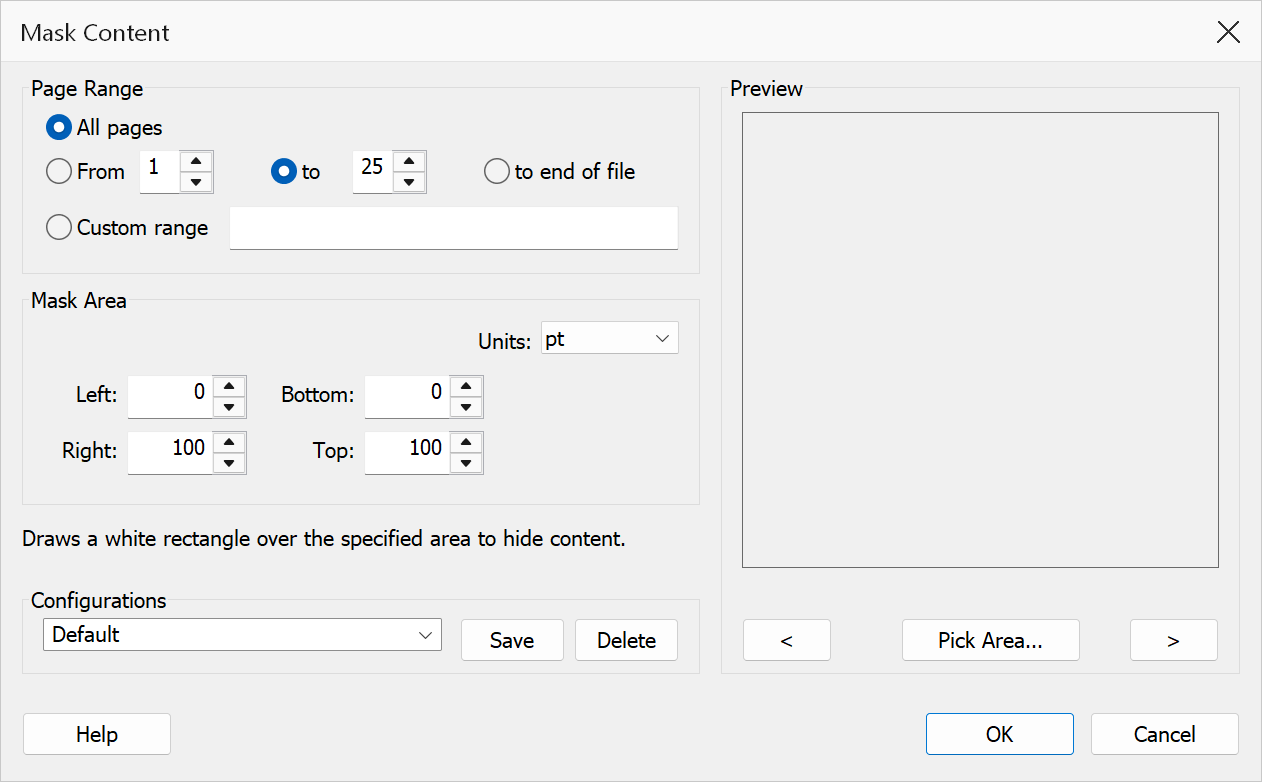
Mask Content draws white rectangles over specified areas on selected pages to hide content. This is useful for covering up confidential information, removing unwanted headers or footers, or blanking out portions of a page before reprinting. The mask is a white-filled rectangle drawn on top of the existing content.
How to use
- Open a PDF document in Acrobat.
- Go to Plug-Ins > Pages > Mask Content.
- Select the page range to apply the mask to.
- Choose the measurement unit.
- Enter the coordinates defining the rectangle to mask (left, bottom, right, top).
- Click OK to draw the mask.
Options
| Option | Description |
|---|---|
| Page range | The pages to mask. Choose All pages or specify a From / To range. |
| Units | Choose between Points, Inches, or Centimeters. All coordinate values use the selected unit. |
| Left | The x-coordinate of the left edge of the mask rectangle, measured from the left edge of the page. |
| Bottom | The y-coordinate of the bottom edge of the mask rectangle, measured from the bottom edge of the page. |
| Right | The x-coordinate of the right edge of the mask rectangle, measured from the left edge of the page. |
| Top | The y-coordinate of the top edge of the mask rectangle, measured from the bottom edge of the page. |
Warning
Masking does not remove the underlying content from the PDF — it only covers it visually. The original text and graphics still exist in the file and can potentially be recovered. For true redaction, use a dedicated redaction tool.
Tip
To determine the correct coordinates for your mask, use Acrobat’s Measuring tool or the cursor position display to find the positions of the content you want to hide.
Preview
The Preview pane shows a real page from the open document with the current settings drawn on it, so the result can be checked before clicking OK.
The pane is not restricted to the first page. Step through the document with the < and > buttons beneath it, or roll the mouse wheel with the pointer over the pane; the caption below reads Page n of N. Pages in one document can differ in size, orientation and content, so it is worth checking several of them before applying a change to the whole file.