Overview
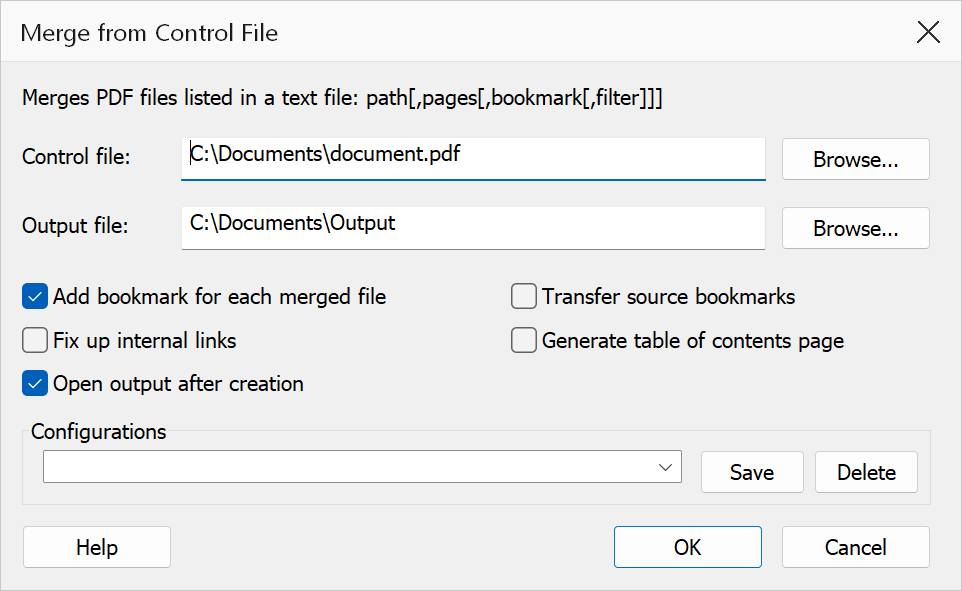
Merge from Control File merges PDF files listed in a plain text control file into a single output PDF. Each line of the control file specifies one PDF file path. This is ideal for scripted or automated workflows where the list of files to merge is generated by another process.
Control file format
The control file is a plain text file (.txt) with one entry per line:
path[,pageRange[,bookmarkTitle[,pageFilter]]]
Only the path is required, so a file listing one PDF path per line — the original
control-file format — still works unchanged. The three optional columns are the same
ones the Merge Documents dialog imports and exports, so a
list exported there can be used as a control file as-is: pageRange is a range
such as 1-5,7, bookmarkTitle overrides the bookmark text for that
file, and pageFilter is 0 for all pages, 1 for odd
only or 2 for even only. Wrap a field in double quotes if it contains a comma.
Lines beginning with # are treated as comments and ignored. Blank lines are
also ignored. File paths can be absolute or relative to the control file's directory.
# Cover pages
C:\Documents\cover.pdf
C:\Documents\toc.pdf

# Main content, with per-file page ranges and bookmark titles
C:\Documents\chapter1.pdf,1-20,"Chapter 1 - Introduction"
C:\Documents\chapter2.pdf
C:\Documents\chapter3.pdf

# Appendices
C:\Documents\appendix.pdf
How to use
- Create a text file listing the PDF files to merge, one per line.
- Go to Extensions > Mapsoft > Merge & Rename > Merge from Control File.
- Set the Control file path to your text file.
- Set the Output file path for the merged PDF.
- Optionally enable Auto-bookmark to create a bookmark for each source file.
- Click OK to perform the merge.
Options
| Option | Description |
|---|---|
| Control file | Path to the text file listing the PDFs to merge. Click Browse to select the file. |
| Output file | Path for the merged output PDF. |
| Transfer source bookmarks | Copies the existing bookmark tree from each listed file into the merged output. |
| Fix up internal links | Adjusts GoTo link destinations so they point at the correct pages in the output. |
| Generate table of contents page | Inserts a TOC page at the front listing each source file and its starting page. |
| Auto-bookmark | When enabled, a bookmark is automatically created for each source file using the file name (without extension) as the bookmark title. |
| Open output | When enabled, the merged PDF is opened in Acrobat after the operation completes. |
Tip
Use comments in the control file (lines starting with #) to organize and
document your merge list. This makes it easy to temporarily exclude files by commenting
them out.
Note
If a file listed in the control file cannot be found, the merge will continue with the remaining files and the missing file will be reported in the results summary.