Overview
Merge Subfolders into PDFs processes a parent directory and merges all PDF files within each subfolder into a single PDF per subfolder. The output file for each subfolder is named after the subfolder. This is useful when you have a folder structure where each subfolder represents a separate document that needs to be assembled from multiple parts.
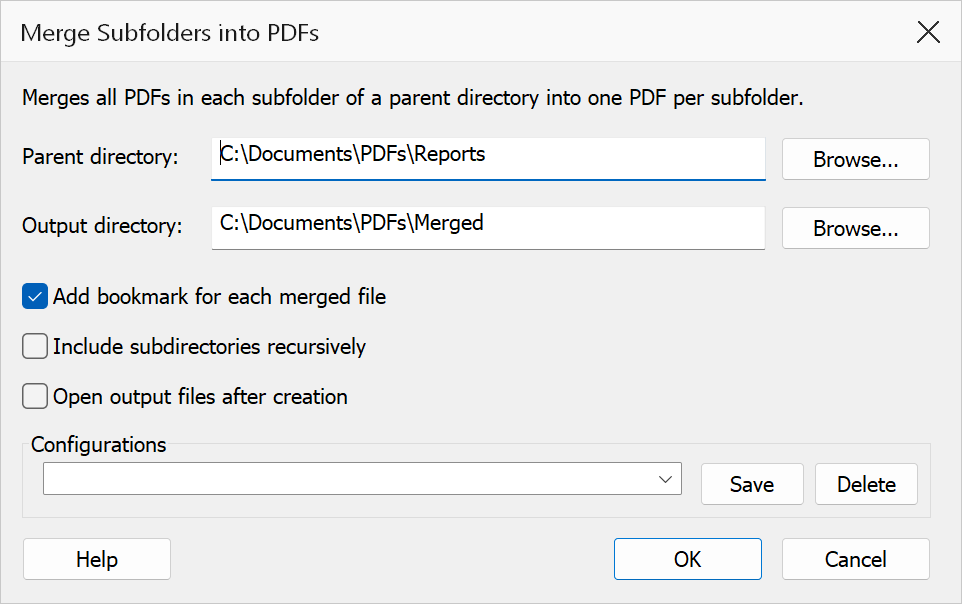
How to use
- Organize your PDF files into subfolders, with each subfolder containing the files for one merged document.
- Go to Extensions > Mapsoft > Merge & Rename > Merge Subfolders into PDFs.
- Set the Parent directory that contains the subfolders.
- Set the Output directory where the merged PDFs will be saved.
- Optionally enable Auto-bookmark and Recursive processing.
- Click OK to perform the merge.
Options
| Option | Description |
|---|---|
| Parent directory | The top-level folder containing subfolders of PDFs. Each immediate subfolder is processed as a separate merge operation. |
| Output directory | The folder where merged output PDFs are saved. Each output file is named after its
source subfolder (e.g. a subfolder named Chapter1 produces
Chapter1.pdf). |
| Auto-bookmark | When enabled, a bookmark is created for each source file within the merged PDF, using the file name as the bookmark title. |
| Recursive | When enabled, PDFs nested any number of levels below each immediate subfolder are included in that subfolder's merge. Output is still one PDF per immediate subfolder — nested subfolders do not produce their own files. |
| Open output files | When enabled, each merged PDF is opened in Acrobat after it is created. |
Tip
Files within each subfolder are merged in alphabetical order. Prefix file names with
numbers (e.g. 01_cover.pdf, 02_intro.pdf) to control the
merge order.
Note
Subfolders that contain no PDF files are skipped. The output directory is created automatically if it does not exist.