Overview
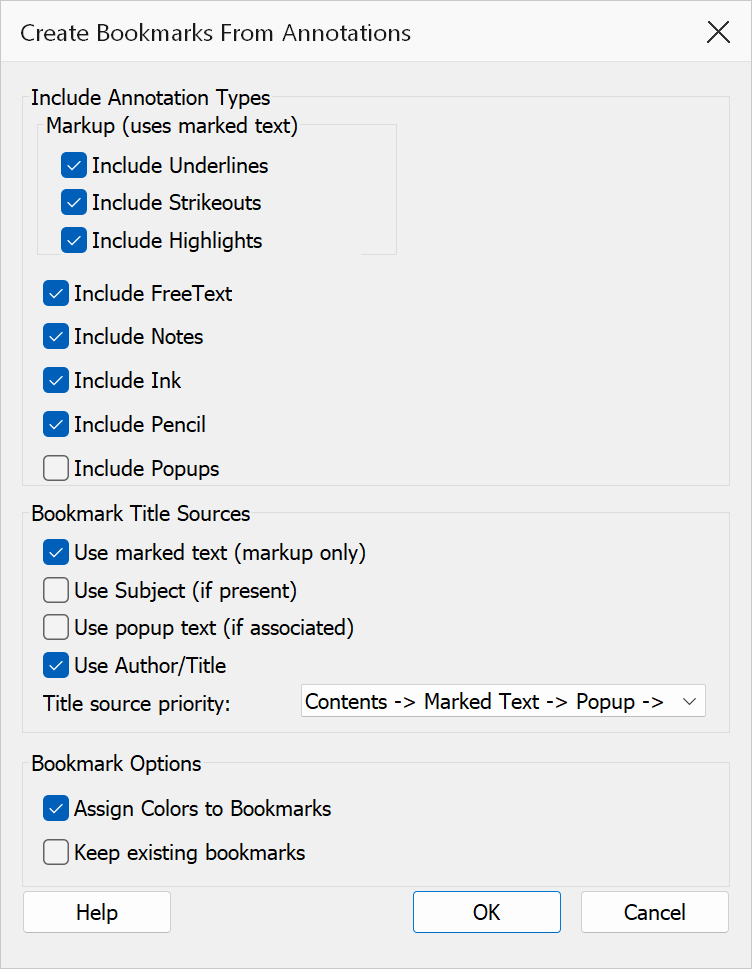
Create Bookmarks From Annotations scans the PDF for annotation types you select and creates a bookmark for each matching annotation. The bookmark destination points to the annotated page, and the title is derived from the annotation metadata using a configurable priority order.
How to use
- Open a PDF that contains annotations.
- Go to Plug-Ins > Bookmarks > Create Bookmarks From Annotations.
- Check the annotation types you want to include.
- Configure the title source options and priority order.
- Set additional options such as color assignment and existing bookmark handling.
- Click OK to generate the bookmarks.
Annotation types
| Type | Description |
|---|---|
| Notes (Text) | Sticky note annotations. |
| Highlights | Text highlight markup annotations. |
| Strikeouts | Text strikeout markup annotations. |
| Underlines | Text underline markup annotations. |
| FreeText | Text box / callout annotations. |
| Ink | Freehand ink annotations. |
| Pencil | Pencil tool annotations. |
| Popups | Popup annotations (opt-in; disabled by default). |
Title source options
Multiple sources can be enabled for the bookmark title. When several are checked, the tool tries each source in the order set by the Title source priority dropdown and uses the first non-empty value found.
| Source | Description |
|---|---|
| Use marked text | For markup annotations (highlights, underlines, strikeouts), uses the text covered by the annotation. |
| Use author / title | Uses the annotation’s author or title metadata field. |
| Use popup text | Uses the text from the annotation’s associated popup note. |
| Use subject | Uses the annotation’s subject field. |
| Title source priority | A dropdown that sets the order in which sources are tried. For example, “Contents → Marked Text → Popup → Subject → Author” tries the annotation contents first, then marked text, and so on. |
Additional options
| Option | Description |
|---|---|
| Assign colors | Applies the annotation’s color to the created bookmark so bookmarks visually match their source annotations. |
| Keep existing bookmarks | When checked, the current bookmark tree is preserved and new bookmarks are added. When unchecked, existing bookmarks are removed first. |
Tip
Enable Assign colors to quickly distinguish bookmarks created from different annotation types in the bookmarks panel.
Warning
Clearing Keep existing bookmarks removes all current bookmarks before generating new ones. This cannot be undone.