Overview
Create Bookmarks From Word List searches the PDF for words, phrases, or regular expressions and creates bookmarks wherever matches are found. Each match becomes a bookmark pointing to the page where the text appears. This is useful for building a keyword index, marking recurring terms, or navigating to specific content.
How to use
- Open the PDF you want to search.
- Go to Plug-Ins > Bookmarks > Create Bookmarks From Word List.
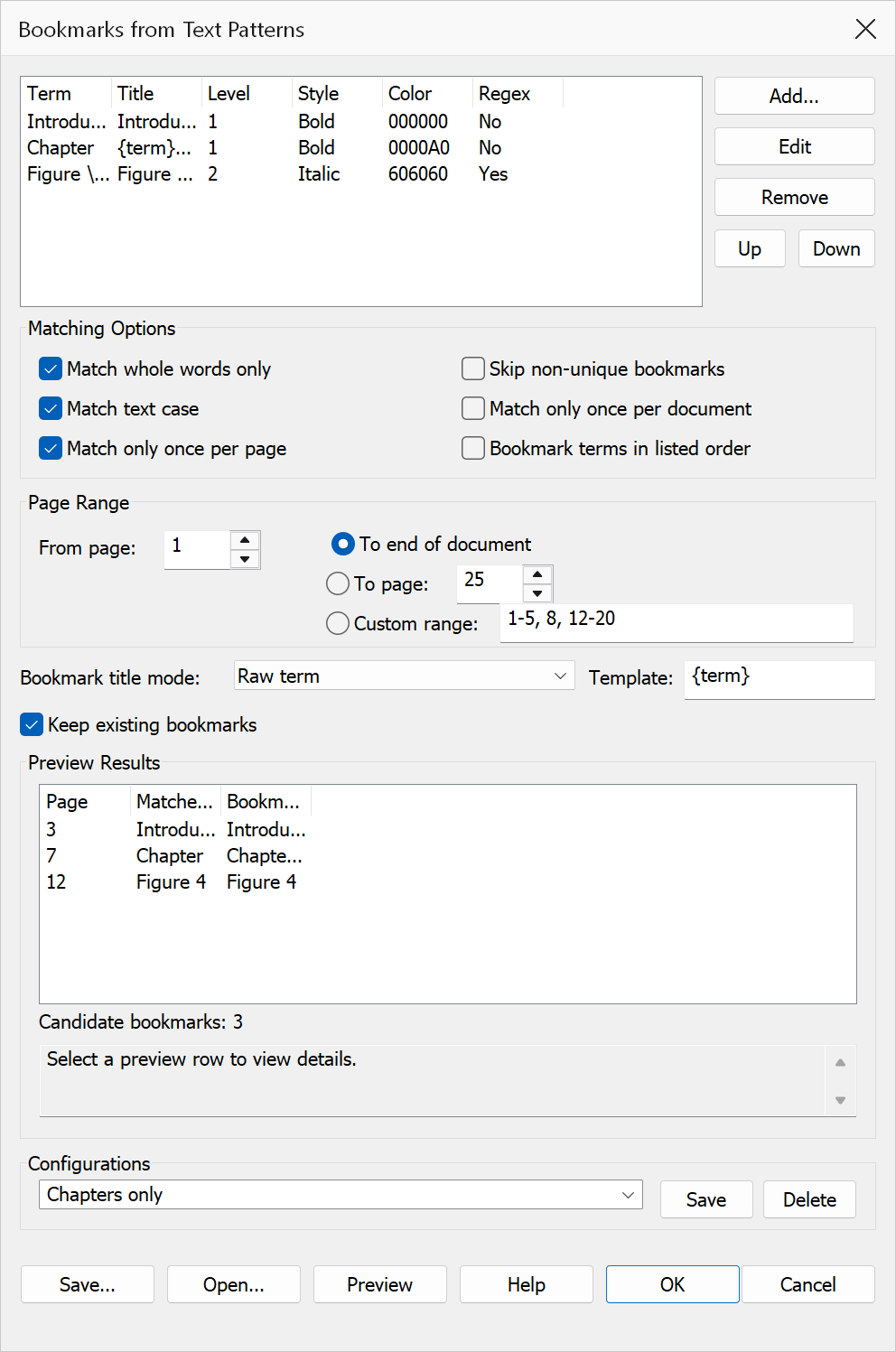
- Add word rules using the Add button. Each rule specifies a search term (or regex), a bookmark level, style, color, and destination view.
- Configure the matching options and page range.
- Optionally click Preview to see proposed matches before committing.
- Click OK to create the bookmarks.
Word rules
Rules are managed in a list. Each rule defines what to search for and how the resulting bookmark should look.
| Property | Description |
|---|---|
| Term | The word, phrase, or regular expression to search for. |
| Regex | When enabled, the term is treated as a C++ regular expression. |
| Level | The bookmark hierarchy level (1 = top level, 2 = child, etc.). |
| Custom title | An optional title template. Supports tokens: {term}, {n},
{page}, {page_label}, {page_n}. |
| Style | Bookmark text style: Plain, Bold, Italic, or Bold+Italic. |
| Color | Bookmark text color. |
| Destination view | The zoom type for the bookmark destination (Inherit Zoom, Fit Page, Fit Width, Fit Height, Fit Visible, or Fit Rectangle). |
Use the Add, Edit, Remove, Up, and Down buttons to manage the rule list.
Matching options
| Option | Description |
|---|---|
| Match whole words only | Prevents partial matches — for example, “cat” will not match “catalog”. |
| Match text case | Enables case-sensitive matching. |
| Skip non-unique bookmarks | Avoids creating duplicate bookmarks when the same word appears multiple times. |
| Match once per document | Creates at most one bookmark per term in the entire PDF. |
| Match once per page | Creates at most one bookmark per term per page. |
| Bookmark listed order | Preserves the order of the word list when creating bookmarks rather than using document order. |
| Keep existing bookmarks | Preserves the current bookmark tree. When unchecked, existing bookmarks are removed first. |
Bookmark naming
| Mode | Description |
|---|---|
| Raw term | Uses the matched text as-is for the bookmark title. |
| Term with sequence | Appends a running number to the term. |
| Term with page | Appends the page number to the term. |
| Custom template | Uses a user-defined template with token placeholders. |
Page range
| Option | Description |
|---|---|
| To end of file | Searches from the start page through the last page. |
| To page | Searches up to and including the specified end page. |
| Custom range | Enter a comma-separated list with ranges, e.g. 1-4,8,10-12. |
Saving and loading word lists
Use the Save button to export your word rules to a file for later reuse. Use Open to load a previously saved word list.
Tip
Use the Preview button to see how many matches will be found and where they occur before creating bookmarks. The preview shows up to 500 results.
Warning
Clearing Keep existing bookmarks removes all current bookmarks before generating new ones. This cannot be undone.