Overview
Create Bookmarks From Images and Paths scans selected pages for embedded images and vector path elements in the PDF content stream, then creates bookmarks that point to each element’s location on the page. Bookmark titles are generated from customisable templates.
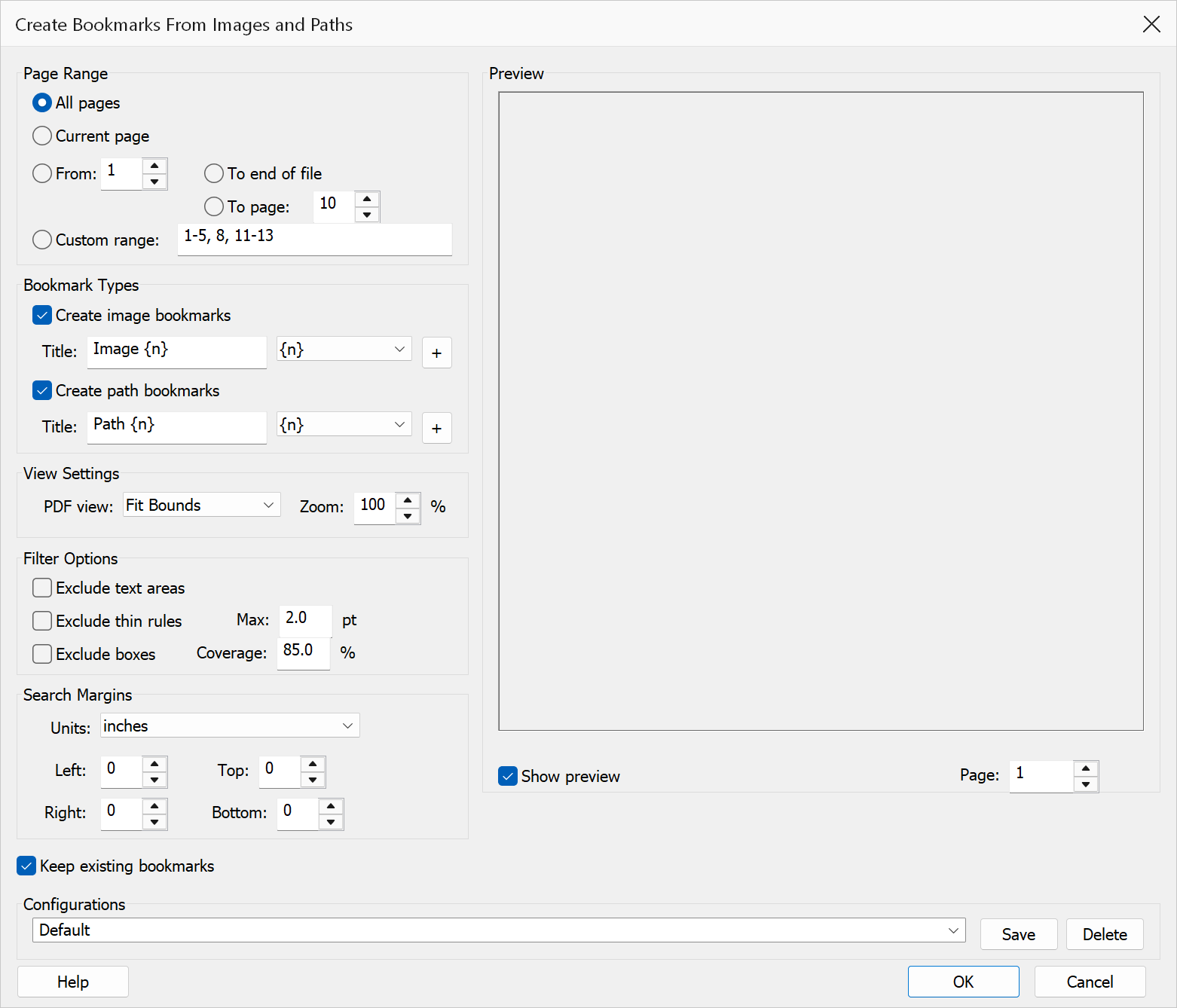
How to use
- Open the PDF you want to process.
- Go to Plug-Ins > Bookmarks > Create Bookmarks From Images and Paths.
- Select a page range option.
- Check whether to include images, paths, or both.
- Customise the bookmark title templates and zoom setting.
- Configure margins and false-positive filters as needed.
- Click OK to create the bookmarks.
Page range
| Option | Description |
|---|---|
| Current page | Processes only the currently active page. |
| From page (single) | Processes only the specified start page. |
| From page to end | Processes from the start page through the last page of the document. |
| From page to page | Processes a specific inclusive page range. |
| Custom range | Enter a comma-separated list of pages and ranges, e.g. 1-3,7,10-12. |
Content options
| Option | Description |
|---|---|
| Create image bookmarks | Include embedded images found on the selected pages. |
| Create path bookmarks | Include vector path elements found on the selected pages. |
| Image template | Title template for image bookmarks (default: Image {n}). |
| Path template | Title template for path bookmarks (default: Path {n}). |
Template placeholders
| Placeholder | Description |
|---|---|
{n} | Sequential counter across all matched elements. |
{seq_on_page} | Sequential counter for the current page only. |
{page} | One-based page number. |
{page_index} | Zero-based page index. |
{page_label} | PDF page label (falls back to page number if none defined). |
{x} | Left X coordinate of the element bounds (PDF points). |
{y} | Top Y coordinate of the element bounds (PDF points). |
{w} | Width of the element bounds (PDF points). |
{h} | Height of the element bounds (PDF points). |
{area} | Area of the element bounds (w × h, in PDF points). |
{type} | Element type label (“Image” or “Path”). |
Use the variable dropdown and Insert button to add placeholders at the cursor position in the template field.
Zoom
| Option | Description |
|---|---|
| Fit Bounds | Zooms to fit the element’s bounding box. |
| Fit Page | Fits the entire page in the viewer. |
| Fit Width | Fits the page width. |
| Fit Height | Fits the page height. |
| Custom Zoom | Uses the zoom percentage entered in the adjacent field. |
Margins
Define left, right, top, and bottom margins to restrict the scan area. Elements whose bounds fall entirely within the margin zone are excluded. Choose between inches, centimetres, and points for the margin input. A live margin preview shows the excluded zones overlaid on the selected preview page.
False-positive filters
| Filter | Description |
|---|---|
| Exclude text areas from bounds | Skips images or paths when text appears within their bounding box. |
| Exclude thin rules | Skips line-like path elements thinner than the specified maximum thickness (in points). |
| Exclude enclosing boxes | Skips large rectangular paths that cover at least the specified percentage of the page area. |
Additional options
| Option | Description |
|---|---|
| Keep existing bookmarks | When checked, the current bookmark tree is preserved. When unchecked, existing bookmarks are removed first. |
| Show preview | Displays a page thumbnail with margin overlay. Change the preview page number to inspect different pages. |
Tip
Use the Exclude thin rules filter to skip horizontal and vertical separator lines that are not meaningful images or graphics.
Warning
Clearing Keep existing bookmarks removes all current bookmarks before generating new ones. This cannot be undone.