Overview
Create Bookmarks From Page Regions uses pre-configured page region definitions from your page region library to search the PDF. For each page where a selected field matches, a bookmark is created pointing to that page. This is ideal for documents with a consistent layout where specific regions of each page contain useful navigation text (such as drawing title blocks or form headers).
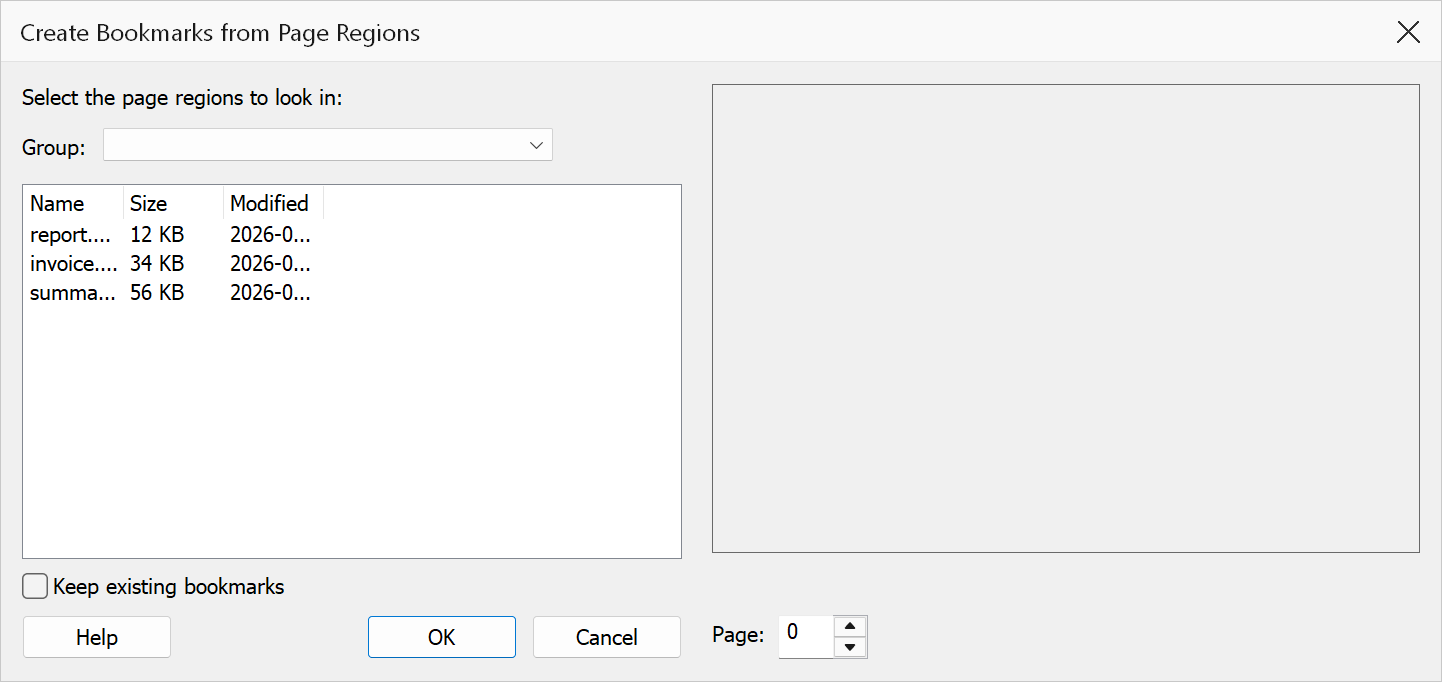
How to use
- Open the PDF you want to process.
- Go to Plug-Ins > Bookmarks > Create Bookmarks From Page Regions.
- The dialog displays a list of page regions loaded from your page region library, showing each field’s name and search string.
- Check the boxes next to the fields you want to include.
- Optionally change the preview page to verify the field positions on the page thumbnail.
- Click OK to generate the bookmarks.
Dialog elements
| Element | Description |
|---|---|
| Group | Filters the field list to a single group; choose (All groups) to see every field. Checked fields stay selected when you switch groups, so you can combine fields from several groups in one run. |
| Field list | A checklist showing all available page region definitions. Each row displays the field name and its search string. Check the fields you want to use for bookmark creation. |
| Preview | A page thumbnail that shows the positions of checked fields as red rectangles overlaid on the page. Change the preview page number to inspect different pages. |
| Keep existing bookmarks | When checked, the current bookmark tree is preserved and new bookmarks are added. When unchecked, existing bookmarks are removed first. |
Note
At least one page region must be checked before you can proceed. If no page regions are configured in the library, you will need to create them first using the page region configuration tools.
Warning
Clearing Keep existing bookmarks removes all current bookmarks before generating new ones. This cannot be undone.