Overview
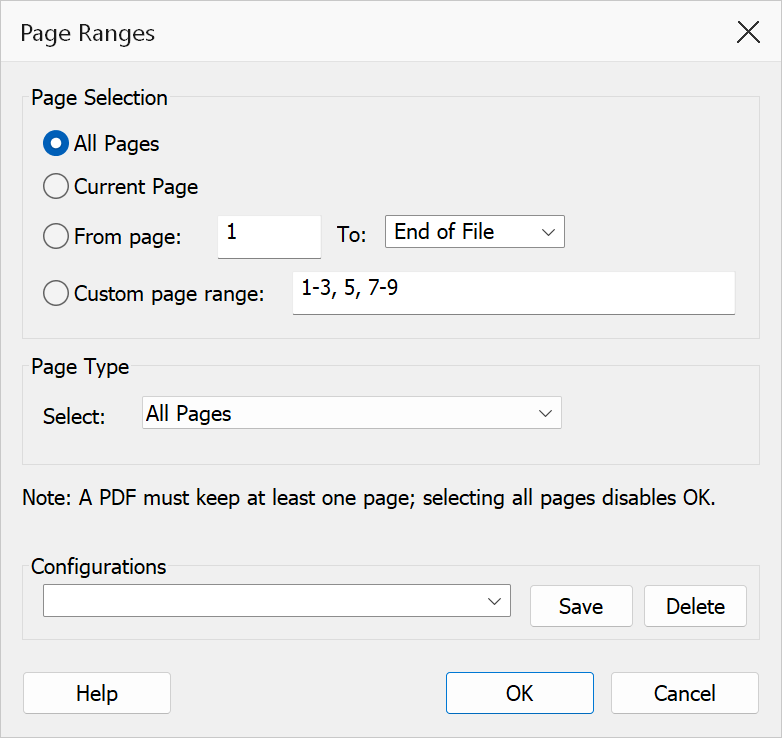
Delete Pages by Range removes a chosen selection of pages from the
active document: the current page, a from–to range, or a custom list such as
1-3, 7, 12-14, optionally filtered to even or odd pages. Before anything
is deleted, a confirmation states exactly how many pages are going and lists them as
collapsed ranges.
How to use
- Open the PDF.
- Go to Plug-Ins > Pages > Delete Pages by Range.
- Choose the page selection: current page, a from–to range, or a custom range, and optionally restrict it to even or odd pages.
- Click OK, then confirm the deletion — the prompt shows the
page count and the exact pages (e.g.
Pages: 2-4, 9). - Save the document to keep the change.
Page selection
| Option | Description |
|---|---|
| Current page | Deletes the page currently shown (subject to the even/odd filter). |
| Page range | Deletes every page from the start page to the end page, inclusive. |
| Custom range | A comma-separated list of pages and ranges, e.g. 1-3, 7, 12-14.
Out-of-range entries are ignored. |
| Page type | Further filters the selection to all, even, or odd pages. |
Note
Deleting every page of the document is not allowed — a PDF must keep at least one page.
Warning
Bookmarks, links and named destinations that pointed at a deleted page stop resolving. The deletion cannot be undone; if you confirm by mistake, close the document without saving.