Overview
Duplicate Pages creates one or more copies of selected pages within the current document. This is useful for creating repeated templates, producing multiple copies of a form page, or preparing documents where certain pages need to appear more than once.
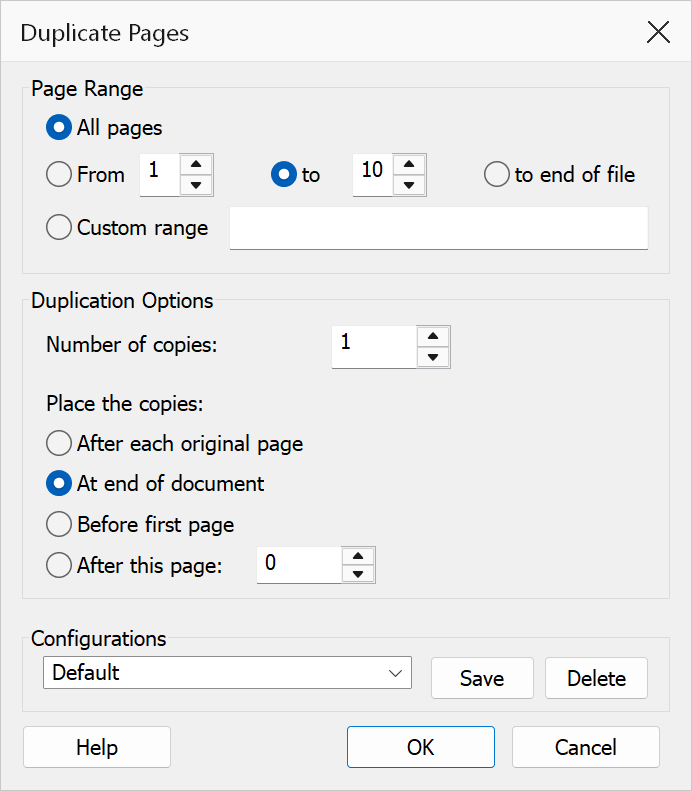
How to use
- Open a PDF document in Acrobat.
- Go to Plug-Ins > Pages > Duplicate Pages.
- Specify the page range to duplicate.
- Enter the number of copies to create.
- Under Place the copies, choose where the duplicated pages should go. Choosing After this page enables the page number beside it.
- Click OK to duplicate the pages.
Options
| Option | Description |
|---|---|
| Page range | The pages to duplicate. Choose All pages or specify a From / To range. |
| Number of copies | How many copies of each selected page to create, from 1 to 999. |
Where the copies go
The four Place the copies options match the destinations offered by Move Pages, so the two commands can target the same places.
| Option | Description |
|---|---|
| After each original page | Places each duplicated page immediately after its original. When duplicating a range, each page’s copies are inserted directly after the source page. |
| At end of document | Places all duplicated pages after the last page of the document. |
| Before first page | Places all duplicated pages at the very start of the document. |
| After this page | Places all duplicated pages after the page number you enter. Entering
0 is the same as Before first page. |
For the last three options the selected pages are kept together as one block, in document order, and each further copy follows the one before it.
Tip
To create a booklet with repeated content (e.g. four copies of a single-page flyer on separate pages), duplicate page 1 three times with Insert at end selected, then use N-Up to tile them onto a single sheet.
Note
Annotations, form fields, and links on the original pages are copied along with the page content. Bookmarks are not duplicated automatically.