Overview
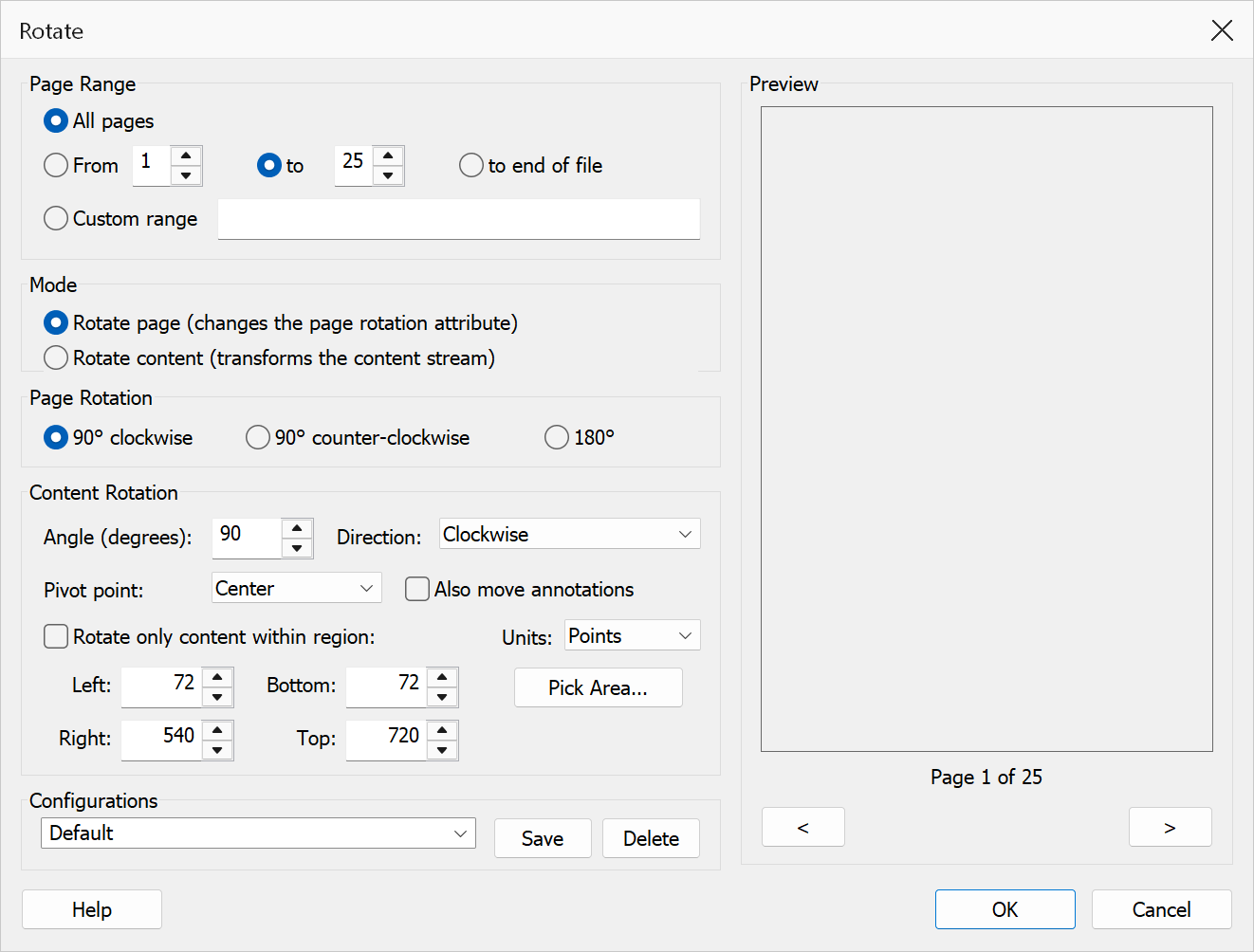
Rotate provides two ways to rotate selected pages, accessible from a single dialog via a mode selector:
- Rotate Page — changes the page’s rotation attribute (in 90° increments). Both the page dimensions and content orientation change together. This is the standard way to correct pages that were scanned sideways.
- Rotate Content — applies a transformation matrix to the page content stream, allowing any arbitrary angle. The page size and orientation remain the same; only the content is rotated.
This dialog combines what were previously two separate functions: Rotate Pages and Rotate Page Content.
How to use
- Open a PDF document in Acrobat.
- Go to Plug-Ins > Pages > Rotate.
- Select the page range to rotate.
- Choose a mode: Rotate Page or Rotate Content.
- Configure the rotation settings for the chosen mode (see below).
- Click OK to apply the rotation.
Mode 1: Rotate Page
Sets the page’s Rotate attribute in the PDF. Annotations and form fields
rotate with the page automatically. This is fast, reversible, and the recommended approach
for standard 90° rotations.
| Option | Description |
|---|---|
| 90° Clockwise | Rotates pages 90 degrees clockwise. A portrait page becomes landscape with the top of the original content on the right. |
| 90° Counter-clockwise | Rotates pages 90 degrees counter-clockwise. A portrait page becomes landscape with the top of the original content on the left. |
| 180° | Rotates pages upside-down. |
Mode 2: Rotate Content
Wraps the page content stream with a rotation transformation matrix. The page dimensions do not change — only the drawn content rotates. This is useful for correcting slightly skewed scans or applying non-standard rotation angles.
| Option | Description |
|---|---|
| Angle (degrees) | The rotation angle in degrees. Decimals are accepted, for example 1.5. A value of 0 — or any whole multiple of 360 — would leave the pages unchanged, so OK reports it rather than applying it. A negative angle simply turns in the opposite direction to the one selected. |
| Direction | Clockwise or Counter-clockwise — which way the content turns, stated as a word so there is no sign convention to remember. |
| Pivot point | The point around which the content is rotated:
|
| Also move annotations | Carries annotations along with the rotation. Each annotation’s box is moved through the rotation (it keeps its size and stays upright, since PDF annotation boxes cannot tilt); highlight and other text-markup quads rotate exactly. Off by default, matching the previous behaviour of leaving annotations untouched. |
| Rotate only content within region | Restricts the rotation to a rectangular region of the page: content inside the rectangle turns, content outside stays exactly where it is, and anything crossing the boundary is cut cleanly at the edge. Enter the rectangle’s Left, Bottom, Right and Top in the chosen unit, or click Pick Area… to drag it directly on the page. |
Which mode should I use?
| Scenario | Recommended mode |
|---|---|
| Correcting a sideways-scanned page | Rotate Page (90° CW or CCW) |
| Switching between portrait and landscape | Rotate Page (90°) |
| Straightening a slightly skewed scan | Rotate Content (small angle, e.g. 1° or −1°) |
| Rotating content without changing page dimensions | Rotate Content |
| Turning a page upside-down | Rotate Page (180°) |
Tip
To correct a batch of landscape-scanned pages, select the affected page range, choose Rotate Page mode, and apply a 90° clockwise or counter-clockwise rotation as needed.
Tip
To straighten a slightly skewed scan, choose Rotate Content mode, try a small angle such as 1° or −1°, and use the centre pivot point.
Warning
In Rotate Content mode, rotating by angles other than multiples of 90° may cause parts of the content to extend beyond the page boundary and be clipped. This operation modifies the content stream and cannot be undone by rotating back by the same amount due to floating-point precision.
Warning
When rotating only within a region, the page’s content is kept once but painted twice — once outside the region and once, rotated, inside it. Search, text extraction and copy–paste will therefore see the page’s text twice afterwards. The visible result is exactly what the preview shows; run the file through Save As to reclaim the extra file size.
Note
Rotate Page modifies the page’s Rotate attribute.
Annotations and form fields rotate with the page automatically.
Rotate Content transforms the drawn content; annotations stay where
they are unless Also move annotations is ticked.
Preview
The Preview pane shows the current page as the rotation will leave it. Step through the document with the < and > buttons, or roll the mouse wheel with the pointer over the pane — page sizes and orientations often vary within one file.
- Rotate page — the dashed outline is the sheet as it stands, the solid blue outline is where it ends up. A 90° turn swaps the sheet's width and height, even though no page box is altered.
- Rotate content — the sheet does not move, so content turned past the page edge is clipped away. The red cross marks the pivot point.
- Rotate only within region — the red rectangle is the region: the content inside it turns behind a fixed window and is cut at its edge, while the rest of the page stays put.