Overview
Insert Blank Pages adds one or more blank pages into the current document at a specified position. This is useful for adding separator pages, placeholders for future content, or ensuring chapters start on an odd-numbered page for double-sided printing. You can optionally add watermark text to the inserted pages.
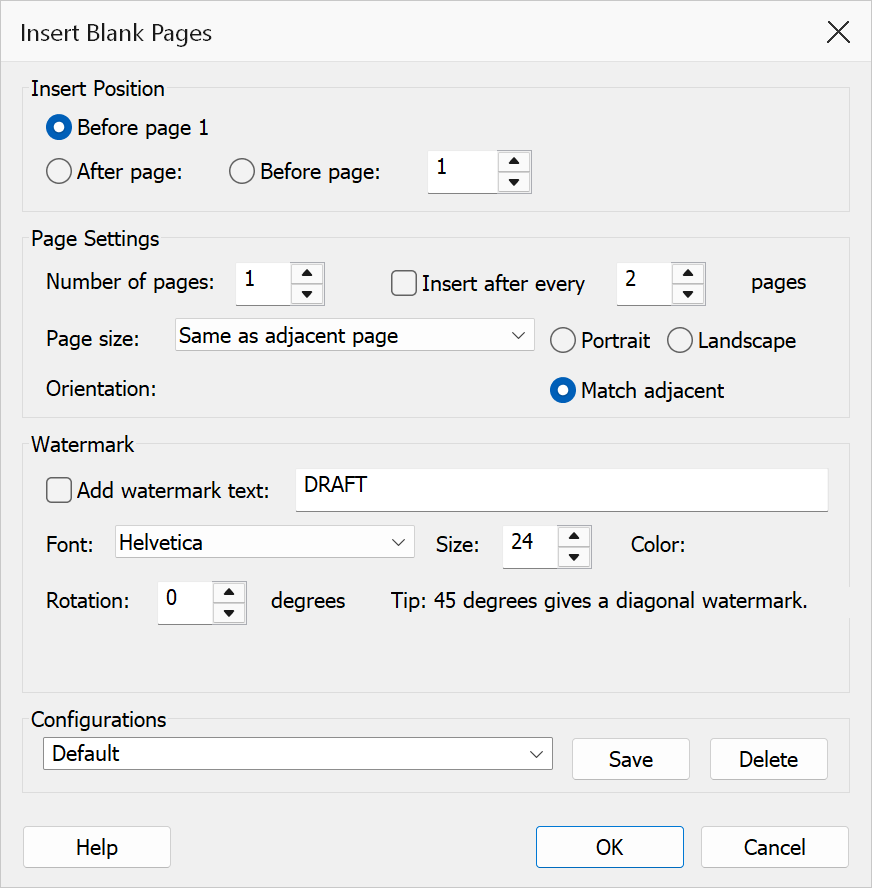
How to use
- Open a PDF document in Acrobat.
- Go to Plug-Ins > Pages > Insert Blank Pages.
- Specify the page number after which the blank pages should be inserted.
- Enter the number of blank pages to insert.
- Choose a page size for the new pages.
- Optionally enter watermark text to appear on the inserted pages.
- Click OK to insert the pages.
Options
| Option | Description |
|---|---|
| Insert after page | The page number after which the new blank pages will be inserted. Use 0
to insert before the first page. |
| Number of pages | How many blank pages to insert at the specified position. |
| Page size | The dimensions for the inserted pages:
|
| Watermark text | Optional text that is drawn centred on each inserted page (e.g.
This page intentionally left blank). Leave empty for truly blank pages. |
Tip
To ensure each chapter begins on a right-hand (odd) page in a double-sided document, insert a single blank page before any chapter that currently starts on an even page.
Note
Bookmarks and links that reference pages after the insertion point are automatically updated to reflect the new page numbering.