Overview
Extract Text From Page Regions reads the text that your saved page regions cover and writes it out as a table — a CSV or tab-delimited file, or straight to the clipboard. Where Create Bookmarks From Page Regions turns a hit into a bookmark, this command hands you the value itself.
It is the fastest way to harvest data out of a run of similarly laid-out pages: invoice numbers, drawing title blocks, client names, dates, revision codes — anything that sits in the same place on every page.
Note
A page region here is a named region of the page that you have
saved to your page region library, not an AcroForm form field. Draw one with the
Page Region tool, or add one in
Manage Page Regions. The library is shared by every
command that uses page regions, and is stored per user in
%APPDATA%\Mapsoft\textfields.json.
How to use
- Open the PDF you want to read from.
- Go to Plug-Ins > Utilities > Extract Text From Page Regions.
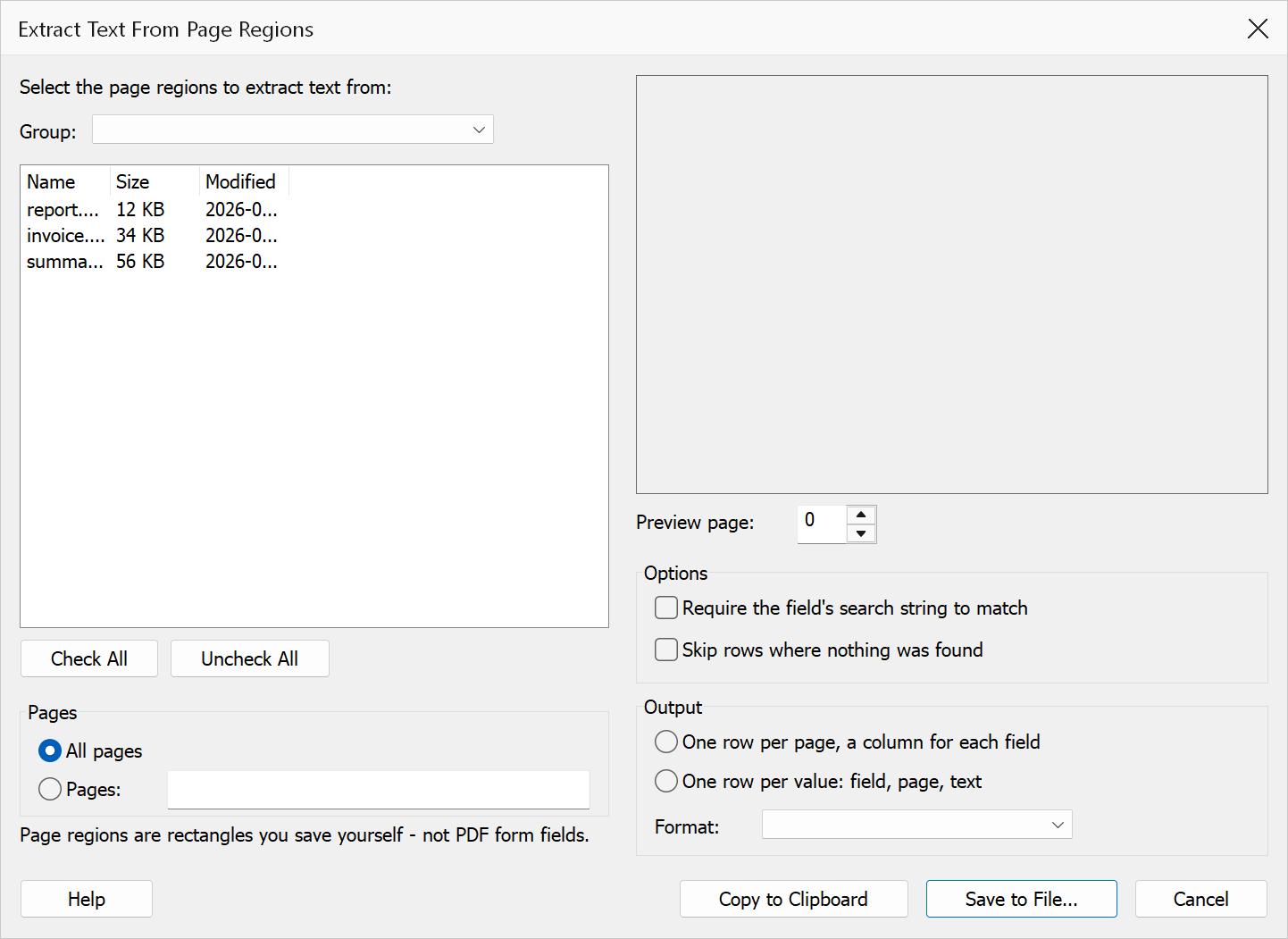
- Check the page regions whose text you want. Use Group to narrow the list; fields you have checked stay checked when you switch groups.
- Step through the preview pages to confirm the red rectangles sit over the text you are after.
- Choose the pages to read, the shape of the table and the delimiter.
- Click Save to File… to write the table out, or Copy to Clipboard to paste it somewhere directly.
Dialog elements
| Element | Description |
|---|---|
| Group | Filters the field list to a single group; choose (All groups) to see every field. Checked fields stay selected when you switch groups, so you can combine fields from several groups in one run. |
| Field list | Every page region in your library, with its name and search string. Check the ones you want to extract. |
| Check All / Uncheck All | Checks or clears the fields the group filter is currently showing — not the whole library. |
| Preview | A page thumbnail with the checked fields drawn as red rectangles. Change the preview page to check the rectangles against different pages before you run. |
| All pages / Pages | Read every page, or only the pages you list. Page numbers and ranges are both
accepted, for example 1,3,7-12. |
| Require the field’s search string to match | Off by default. When off, a field yields whatever text its rectangle covers on every page. When on, a field only yields its text on pages where the field’s own search string matches — the same test Create Bookmarks From Page Regions uses to decide whether to place a bookmark. Fields with an empty search string are unaffected. |
| Skip rows where nothing was found | Leaves blank rows out of the table. Clear it when you want a row for every page even where a rectangle covered no text — useful for spotting the gaps. |
| One row per page, a column for each field | The wide layout: a Page column followed by one column per selected
field. This is the shape to paste into a spreadsheet when each field is a column of
data. |
| One row per value: field, page, text | The long layout: Field, Page, Text, one row
for each value found. Easier to read down when you are reviewing what was picked
up. |
| Format | Comma-separated (CSV) quotes any value containing a comma, quote or line break, and opens in nearly anything. Tab-delimited replaces tabs and line breaks inside a value with spaces, and pastes straight into Excel cells. |
| Copy to Clipboard | Puts the same table on the clipboard instead of saving it. Choose Tab-delimited first if you are pasting into a spreadsheet. |
| Save to File… | Asks where to write the table. The file name defaults to the document’s, and the extension follows the format you chose. |
| Configurations | Saves the current settings — the checked regions, page scope, table shape and delimiter — under a name so they can be recalled later. Type a name and click Save; pick a name from the list to load it, or Delete to remove it. Checked regions are remembered by title, so a configuration keeps working after the library is reordered. |
Extracted text is kept in whatever language the page uses. The saved file is UTF-8 with a byte order mark so it opens correctly in Excel, and the clipboard copy carries the same text unchanged.
What ends up in a cell
A field collects every word whose box falls entirely inside its rectangle, in the page’s reading order, and the value is then trimmed. Two consequences are worth knowing:
- A word that straddles the edge of the rectangle is left out entirely, not clipped. If a value comes back short, widen the rectangle slightly in Manage Page Regions and check it against the preview.
- Two selected fields that share a name collapse into one column in the wide layout. Give fields distinct names when you want them side by side.
Warning
Only real text is extracted. A scanned page with no text layer has nothing to read, and every field will come back empty — run OCR on the document first.
Tip
This command only reads the document. It never changes it, so it is safe to run against a file you have open for review.