Overview
A page region is a named rectangle on a page plus the text (or regular expression) to look for inside it. Page regions are saved once per user — not inside any PDF — so the same library is available in every document. Two features consume them: Create Bookmarks From Page Regions (scans each page’s rectangle and bookmarks the pages where the search text matches) and Split by Text Pattern (uses a region’s rectangle as its search area).
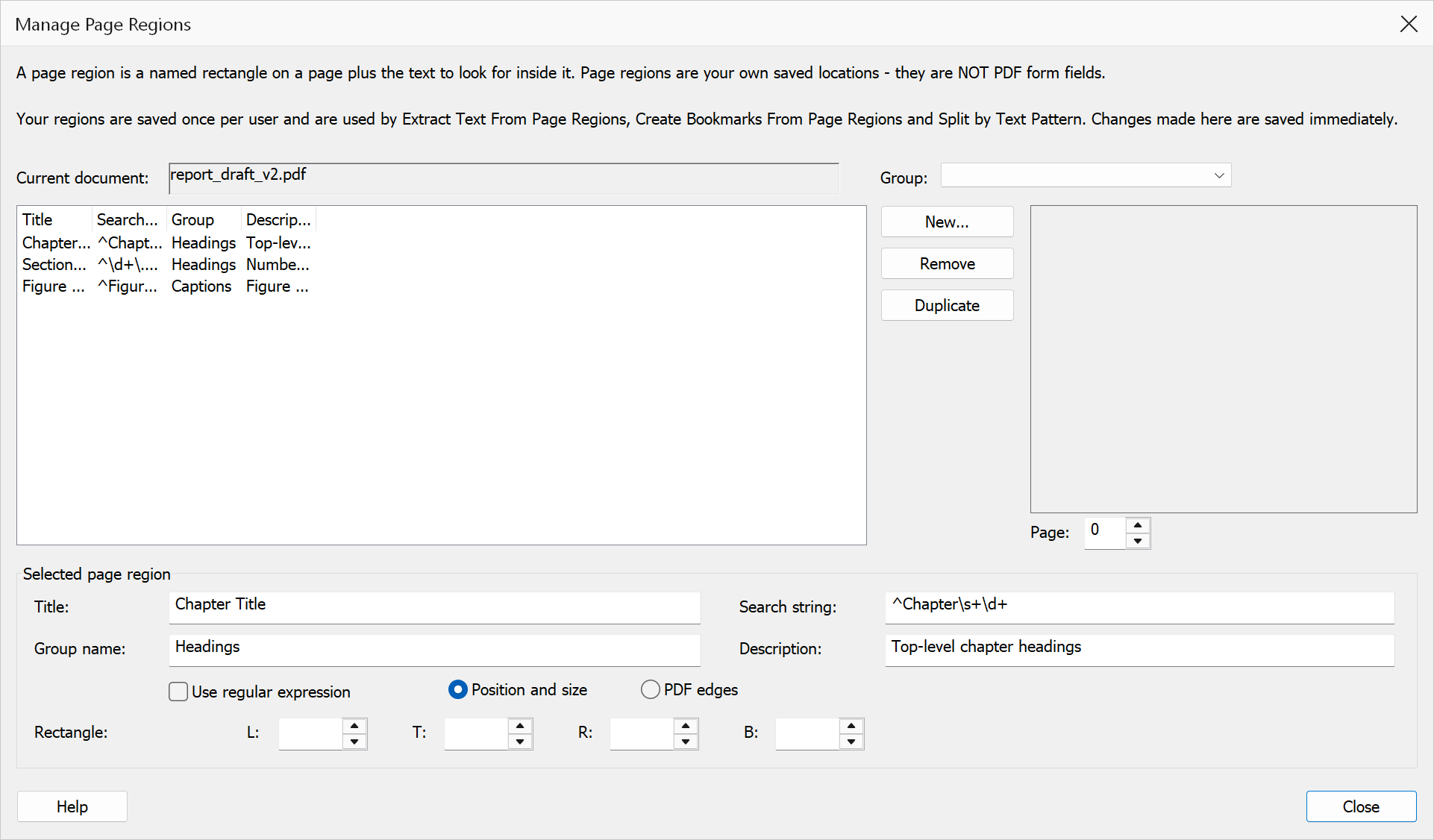
Manage Page Regions is the library’s home: create, edit, and remove page region definitions here. Changes are saved immediately as you make them — there is no OK or Cancel step. The name of the currently open document is shown at the top, and the preview on the right draws the region rectangles over its pages — drag on it to reshape the selected region.
How to use
- Open a PDF document (the preview, the position and size boxes, and the New... button all need one).
- Go to Plug-Ins > Utilities > Manage Page Regions....
- To create a region, click New... — the dialog closes and the Page Region Tool activates. Drag a rectangle on the page, then name the region in the properties dialog that appears.
- To edit a region, select its row and type directly in the Selected page region panel below the list. Each change is applied and saved as soon as you leave the box.
- To reshape a region without typing numbers, select its row and drag a new rectangle directly on the preview. The position and size boxes follow as soon as you release the mouse.
- To check where a region sits on the page, select its row and watch the preview: the selected region is outlined in red, the others in gray. Use the Page box to preview a different page.
- Click any column heading to sort the list by it; click again to reverse the order.
- To remove regions, select one or more rows (Ctrl-click for several) and click Remove, then confirm.
List columns
The Group box above the list filters it to a single group; choose (All groups) to see the whole library.
| Column | Description |
|---|---|
| Title | The region’s name — also the bookmark title that Create Bookmarks From Page Regions gives every page this region matches. |
| Rectangle | Where the region sits, shown the same way as the panel below — either position and size (X, Y, W, H) measured from the page’s top-left corner, or the raw PDF edges (L, T, R, B) measured from its bottom-left. The heading names the unit, which comes from Preferences > Units. |
| Search String | The text pattern used to locate matching content inside the rectangle. An empty search string matches every page. |
| Group | An optional label to categorise related page regions together. |
| Description | A free-text description of the region’s purpose. |
| Original File | The document that was open when the region was created, for reference. Regions work in every document regardless of where they were created. |
Selected page region panel
Selecting exactly one row enables the editable panel below the list: Title, Search string (with a Use regular expression checkbox), Group name, Description, and the region’s rectangle. Edits are applied and saved the moment you leave a box; a region cannot be given an empty title.
The rectangle can be shown two ways, chosen with the radio buttons beside the Use regular expression checkbox:
| Setting | Description |
|---|---|
| Position and size | X and Y measure from the page’s top-left corner (Y downwards), and W and H are the region’s width and height. Making a region smaller always makes W and H smaller, whichever edge you move. |
| PDF edges | The four edges exactly as PDF stores them: L, T, R and B, measured from the page’s bottom-left corner. Because PDF measures upwards, B increases as you raise the region’s bottom edge — that is, as the region gets smaller. |
Values are shown in the unit set by Preferences > Units (inches, centimetres or points), and the spin buttons nudge by one step of that unit. Switching unit or presentation only changes what you see — the stored region is unchanged.
Note
A page region is a rectangle, not a page: it is applied to every page it is used against. Position and size therefore have to be measured against some page, and the one used is whichever the preview is showing — named to the right of the radio buttons. On a document whose pages differ in size, changing the previewed page changes the displayed Y, because the region really does sit a different distance from the top.
Action buttons
| Button | Description |
|---|---|
| New... | Closes this dialog and activates the Page Region Tool so you can drag the new region’s rectangle directly on the page. Enabled only when a document is open. |
| Duplicate | Copies the selected region, keeping its rectangle and giving the copy a “copy” title. Useful when the same area of the page has to be searched for several different things. Enabled only when exactly one region is selected. |
| Remove | Deletes the selected page region definition(s) from the library after a confirmation. Supports multiple selection. Enabled only when at least one region is selected. |
| Help | Opens this help topic. |
| Close | Closes the dialog. All changes have already been saved. |
Note
Removing a page region definition does not affect any bookmarks that have already been created from it. It only prevents future bookmark generation from using that definition.
Tip
Use group names to organise page regions by document family or purpose — the group filter here and in the Create Bookmarks From Page Regions dialog keeps large libraries navigable.