Overview
The Page Region Tool creates a new page region: a named rectangle on a page plus the text (or regular expression) to look for inside it. With the tool active, the pointer becomes a crosshair; dragging a rectangle on the page opens the Page Region Properties dialog where the field is named and saved to your page region library.
Page regions are saved once per user — not inside any PDF — and are consumed by Create Bookmarks From Page Regions (bookmark every page whose rectangle matches the search text) and Split by Text Pattern (use the rectangle as the search area).
How to use
- Open the PDF and go to the page containing the text you want to capture — for example, a chapter heading, a footer, or an invoice number.
- Activate the tool: click New... in Plug-Ins > Utilities > Manage Page Regions... (or, where Acrobat still shows classic plug-in toolbars, click the Page Region Tool toolbar button).
- Drag a rectangle around the page region. Make it generous enough to cover where the text appears on every page, not just this one.
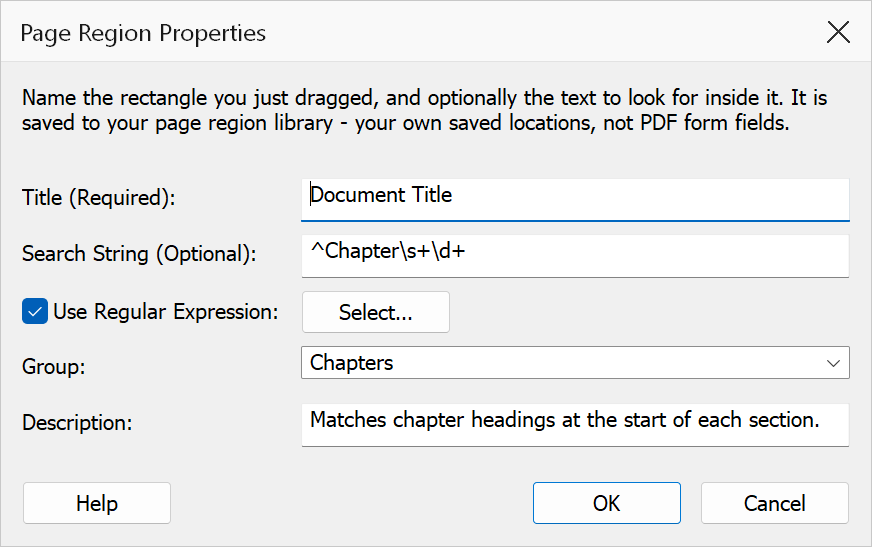
- In the Page Region Properties dialog, give the field a Title (required) and optionally a Search String, a Group, and a Description. Tick Use Regular Expression to treat the search string as a pattern, or pick one from the regex library with Select....
- Click OK. The field is saved to your library immediately and can be reviewed in Manage Page Regions.
Page Region Properties dialog
| Field | Description |
|---|---|
| Title | Required. Names the field, and becomes the bookmark title when Create Bookmarks From Page Regions matches it. |
| Search String | Optional. The text to look for inside the rectangle. Left empty, the field matches every page. |
| Use Regular Expression | Treats the search string as a regular expression. Select... opens the regex library. |
| Group | Optional label for organising related fields; existing group names are offered in the drop-down. |
| Description | Optional free-text note about the field’s purpose. |
Note
The rectangle is captured from your drag and is not shown in this dialog. To check or adjust it afterwards, use the preview and the editable rectangle boxes in Manage Page Regions.
Tip
Rectangles are stored in page coordinates, so a field drawn on one document works on any document whose pages place the text in the same region — ideal for standardised layouts such as invoices or manuals.