Overview
Find and Delete Duplicate Pages scans the open document for pages with identical content and removes the copies, keeping the first occurrence of each page. This is useful for cleaning up documents assembled from overlapping sources, or scanned sets where sheets were fed twice.
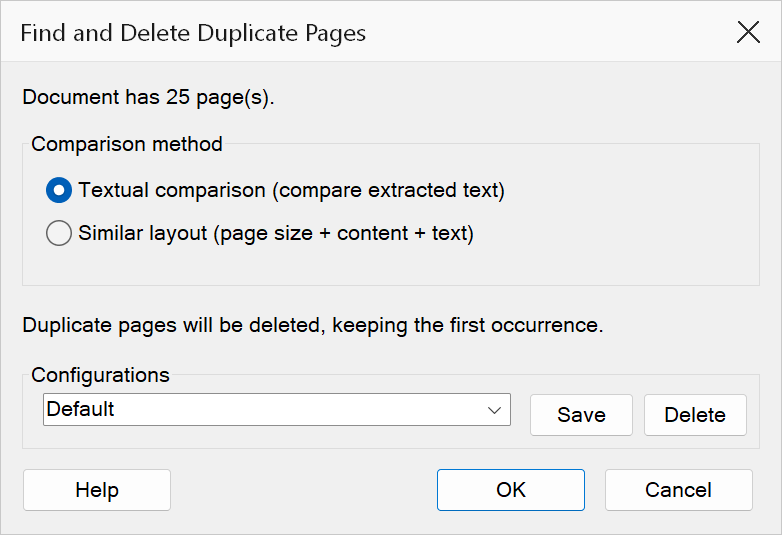
How to use
- Open the document you want to clean up.
- Go to Extensions > Mapsoft > Find and Delete Duplicate Pages.
- Choose a comparison method (see below).
- Click OK. The command lists exactly which pages it found and asks for confirmation before deleting anything.
Comparison methods
| Method | Description |
|---|---|
| Textual comparison | Two pages are duplicates when their extracted text is identical. Fast and reliable for text-based documents; blank or image-only pages all extract as empty text and are ignored by this mode. |
| Similar layout | Compares page size, content-stream size, and extracted text together. Pages are not rendered, so this is an approximate match: it catches identical scanned or image pages that textual comparison cannot see, but pages that merely look alike are not detected. |
Warning
Deletion cannot be undone from within the dialog. The confirmation prompt lists the exact page numbers that will be removed — check it before proceeding, and keep a copy of the original document for anything irreplaceable.
Note
The first occurrence of each duplicated page is always kept. If every page in the document would be deleted, the command refuses to run.