Overview
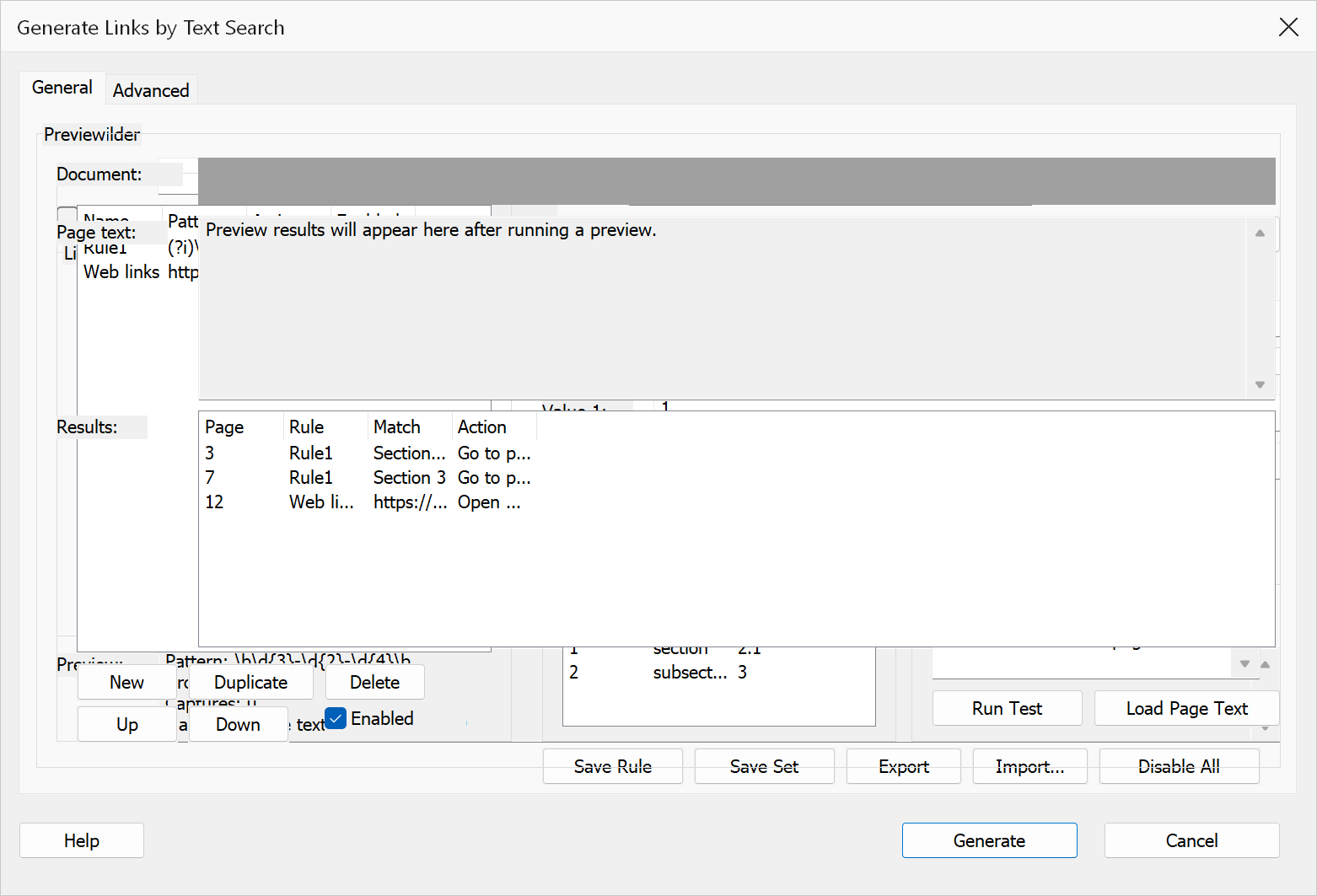
Create Links by Text Search turns text that matches regular-expression rules into live link annotations — page references become GoTo links, URLs and e-mail addresses become web links, and any match can trigger JavaScript. Rules are built and previewed in one dialog, so you see exactly which text will be linked before anything is written into the document.
How to use
- Open the PDF and go to Plug-Ins > Links > Create Links by Text Search.
- On the Library tab, pick a saved pattern and click Add to Rules — or switch to the Rule Builder tab and write your own.
- For each rule set the Pattern, matching flags, an optional Context expression, the Action, and its values.
- Check the Preview tab: it lists every match and what it will link to.
- Click Generate.
Options
| Option | Description |
|---|---|
| Library tab | Patterns from the shared Regular Expression Library, filterable by keyword and group; "Require captures" shows only patterns with capture groups. Add a pattern to the rules or copy it to build on. |
| Rule list | Rules run in order; New / Duplicate / Delete / Up / Down manage them, and Enabled turns one off without deleting it. |
| Pattern + flags | The regular expression to match, with case-insensitive, multiline, global, free-spacing and Unicode flags. Validate checks the expression before use. |
| Context | A second expression that must also match around the found text — use it to link "42" only when it appears as "see page 42". |
| Action + values | What the link does: go to a page in this document, open a web address, or run JavaScript. The value fields take the target, and can use capture groups from the pattern. |
| Limit to page range | Restrict the search to part of the document. |
Warning
This engine does not support inline flags such as (?i) — use the
case-insensitive checkbox instead — or look-behind assertions.
Tip
Keep frequently used patterns in the Regular Expression Library; the Library tab reads it live, so a pattern fixed once is fixed for every rule that uses it.