Overview
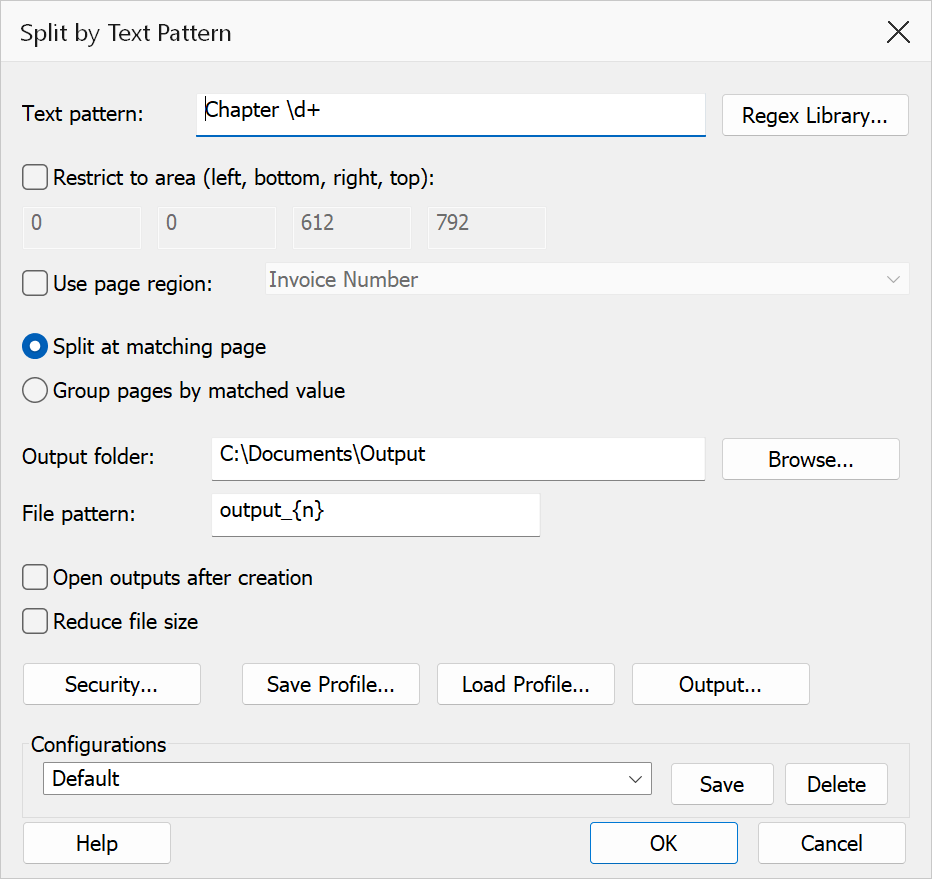
Split by Text Pattern searches the text of each page for a regular expression. Depending on the mode selected, it either splits the document at pages that match the pattern, or groups pages by the value matched (useful for chapter headings, section codes, etc.).
How to use
- Open the PDF you want to split.
- Go to Plug-Ins > Split > Split by Text Pattern.
- Enter a regular expression in the Text pattern field, or click Regex Library to select a saved pattern.
- Optionally restrict matching to a specific page area using manual coordinates or a pre-defined page region.
- Choose whether to split at matching pages or group by matched value.
- Set the output folder and file pattern, then click OK.
Options
| Option | Description |
|---|---|
| Text pattern | A regular expression applied to the extracted text of each page. For a literal string search, type the text directly. For a pattern with a capture group, the captured value is used when grouping (see Group pages by matched value below). |
| Regex Library | Opens the Regex Library dialog so you can insert a saved regular expression into the text pattern field. This is useful for reusing complex patterns across dialogs. |
| Restrict to area | When checked, text extraction is limited to the rectangle defined by Left, Bottom, Right, and Top coordinates (in PDF user units, origin at bottom-left of the page). The coordinate fields are only enabled when this checkbox is ticked. This is useful when the relevant text always appears in a fixed region such as a header or footer. This option is mutually exclusive with Use page region. |
| Use page region | When checked, text extraction is restricted to the rectangular area defined by a pre-configured page region from your page region library. Select the desired page region from the dropdown. Page regions are created using the Page Region Tool and managed via Plug-Ins > Utilities > Manage Page Regions. This option is mutually exclusive with Restrict to area. The dropdown is disabled if no page regions have been defined. |
| Split at matching page | The document is split whenever a matching page is encountered: each matching page becomes the first page of a new output section, and any pages before the first match form a leading section of their own. This is the default mode. |
| Group pages by matched value | All pages that share the same matched value (or first capture group) are collected into a single output file named after that value. Pages with no match are skipped. |
| Output folder | The folder where output files are saved. Click Browse to choose a folder. |
| File pattern | Controls the output filename. Use {n} for a sequential 1-based index or
{value} (equivalently {tag}) for the matched text when
grouping by value. Default is output_{n}. |
| Open outputs after creation | Opens each generated file in Acrobat after the operation completes. |
| Reduce file size | When checked, each output file is optimised to reduce its file size. |
| Security | Opens a dialog to configure encryption and permission settings that are applied to each output file. |
| Configurations | Save and load named configurations using the dropdown. Type a name and click Save to store the current settings, or select an existing configuration to restore it. Click Delete to remove the selected configuration. |
Tip
Use Restrict to area or Use page region to avoid false matches from body text when you only need to match a header or footer field. Page regions are especially convenient when the same area is used across multiple dialogs.
Note
The pattern is matched case-insensitively. Text extraction uses the PDF word-finder; scanned PDFs without OCR will not yield useful text.