Overview
Find and Edit Bookmark Properties locates bookmarks that match a combination of title text, subset filter, and level filter, then applies a chosen edit action to all matches at once. Use it to restyle, delete, restructure, or strip actions from bookmarks in bulk.
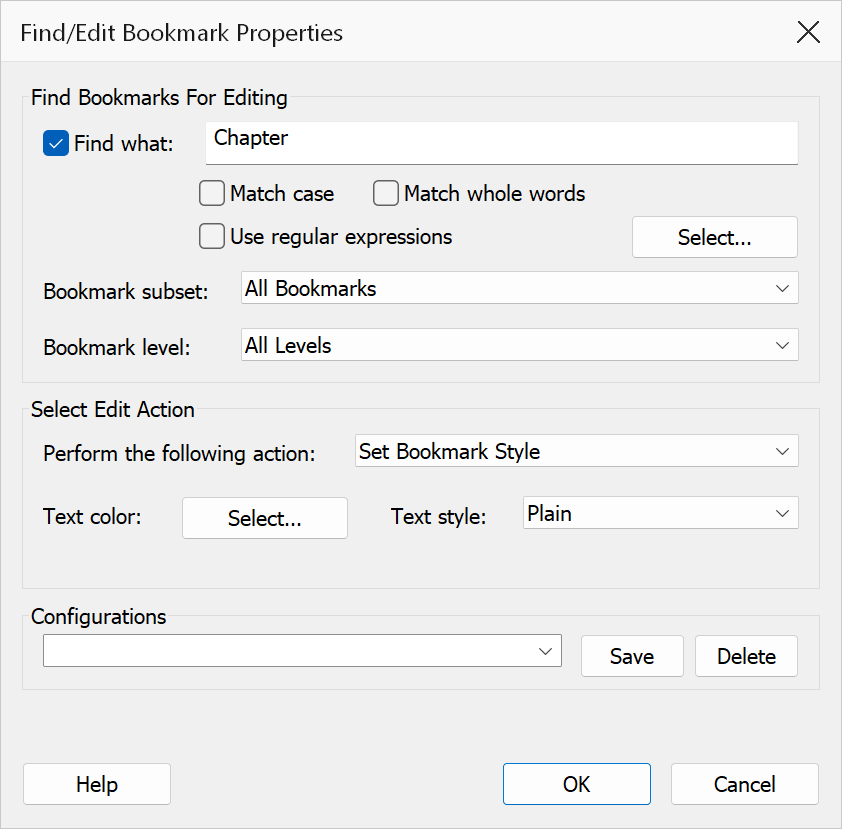
How to use
- Open a PDF that contains bookmarks.
- Go to Plug-Ins > Bookmarks > Find and Edit Bookmark Properties.
- Optionally tick Find what and enter a search term or regular expression.
- Choose a Bookmark subset and Level to narrow the scope.
- Select an Action from the dropdown (see table below).
- If the action is a style action, choose a Text style and Color.
- Click OK to apply the action to all matching bookmarks.
Find options
| Option | Description |
|---|---|
| Find what | When checked, only bookmarks whose title contains the entered text are matched. When unchecked, all bookmarks (subject to subset and level filters) are included. |
| Match case | Requires the search text to match the exact capitalization in bookmark titles. |
| Match whole words | Only matches complete words, not partial substrings. Word boundaries are detected automatically. |
| Use regular expressions | Treats the Find field as an ECMAScript-style regex pattern. You can also click the Regex Library button to pick a pre-built pattern. |
Bookmark subset
| Subset | Description |
|---|---|
| All Bookmarks | No additional filtering. |
| Not Pointing To Pages | Bookmarks that do not have a GoTo, GoToR, GoToE action or direct Dest entry. |
| Pointing To Pages In Another Document | Bookmarks with GoToR or GoToE actions (remote page destinations). |
| With Child Bookmarks | Only parent bookmarks that have at least one child. |
| With Empty Title | Bookmarks whose title is blank or contains only whitespace. |
| Without Actions | Bookmarks that have neither an action nor a direct destination entry. |
Bookmark level
Choose All Levels to match bookmarks at any depth, or select a specific level number (Level 1, Level 2, etc.) to restrict matches to that depth only. The level dropdown is populated up to the deepest level found in the current document.
Edit actions
| Action | Description |
|---|---|
| Set Bookmark Style | Applies the selected text style (Plain, Bold, Italic, Bold Italic) and color to each matching bookmark. |
| Set Child Bookmarks Style | Applies the style and color to the direct children of each matching bookmark (not to the match itself). |
| Move Child Bookmarks One Level Up | Promotes all children of each matching bookmark to become siblings, inserted immediately after the parent. |
| Set Bookmark Close | Collapses each matching bookmark so its children are hidden in the panel. |
| Remove Actions | Strips both the action (A entry) and any direct destination (Dest entry) from each matching bookmark, leaving it with no click behaviour. |
| Delete Bookmark / Delete Bookmarks | Destroys each matching bookmark along with its entire subtree. |
| Delete Bookmark, But Keep Child Bookmarks | Promotes children one level up, then destroys the matched bookmark itself. |
| Delete Bookmarks, But Keep Child Bookmarks | Same as above, applied to all matches. |
| Delete Child Bookmarks | Destroys all children of each matching bookmark, but keeps the match itself. |
Warning
Delete and Remove Actions operations cannot be undone from this dialog. Save a backup of your PDF before applying destructive actions.
Tip
Combine the Without Actions subset with Delete Bookmarks to quickly clean up orphaned bookmarks that no longer point anywhere.
Note
The style controls (text style dropdown and color button) are only enabled when the selected action is Set Bookmark Style or Set Child Bookmarks Style.