Overview
Bookmark Tree View opens an interactive tree dialog for editing bookmarks. You can rename, restyle, reorder, duplicate, and delete bookmarks using the command menu and drag-and-drop. The menu opens two ways: right-click anywhere in the tree, or click the Actions button at the bottom of the dialog — both show the same commands. All changes are staged in memory and only written to the PDF when you click OK. Click Cancel to discard all staged edits.
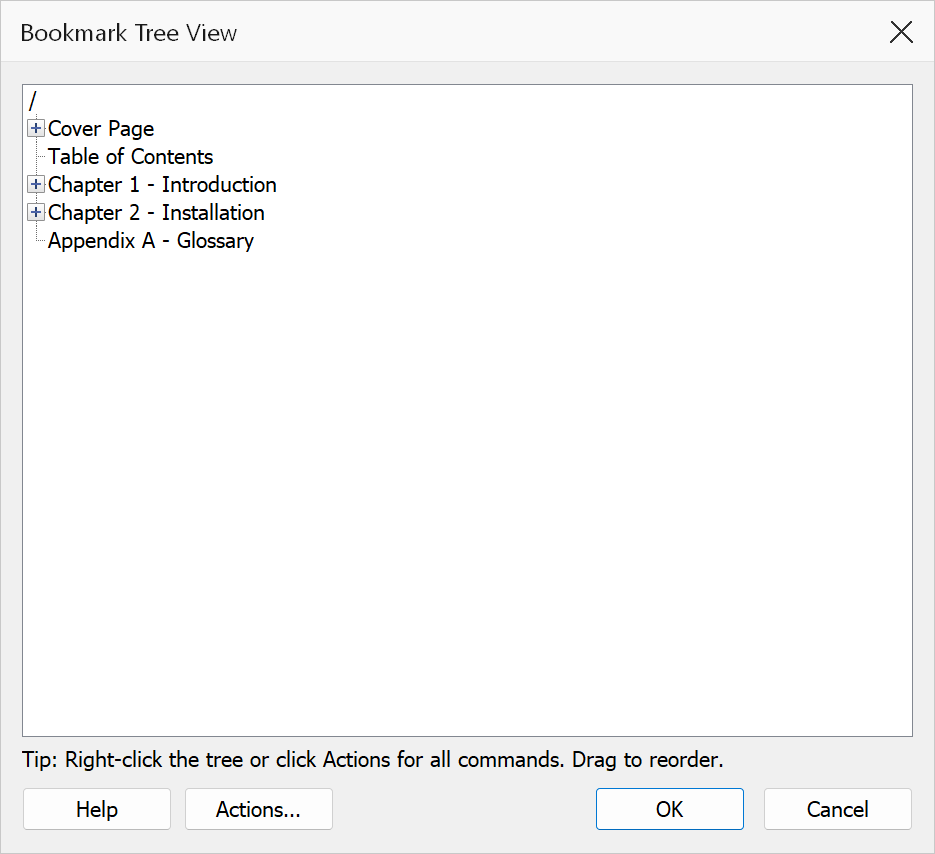
How to use
- Open a PDF that contains bookmarks.
- Go to Plug-Ins > Bookmarks > Start Here / Daily Use > Bookmark Tree View.
- Expand branches and select or check bookmarks as needed.
- Right-click the tree — or click the Actions button — to open the command menu and choose a command.
- Use Undo (
Ctrl+Z) / Redo (Ctrl+Y) to step through staged changes. - Click OK to commit all changes, or Cancel to discard.
Selected item vs. checked items
| Concept | Description |
|---|---|
| Selected item | The single bookmark row that is highlighted in the tree. Used by item-specific commands such as Edit Text, Duplicate Bookmark, Delete Bookmark, Move Up/Down, Toggle Bold/Italic, Set Color, and Go To Destination. |
| Checked items | Bookmarks with ticked checkboxes. Used by bulk commands such as Bulk Prefix Title, Bulk Suffix Title, Bulk Set Color, Bulk Toggle Bold/Italic, and Bulk Delete Checked. Checking the root item cascades the check state to all descendants. |
Context menu commands
Selection and view
| Command | Description | Scope |
|---|---|---|
| Expand All | Expands every branch in the tree. | Entire tree |
| Collapse All | Collapses every branch in the tree. | Entire tree |
| Check Branch / Uncheck Branch | Checks or unchecks the selected bookmark and all its descendants. To check or uncheck everything, use the root item's checkbox (or select the root and press Space) — its state cascades to all bookmarks. | Selected branch |
History
| Command | Description |
|---|---|
Undo (Ctrl+Z) | Reverts the most recent staged operation. Enabled only when undo history exists. |
Redo (Ctrl+Y) | Reapplies a previously undone operation. Enabled only when redo history exists. |
Structure
| Command | Description | Scope |
|---|---|---|
| Duplicate Bookmark | Creates a copy of the selected bookmark. | Selected item |
| Add Child Bookmark | Creates a new child bookmark under the selection. | Selected item |
| Sort Children | Sorts the direct children of the selected bookmark. | Selected branch |
| Delete Bookmark | Deletes the selected bookmark (confirms when subtree exists). | Selected item |
| Bulk Delete Checked | Deletes all checked bookmarks in one operation. | Checked items |
| Drag-and-drop | Moves a bookmark above, below, or as a child of another bookmark. This is the way to reorder bookmarks in this dialog. | Selected item |
Text and content
| Command | Description | Scope |
|---|---|---|
Rename in-place (F2) | Edits the bookmark title directly in the tree row. | Selected item |
| Edit Text | Opens a text editor dialog for the bookmark title. | Selected item |
| Bulk Prefix Title | Adds a user-entered prefix to each checked bookmark title. | Checked items |
| Bulk Suffix Title | Adds a user-entered suffix to each checked bookmark title. | Checked items |
Appearance
| Command | Description | Scope |
|---|---|---|
| Toggle Bold / Toggle Italic | Toggles the font style flag on the selected bookmark. | Selected item |
| Set Color / Remove Color | Assigns or clears the custom text color on the selected bookmark. | Selected item |
| Bulk Toggle Bold / Bulk Toggle Italic | Applies the style toggle across all checked bookmarks. | Checked items |
| Bulk Set Color / Bulk Remove Color | Applies or removes color for all checked bookmarks. | Checked items |
Navigation and details
| Command | Description |
|---|---|
| Go To Destination (double-click) | Navigates Acrobat to the selected bookmark's destination or action target. Enabled only when the bookmark has a valid destination. |
| Info | Shows detailed properties for the selected bookmark. |
Tip
Double-click a bookmark to navigate to its destination page in the PDF. Press
F2 to rename the selected bookmark in place. Use drag-and-drop to
quickly restructure the bookmark hierarchy without needing to delete and
recreate entries. The first time the dialog opens it shows a one-time reminder
of these shortcuts.
Note
If the PDF has no bookmarks, the command displays a warning and exits. Bulk commands require at least one checked bookmark. The dialog title bar reports the current operation status, including staged edits and undo/redo state.