Overview
Move Pages reorders pages within the current PDF by moving a range of pages to a new position. A live preview shows the current page order alongside the projected result, so you can verify the move before applying it.
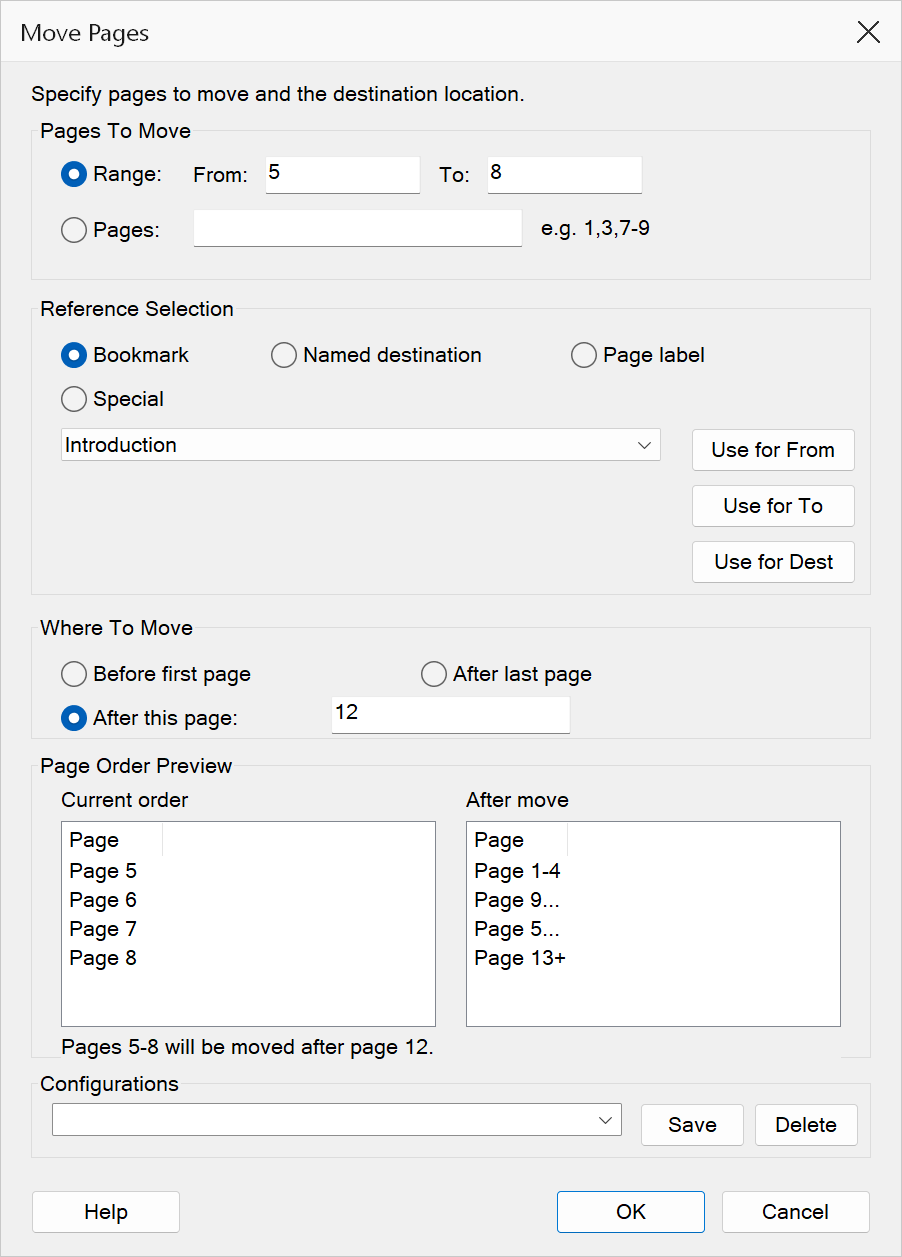
How to use
- Open a PDF document in Acrobat.
- Go to .
- In the Pages To Move group, either pick Range and
enter the From and To pages, or pick
Pages and type a list such as
1,3,7-9. - In the Where To Move group, choose the destination: Before first page, After last page, or After this page with a specific page number.
- Review the Page Order Preview to confirm the result.
- Click OK to apply the move.
Pages to move
There are two ways to pick the pages. Only one is active at a time; the fields belonging to the other are greyed out.
| Field | Description |
|---|---|
| Range | Move one block of consecutive pages, given as a From and To reference. |
| From | The first page in the range to move. Accepts page numbers or page labels. |
| To | The last page in the range to move. Accepts page numbers or page labels. |
| Pages | Move a list of pages that need not be next to each other, for example
1,3,7-9. Page numbers only — this field does not take the
b:, d: and l: references that
From and To accept. |
Note
A non-contiguous selection is gathered up and moved as a single block, in document
order. Moving pages 1,3,7 to the end therefore leaves them together as
1, 3, 7 at the end — it does not preserve the gaps between them.
Reference selection
The reference list lets you look up page identifiers from bookmarks, named destinations, page labels, or special positions in the document. Select a reference type, then pick an entry from the dropdown list.
| Reference type | Description |
|---|---|
| Bookmark | Lists all bookmarks in the document. Selecting one resolves to the page the bookmark points to. |
| Named destination | Lists all named destinations. Selecting one resolves to its target page. |
| Page label | Lists page labels (e.g., roman numerals, prefixed labels) for easy page identification. |
| Special | Provides shortcuts for common positions: BeforeFirst and Last. |
Use the Use for From, Use for To, and Use for Dest buttons to apply the selected reference to the corresponding field. Use for From and Use for To are available only in Range mode, since the Pages list takes page numbers rather than references. Use for Dest works in both modes.
Destination options
| Option | Description |
|---|---|
| Before first page | Inserts the moved pages at the very beginning of the document. |
| After last page | Appends the moved pages at the end of the document. |
| After this page | Places the moved pages after the specified page number. |
Page order preview
The preview area shows two columns: Current order displays the existing page sequence, and After move shows the result. This lets you verify that the move produces the expected page arrangement before committing.
Tip
You can use the Reference Selection to quickly look up page numbers from bookmarks or named destinations, which is especially helpful in large documents with complex page labelling.
Warning
Moving pages reorders the physical page structure of the PDF. Save a backup before performing large moves, as undoing the operation requires closing without saving.