Overview
Offset Bookmarks shifts bookmark page destinations by a fixed number of pages. This is useful when pages have been inserted or removed and bookmark targets need to be moved forward or backward to stay in sync with the document.
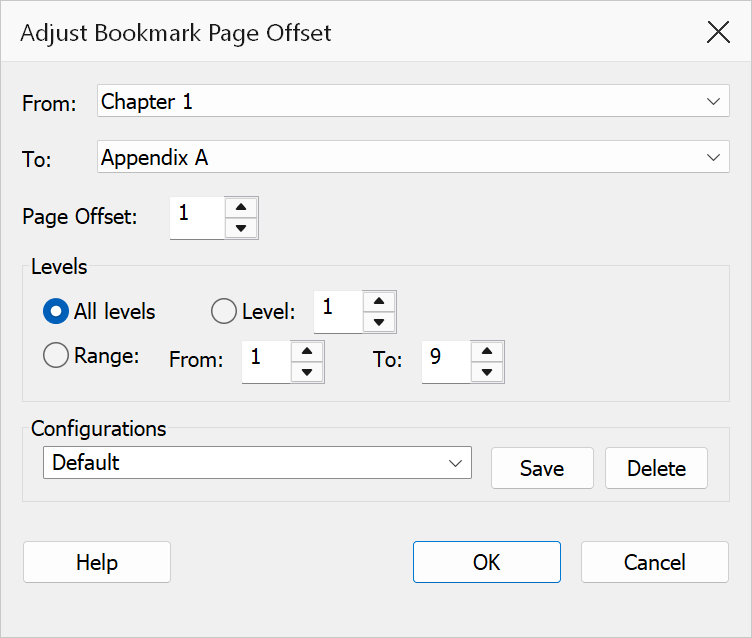
How to use
- Open the PDF that contains bookmarks.
- Go to Plug-Ins > Bookmarks > Offset Bookmarks.
- Enter the page offset value (positive to shift forward, negative to shift backward). Use the spinner control or type directly into the field.
- Choose the level scope to control which bookmarks are affected.
- Optionally restrict the operation to a bookmark range using the From and To dropdowns.
- Click OK to apply the offset.
Offset value
Enter a signed integer for the offset. For example, -1 moves all
destinations one page earlier, +3 moves them three pages later. The
accepted range is −9999 to 9999. The value must be a valid integer; otherwise
the dialog will display a warning.
Level scope
| Option | Description |
|---|---|
| All levels | Apply the offset to bookmarks at every level in the tree. |
| Single level | Apply the offset only to bookmarks at a specific level. Use the spinner or type the level number. |
| Level range | Apply the offset to bookmarks within a range of levels. Enter start and end levels using the edit fields or spinners. The start level must not exceed the end level. |
Bookmark range
The From and To dropdowns let you limit the offset to a specific contiguous set of bookmarks. Each entry shows the bookmark's full path for easy identification. If both dropdowns are left unselected, all bookmarks matching the level scope are included.
Warning
Offsetting bookmark destinations is a destructive operation. There is no undo within this dialog. Save your PDF before applying an offset so you can revert if needed.
Tip
If you inserted a cover page at the beginning of a PDF, use an offset of
+1 to push all bookmark destinations forward by one page.