Overview
Print Bookmark Titles on Pages stamps each bookmark title onto the page that bookmark points at, so the structure of the document is visible on paper as well as in the bookmark pane. It is typically used for review copies, court bundles and any workflow where the printed page has to carry its own section label.
The text is painted as real page content, so it survives printing, flattening and conversion. Run it on a copy if you may want the pages back unmarked.
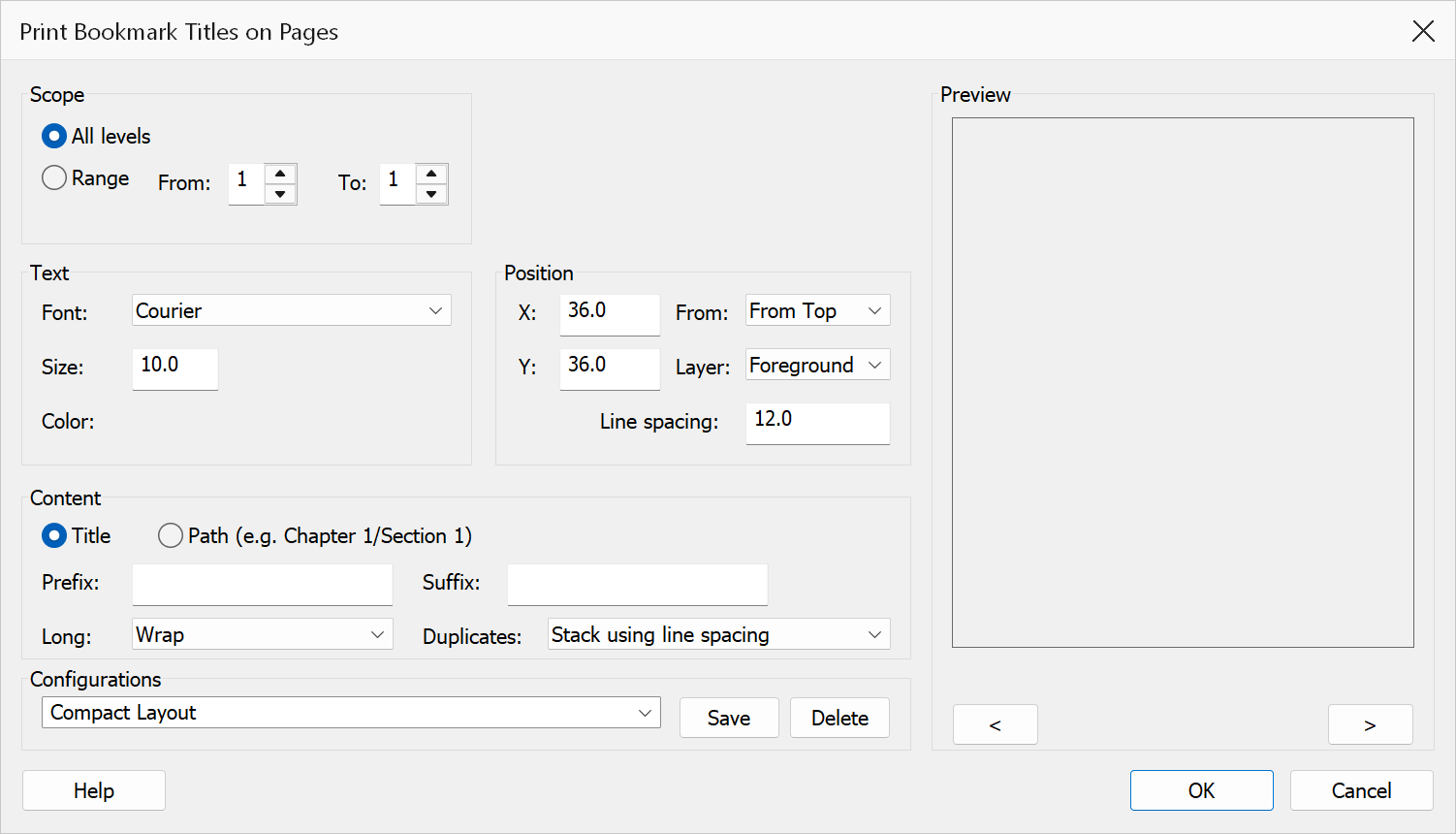
How to use
- Open a PDF that already has bookmarks.
- Go to Plug-Ins > Bookmarks > Print Bookmark Titles on Pages
(
Ctrl+Alt+Y). - Choose which levels to include under Scope.
- Set the font, size and colour under Text.
- Set where the text lands under Position.
- Choose what the text says under Content.
- Optionally save the settings as a named configuration, then click OK.
Scope
| Setting | Effect |
|---|---|
| All levels | Every bookmark in the tree is printed. |
| Range | Only bookmarks between the From and To levels are printed, counting the top level as 1. |
Position
| Setting | Effect |
|---|---|
| X | Distance in points from the left edge of the page. |
| Y | Distance in points from the edge chosen in From. |
| From | Whether Y is measured from the top or the bottom edge. |
| Layer | Paint the text in front of the page content, or behind it so existing artwork stays legible. |
| Line spacing | Points between lines when a title wraps or when several titles are stacked on one page. |
Note
72 points is one inch, so a position of 36 points sits half an inch from the edge.
Content
| Setting | Effect |
|---|---|
| Title | Print the bookmark title only. |
| Path | Print the full path to the bookmark, for example
Chapter 1/Section 1, so the place of a page in the hierarchy is readable
on its own. |
| Prefix / Suffix | Fixed text added before and after every printed title. |
| Long | What to do with a title too wide for the page: wrap it onto further lines, truncate it, or print it as-is. |
| Duplicates | What to do when several bookmarks point at the same page: print only the first, or stack them down the page using the line spacing. |
Notes and limits
- A bookmark that does not point at a page in this document is skipped.
- Printing twice stamps the titles twice — the command does not detect text it added on a previous run.
- Settings can be saved under Configurations and re-used from the batch interface.
Tip
Choose Background under Layer and a light grey colour to label pages without competing with the text of the document.
Preview
The Preview pane shows a real page from the open document with the current settings drawn on it, so the result can be checked before clicking OK.
The pane is not restricted to the first page. Step through the document with the < and > buttons beneath it, or roll the mouse wheel with the pointer over the pane; the caption below reads Page n of N. Pages in one document can differ in size, orientation and content, so it is worth checking several of them before applying a change to the whole file.