Overview
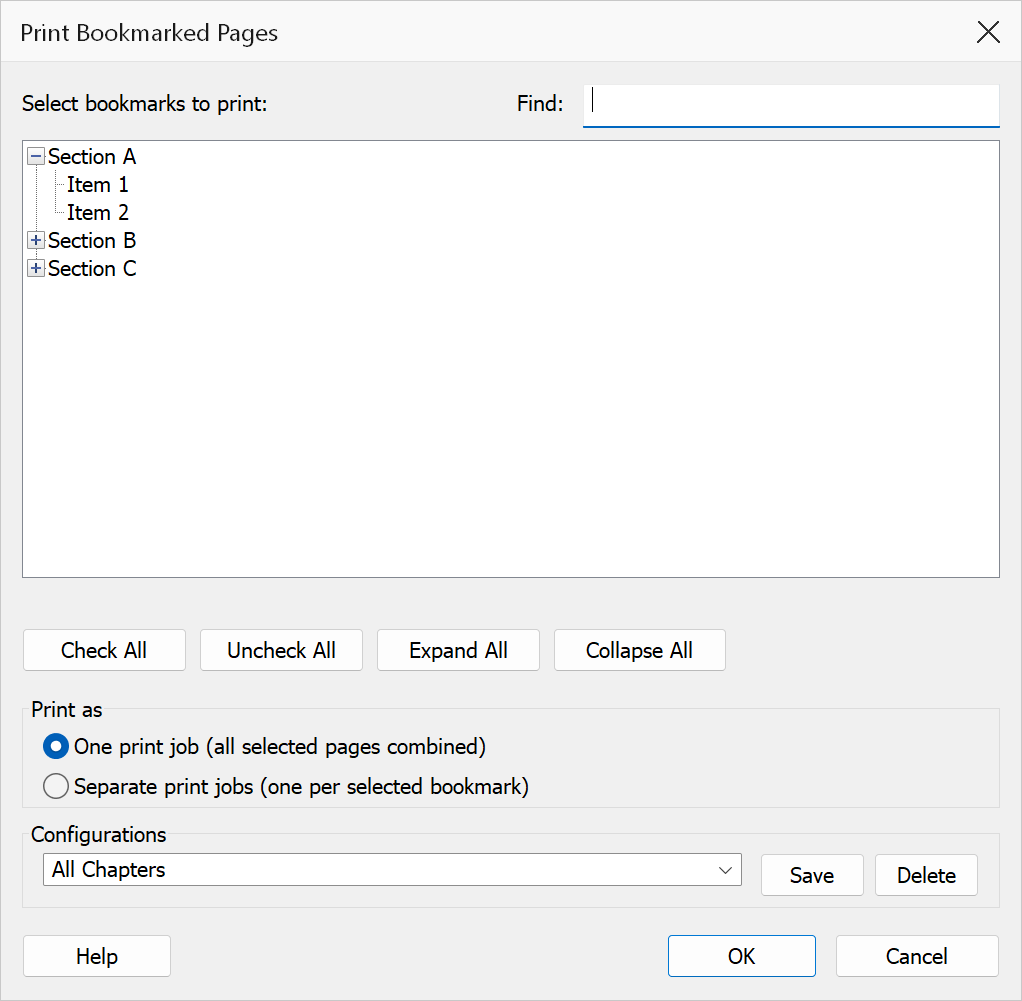
Print Bookmarked Pages displays all bookmarks in the active PDF with their computed page ranges, and lets you select which bookmarked sections to print. You can print all selected sections as one combined print job or as separate individual jobs.
How to use
- Open a PDF that contains bookmarks.
- Go to Plug-Ins > Bookmarks > Views & Reports > Print Bookmarked Pages.
- Review the bookmark tree. Each entry shows the bookmark title and its page range, nested exactly as the bookmarks are nested in the document. All entries are ticked by default.
- Tick the bookmarks you want to print. Ticking a bookmark also ticks everything nested under it, so one click selects a whole chapter. Type in Find to narrow the tree to matching titles.
- Choose One print job or Separate print jobs.
- Click OK to send the selected pages to the printer.
Dialog options
| Option | Description |
|---|---|
| Bookmark tree | The document's bookmarks, nested as they are in the document, each followed by its page range (e.g., Chapter 1 (Pages 1 to 10)). All entries are ticked by default. Ticking or unticking a bookmark applies to everything nested under it; a grey tick means only part of that section is selected. |
| Find | Shows only bookmarks whose title contains what you type, together with their parents and everything nested under them, so a matched chapter can still be ticked as a whole. Press Escape to clear it. Filtering only changes what is shown — bookmarks hidden by a filter keep whatever selection they already had. |
| Summary line | Below the tree: how many bookmarks are selected, how many pages that adds up to, and the actual page numbers that will print (e.g., 5 of 47 bookmarks selected, 24 pages: 5-8, 11-14, 20-31). Use it to confirm the selection before printing. |
| Check All / Uncheck All | Selects or deselects every bookmark currently shown. With no filter typed that is the whole document; with a filter active it deliberately leaves hidden bookmarks alone rather than silently undoing work you cannot see. |
| Expand All / Collapse All | Opens or closes every branch of the tree. |
| One print job | Sends a single print job containing only the selected bookmarks' pages. Selected ranges that touch or overlap are merged, so a fully selected chapter prints as one continuous run; pages belonging to bookmarks you did not select are not printed, even when they fall between two selections. |
| Separate print jobs | Sends one print job per checked bookmark. Each job covers only that bookmark's page range. |
Tip
Use Separate print jobs when you need cover sheets or separator pages between sections, as each job can be configured independently in the printer queue.
Note
Page ranges are computed from bookmark order. Each bookmark's range starts at its destination page and ends one page before the next bookmark begins. The last bookmark's range extends to the end of the document. Printing uses Acrobat's built-in print engine and the current printer settings.
Because a bookmark's range ends where its first child begins, a parent bookmark's own range covers only its title page and any front matter before the first sub-section. That is why ticking a bookmark also ticks everything under it — it is the only way a chapter selection covers the chapter.
Note
Saved configurations record the selection by bookmark title, not by position, so a configuration saved against one document can be applied to another with the same section names. Where only some of the saved bookmarks exist in the current document, the ones that match are selected and the summary line says how many. Where none of them match, the current selection is left alone rather than silently cleared.