Overview
Split by Blank Pages treats blank (empty) pages as separators. The document is divided at each blank page; the blank pages themselves are excluded from all output files. This is commonly used with scanned batches where blank sheets were inserted between documents.
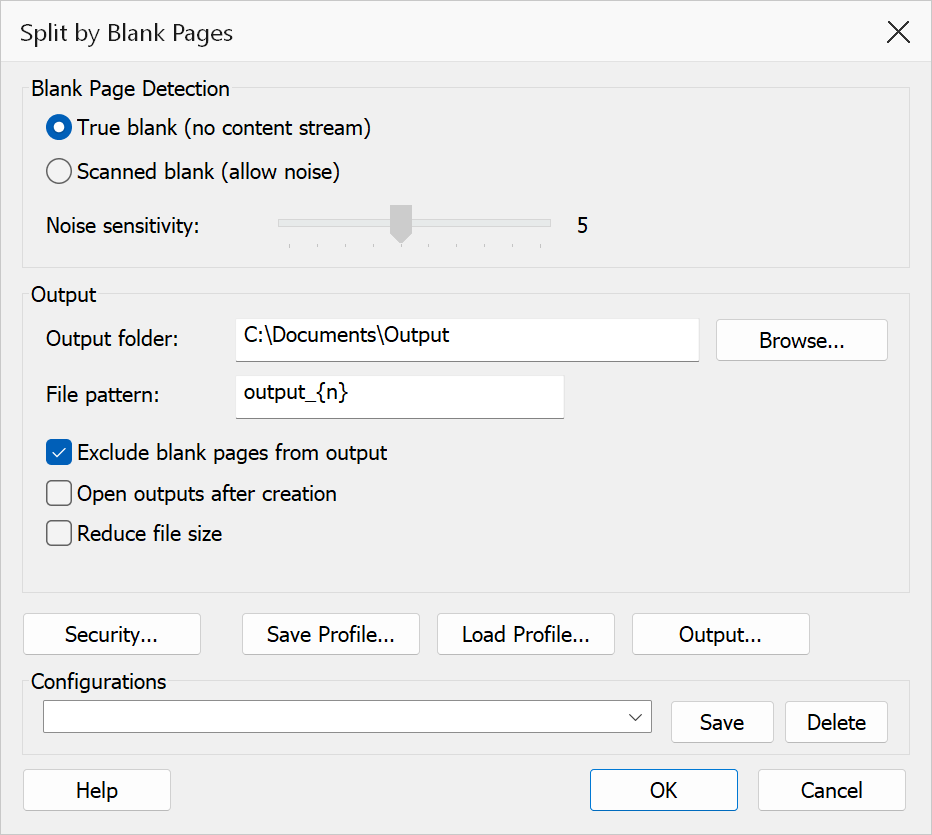
How to use
- Open the PDF you want to split.
- Go to Plug-Ins > Split > Split by Blank Pages.
- Choose the blank-page detection method: true blank or scanned blank.
- If using scanned blank mode, adjust the noise sensitivity slider.
- Set the output folder and file pattern, then click OK.
Blank detection methods
| Method | Description |
|---|---|
| True blank (no content stream) | A page is considered blank only if it has no content stream at all. This is appropriate for digitally-created PDFs where intentionally blank pages contain no drawing operators. This is the default mode. |
| Scanned blank (allow noise) | A page is considered blank if it contains very little text (fewer words than the noise threshold). Use this mode for scanned documents where a physically blank page may still contain scanner artifacts or very faint marks that generate a few spurious words. |
Options
| Option | Description |
|---|---|
| Noise sensitivity | A slider ranging from 1 to 10 that controls the maximum number of words a page may contain while still being classified as blank. A lower setting is stricter (fewer words allowed); a higher setting is more lenient. Default is 5. This slider is only enabled when Scanned blank mode is selected. |
| Exclude blank pages from output | When checked (the default), blank separator pages are omitted from the output files. When unchecked, blank pages are included in the output — splits still occur at blank page boundaries, but the blank pages themselves are kept in the preceding section's output file. |
| Output folder | The folder where output files are saved. Click Browse to choose a folder. |
| File pattern | Controls the output filename. Use {n} for the 1-based section index.
Default is output_{n}. |
| Open outputs after creation | Opens each generated file in Acrobat after the operation completes. |
Tip
For scanned documents, start with the noise sensitivity at the default value of 5 and adjust if blank pages are not being detected correctly. Increase the value if blank pages with scanner noise are being missed; decrease it if pages with light content are being incorrectly treated as blank.
Note
Consecutive blank pages count as a single separator. If the first or last page of the document is blank it is simply discarded. Sections containing only blank pages produce no output file.