Overview
Split by Page Ranges lets you divide a PDF into multiple output files by specifying a list of explicit page ranges. Each range produces one output file named using a configurable filename pattern.
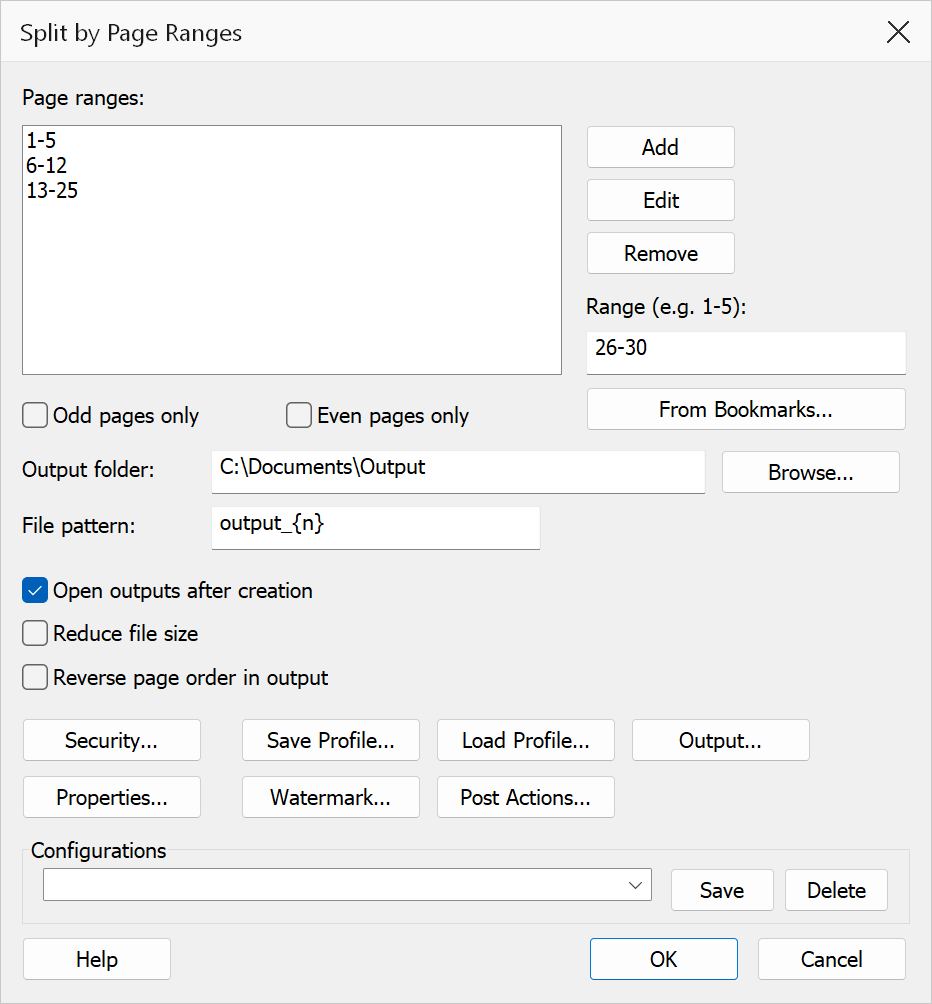
How to use
- Open the PDF you want to split.
- Go to Plug-Ins > Split > Split by Page Ranges.
- Type a range (e.g.
1-5) in the text field and click Add to add it to the list. - Repeat to add as many ranges as needed.
- Set the output folder and file pattern, then click OK.
Options
| Option | Description |
|---|---|
| Page ranges list | The list of ranges to extract. Use Add to append a new range, Edit to move the selected range back to the text field for modification, and Remove to delete the selected range. Ranges are processed in the order listed. |
| From Bookmarks... | Fills the range list automatically: pick a bookmark level and every bookmark at that level becomes one range, from its page up to the page before the next bookmark. If the list already holds ranges you are asked before they are replaced. To have each output named after its bookmark instead of its range, use Split by Bookmarks. |
| Properties... | Overwrites Title, Author, Subject and Keywords on every output file. Empty fields keep the values inherited from the source document. |
| Watermark... | Stamps a text watermark (font, size, colour, rotation) across every page of every output file. |
| Post Actions... | Runs a program of your choice once per output file after the split completes
({file} in the arguments expands to each output's full path). You
confirm the exact command before anything runs; unattended runs (batch, command
line, watch folder) skip post actions unless the environment variable
TOCBUILDER_ALLOW_POST_ACTIONS=1 is set. Acrobat JavaScript
post-processing is staged but not yet available. |
| Range syntax | Enter a range in the form N-M where N is the first page and
M is the last page (both 1-based, inclusive). For example, 1-5
extracts pages 1 through 5 into one output file. N must be less than or
equal to M. |
| Output folder | The folder where output files are saved. Click Browse to choose a folder. If left empty the folder of the source document is used. |
| File pattern | Controls the output filename. Use {n} for the 1-based range index.
Default is output_{n}. Example: output_{n} produces
output_1.pdf, output_2.pdf, etc. |
| Open outputs after creation | When checked, each output file is opened in Acrobat immediately after it is created. |
Tip
Overlapping ranges are allowed, so a page may appear in more than one output file. This can be useful when you need the same pages in multiple extracts.
Note
Page numbers refer to physical PDF page positions (1-based), not page labels. If a range references pages beyond the document length it is silently clamped to the last page.