Overview
Split by Page Size separates a mixed-size PDF into multiple output files, one per unique page size. All pages with the same physical dimensions and orientation are collected into the same output file.
This is useful when a scan or combined PDF contains a mix of A4 portrait, A3 landscape, or other formats that need to be routed to different printers or workflows.
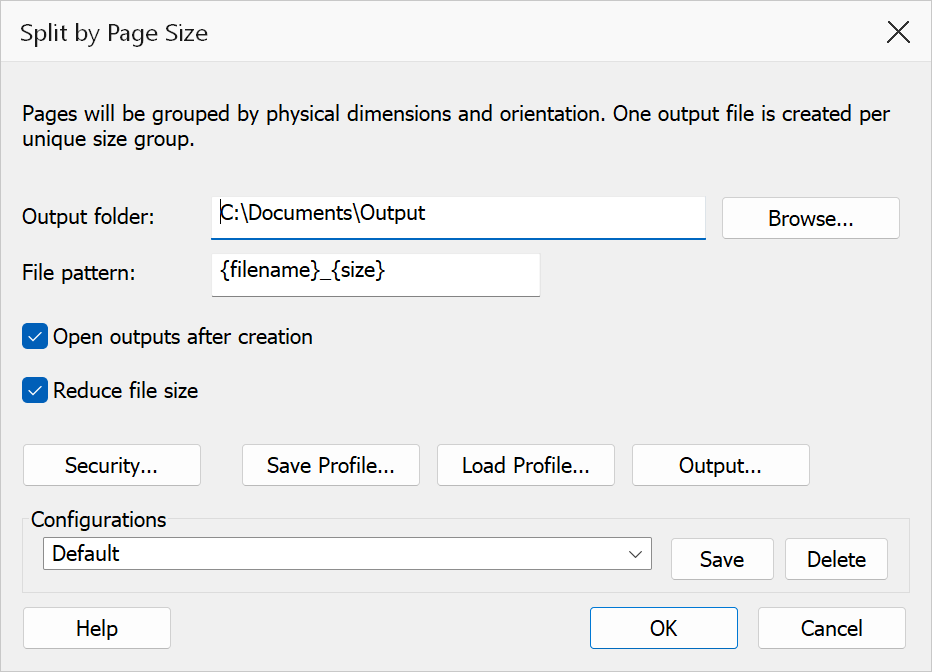
How to use
- Open the PDF you want to separate.
- Go to Plug-Ins > Split > Split by Page Size.
- Choose an output folder.
- Click OK to perform the split.
Options
| Option | Description |
|---|---|
| Output folder | The folder where output files are saved. Click Browse to choose a folder. |
| File pattern | Controls the output filename. {size} expands to the group's page size
label (e.g. 595x842), {filename} to the source file's
name and {n} to a sequential index. Leave the field as the default
{filename}_{size} for the classic
document_595x842.pdf naming. |
| Open outputs after creation | Opens each generated file in Acrobat after the operation completes. |
Output filenames
Each output file is named using the source document name plus the page dimensions in points. For example, a source file called mixed.pdf might produce:
| Output file | Contents |
|---|---|
mixed_595x842.pdf | All A4 portrait pages (595 x 842 pt) |
mixed_842x595.pdf | All A4 landscape pages (842 x 595 pt) |
mixed_1190x842.pdf | All A3 landscape pages |
Page rotation is taken into account: a portrait page rotated 90 degrees is treated as landscape and its effective dimensions are reported accordingly.
Note
Dimensions are rounded to the nearest integer point value for grouping. If all pages are the same size, a single output file is produced. CropBox / TrimBox values are not considered; the MediaBox is used.
Tip
Use this command before printing a mixed-size PDF to route each page size to the appropriate paper tray or printer.