Overview
Split by Stamp Annotation divides a document at its rubber-stamp annotations. A stamped page begins a sub-document that runs up to (but not including) the next stamped page, and each unique stamp name produces one output file collecting all of its sub-documents — so a three-page invoice whose first page is stamped Approved lands in the Approved file complete. Pages before the first stamped page cannot be attributed to any stamp and are omitted.
This is useful for review workflows where stamps such as Approved, Rejected, Draft, or custom stamps are applied to individual pages, and you want to collect all pages with the same status into separate files.
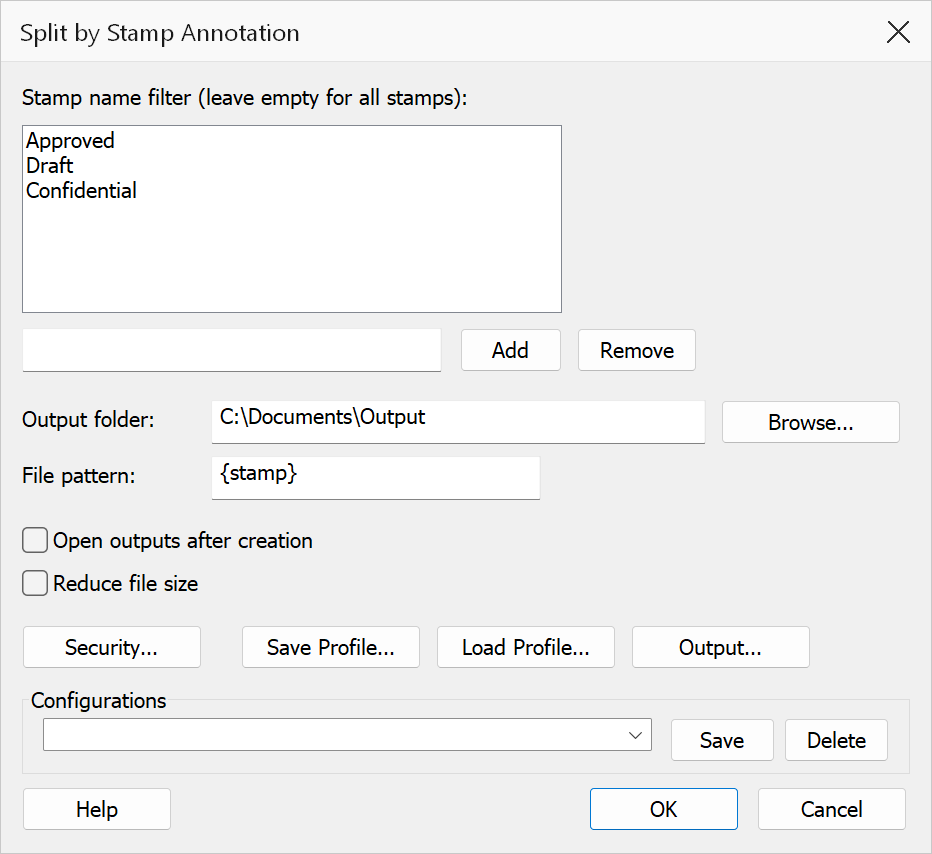
How to use
- Open a PDF that contains rubber-stamp annotations.
- Go to Plug-Ins > Split > Split by Stamp Annotation.
- Optionally add stamp names to the filter list to restrict which stamps are processed.
- Set the output folder and file pattern, then click OK.
Options
| Option | Description |
|---|---|
| Stamp name filter | By default all stamp names found in the document are used. To restrict output to specific stamps, type a stamp name into the text field and click Add to add it to the filter list. Only pages carrying a stamp whose name appears in the filter will be processed. Select an entry and click Remove to delete it. Leave the filter list empty to include all stamps. |
| Output folder | The folder where output files are saved. Click Browse to choose a folder. |
| File pattern | Controls the output filename. Use {stamp} to embed the stamp name, or
{n} for a sequential index. Default is {stamp}. |
| Open outputs after creation | Opens each generated file in Acrobat after the operation completes. |
Common built-in stamp names
| Display label | Internal name |
|---|---|
| Approved | Approved |
| Not Approved | NotApproved |
| Draft | Draft |
| Final | Final |
| Confidential | Confidential |
| For Comment | ForComment |
| For Public Release | ForPublicRelease |
| Not For Public Release | NotForPublicRelease |
| Void | Void |
Tip
Use the {stamp} token in the file pattern to automatically name each
output file after its stamp, e.g. Approved.pdf, Draft.pdf.
Note
If a page contains more than one stamp, the first stamp found on the page determines which output file receives that page's sub-document. A stamp excluded by the filter still ends the preceding sub-document; its own pages are simply not written. The stamp must be a real stamp annotation (added with Acrobat's Stamp tool) — text or graphics that merely look like a stamp are not recognised.