Overview
Split by Keyword List splits a PDF at any page whose text contains at least one of the keywords you specify. The keyword pages begin new sections, so each output file starts with a keyword page and ends just before the next one.
This is useful when documents contain title pages, cover sheets, or section markers that include predictable keywords or phrases.
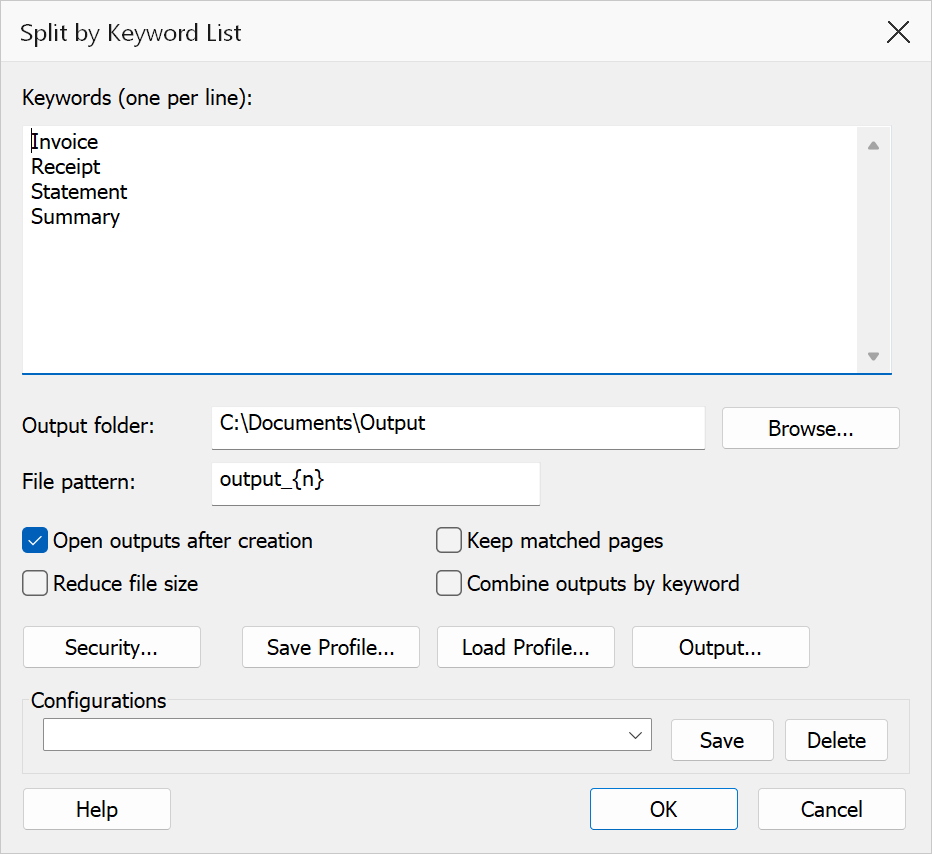
How to use
- Open the PDF you want to split.
- Go to Plug-Ins > Split > Split by Keyword List.
- Enter one or more keywords in the text area (one per line).
- Set the output folder and file pattern, then click OK.
Options
| Option | Description |
|---|---|
| Keywords | A multi-line text area where you enter one keyword or phrase per line. Each keyword is matched as a whole substring, ignoring capitals, anywhere in the page text. A page is treated as a split point if any of the listed keywords appears on it. Empty lines are ignored. |
| Keep matched pages | When ticked (the default), each page containing a keyword becomes the first page of its output file — the right choice when the keyword marks the start of an invoice, application or report. When cleared, keyword pages act as separator sheets and are left out of the output entirely. |
| Output folder | The folder where output files are saved. Click Browse to choose a folder. |
| File pattern | Controls the output filename. Use {n} for a sequential 1-based index.
Default is output_{n}. |
| Open outputs after creation | Opens each generated file in Acrobat after the operation completes. |
Tip
Keywords are matched ignoring capitals — confidential finds
CONFIDENTIAL too, so there is no need to enter both variants. For
patterns rather than fixed words, use
Split by Text Pattern.
Note
Any pages before the first keyword page form a leading section of their own. If no page contains any of the keywords, nothing is written and a message tells you so.