Overview
Watch Folder monitors a specified folder for new PDF files and
automatically processes them using a previously saved split profile (.tsp file).
This enables unattended, automated splitting of incoming documents.
When a new PDF file appears in the watched folder, the plug-in waits until the file
is fully written, then applies the split profile settings, writing the outputs into a
subfolder named after the source file. Successfully processed sources are moved to a
processed subfolder; sources whose run reported an error are moved to
failed so nothing is retried in a loop or silently lost.
Without a split profile the watcher runs in collect-only mode: arriving PDFs are
simply moved into processed.
How to use
- First, save a split profile from any split dialog using Save Profile.
- Go to Plug-Ins > Split > Watch Folder.
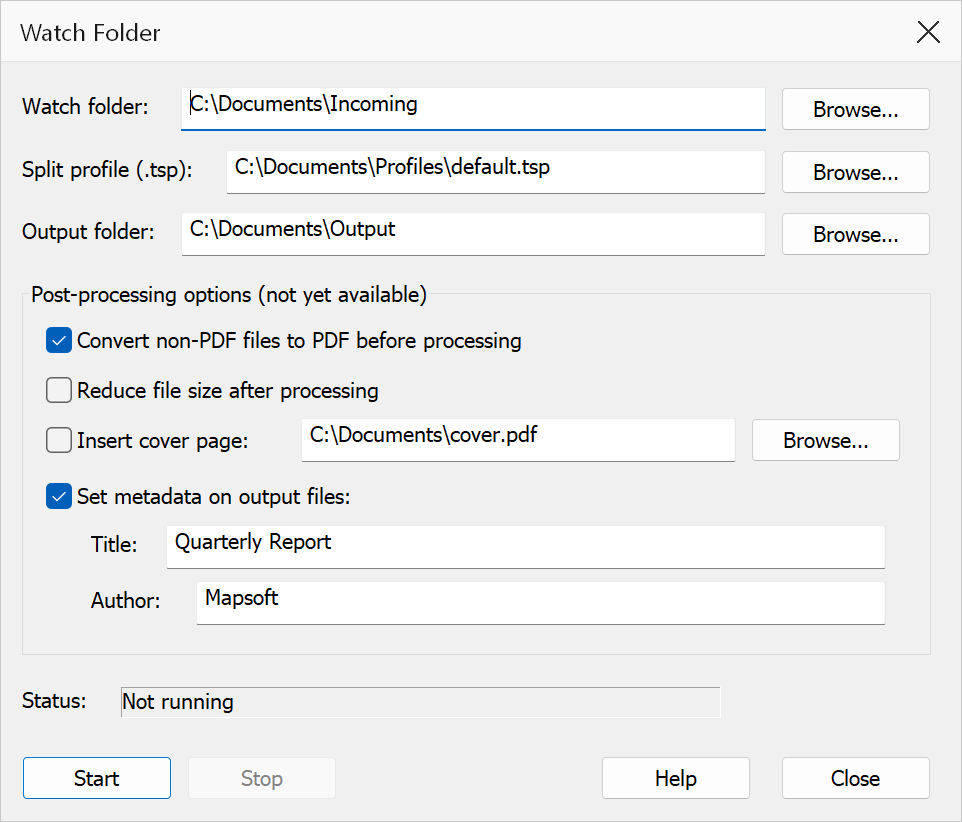
- Set the Watch folder path — the folder to monitor for incoming PDFs.
- Set the Split profile path — the
.tspfile with your split settings. - Set the Output folder — where split output files will be saved.
- Click Start to begin monitoring.
- Click Stop to end monitoring, or Close to close the dialog.
Options
| Option | Description |
|---|---|
| Watch folder | The folder path to monitor. Any new .pdf files placed in this folder
will be detected and processed. |
| Split profile (.tsp) | Path to a saved .tsp profile file. This profile determines the split
method and all associated settings (output naming, security, etc.). Leave empty
for collect-only mode. |
| Output folder | Base folder for the outputs; each source file gets its own subfolder inside it,
and a watchfolder.log records every run. Empty = an
output folder beside the watch folder. |
| Reduce file size | Re-saves each output with garbage collection after the split. |
| Insert cover page | Prepends the chosen PDF to every output file. |
| Set metadata | Writes the given Title and Author into every output file's document properties. |
| Convert non-PDF files to PDF | Not yet available; only .pdf files are picked up. |
| Status | Shows the current state: Not running, Watching... with processed/failed counts, or the last error. |
The dialog remembers the last-used settings between sessions.
Tip
Create the split profile first by running the desired split operation manually, configuring all settings, then clicking Save Profile before clicking OK.
Warning
Ensure the watch folder is different from the output folder to avoid processing
output files as input. Processed input files are automatically moved to a
processed subfolder within the watch folder.
Note
The watch folder checks for new files every 3 seconds. Files that are still being written (locked by another process) are skipped until they become available.