Overview
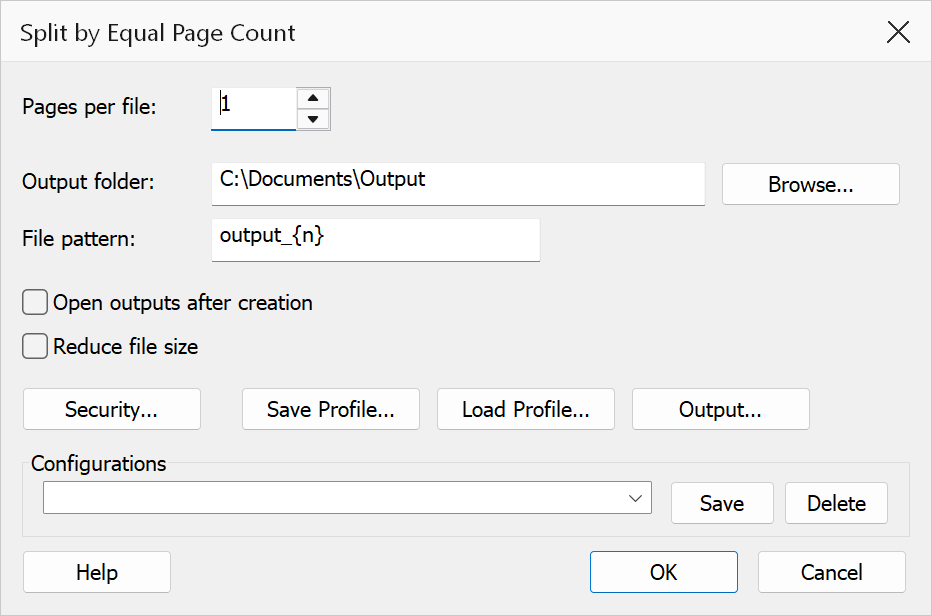
Split by Equal Page Count divides the current PDF into multiple output files, each containing the same number of pages. This is the simplest way to split a document into evenly-sized parts. If the total number of pages is not evenly divisible, the last output file will contain fewer pages.
How to use
- Open the PDF you want to split.
- Go to Plug-Ins > Split > Split by Equal Page Count.
- Enter the number of pages each output file should contain.
- Set the output folder and file pattern, then click OK.
Options
| Option | Description |
|---|---|
| Pages per file | The number of pages each output file should contain. Must be at least 1. For example, setting this to 1 extracts every page as an individual PDF; setting it to 5 creates files of 5 pages each. |
| Output folder | The folder where output files are saved. Click Browse to choose a folder. |
| File pattern | Controls the output filename. Use {n} for the 1-based file index
(zero-padded to 3 digits). Default is output_{n}. |
| Open outputs after creation | Opens each generated file in Acrobat after the operation completes. |
| Reduce file size | Applies garbage collection and linearization to output files, resulting in smaller file sizes. Useful when the source PDF contains unused objects. |
| Security... | Opens the Output Security Settings dialog to apply password protection and permission restrictions to the output files. |
| Save Profile / Load Profile | Save the current dialog settings as a .tsp profile file, or load
a previously saved profile. Profiles can be used for command-line automation. |
Command-line automation
All split operations (not just this one) support command-line execution via environment variables. Set the following before launching Acrobat:
| Variable | Description |
|---|---|
TOCBUILDER_SPLIT_PROFILE |
Path to a .tsp profile file saved from any split dialog. |
TOCBUILDER_INPUT_FILE |
Path to the PDF file to process. |
TOCBUILDER_INPUT_FOLDER |
Path to a folder of PDFs to process (all .pdf files will be processed sequentially). Use this instead of TOCBUILDER_INPUT_FILE for batch mode. |
TOCBUILDER_OUTPUT_FOLDER |
Override the output folder from the profile (optional). |
TOCBUILDER_LOG_FILE |
Path to a log file for tracking operations and errors (optional). |
File naming tokens
The file pattern field supports the following tokens:
| Token | Description |
|---|---|
{n} | File index (zero-padded to 3 digits) |
{page} | First page number of the section |
{pages} | Page range (e.g. "1-5") |
{label} | Page label of the first page |
{tag} | Context-specific tag value |
{filename} | Source document filename (without extension) |
{title} | Document title metadata |
{author} | Document author metadata |
{subject} | Document subject metadata |
{date} | Today's date (YYYY-MM-DD) |
{hour} | Current hour (00-23) |
{minute} | Current minute (00-59) |
{second} | Current second (00-59) |
{username} | Windows username |
{computername} | Windows computer name |
{alpha} | Alphabetic label (A, B, ... Z, AA, AB...) |
{text:L,B,R,T} | Text from a rectangle on the first page |
{match:PATTERN} | First regex match from the first page |
Tip
To extract every page as a separate file, set Pages per file to 1.
Note
If the total page count is not evenly divisible by the pages-per-file value, the last output file will contain the remaining pages. For example, splitting a 10-page document with 3 pages per file produces files of 3, 3, 3, and 1 page(s).