Overview
Bookmarks from Tagged Content reads a tagged PDF’s structure
tree and turns its headings into a bookmark tree. Because the headings already
describe how the document is organised, the bookmarks come out nested correctly:
an H2 becomes a child of the H1 above it, and so on.
The dialog lists the structure tags this particular PDF actually uses, so you tick
the ones that mark a heading rather than choosing from a fixed list. Documents that
use custom tag names (Heading1, Titre1) work the same way:
if the PDF’s /RoleMap maps them to a standard heading type, the
Maps to column shows what they became.
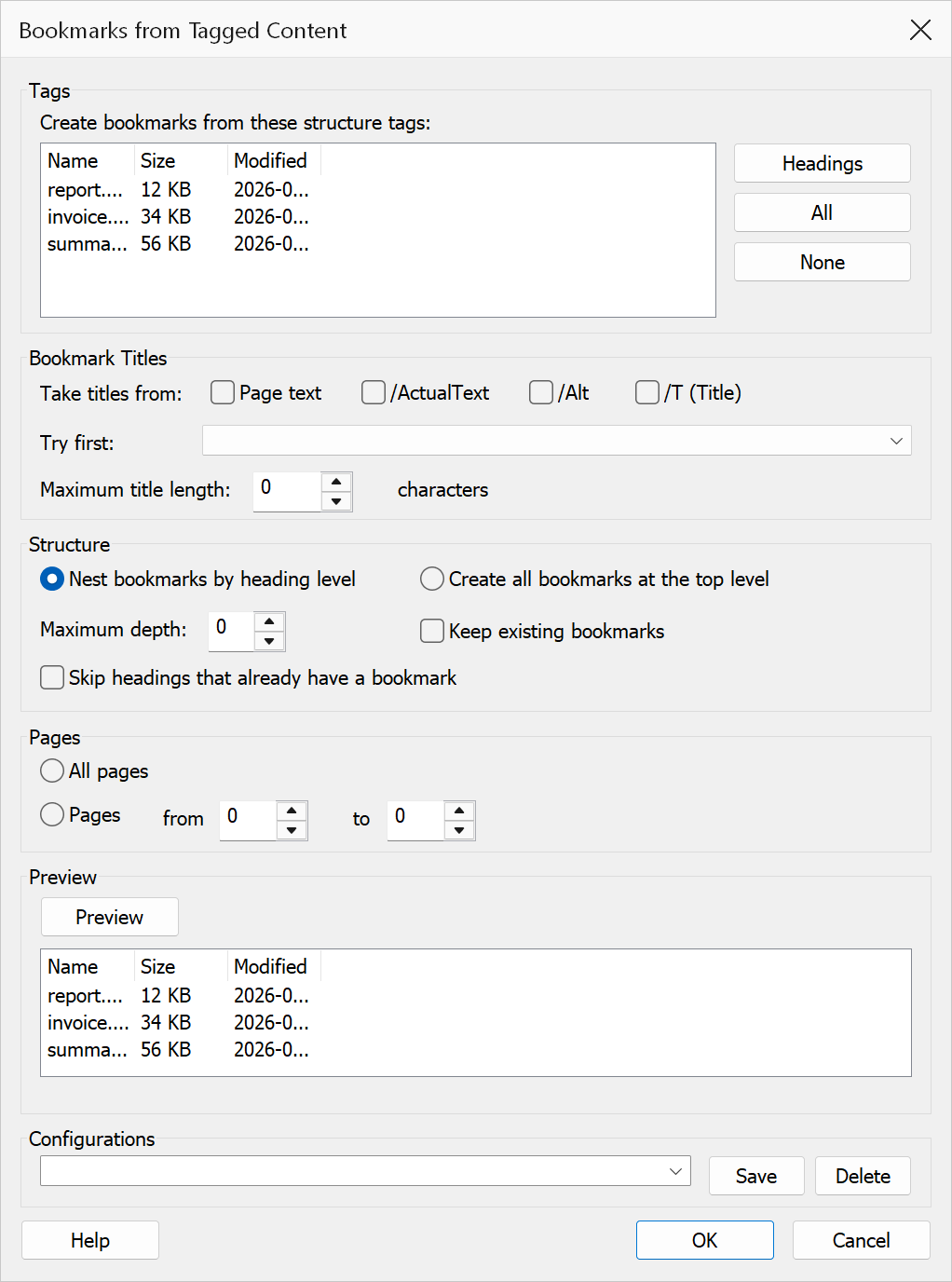
How to use
- Open a tagged PDF.
- Go to Plug-Ins > Bookmarks > Create & Add > Bookmarks from Tagged Content.
- Tick the tags to create bookmarks from. Standard headings (
HandH1–H6) are ticked for you. - Choose where the bookmark titles should come from.
- Decide whether to nest the bookmarks and how deep to go.
- Click Preview to see exactly which bookmarks would be created.
- Click OK to create them.
Tags
| Column | Description |
|---|---|
| Tag | The structure tag as the PDF author wrote it. |
| Maps to | What the document’s /RoleMap turns that tag into. Empty when
the tag is already a standard type. |
| Uses | How many elements in the document carry the tag. A useful sanity check: a heading tag used 12 times will produce about 12 bookmarks. |
Headings, All and None set the ticks in one go.
Bookmark titles
A heading can carry its text in several places. Untick any source you do not want, and use Try first to say which is consulted first; the rest are tried in turn whenever the preceding source is empty.
| Source | Description |
|---|---|
| Page text | The text the tagged element actually draws on the page. This is what most
documents rely on, since /ActualText and /Alt are
usually absent. |
| /ActualText | Replacement text the author supplied for reading aloud. When it is present it is normally the most accurate title, which is why the default order tries the tag text first. |
| /Alt | The element’s alternate description. |
| /T (Title) | The element’s title attribute. |
| Maximum title length | Titles longer than this are shortened with an ellipsis. Line breaks inside a heading always collapse to single spaces. |
Structure
| Option | Description |
|---|---|
| Nest bookmarks by heading level | Mirrors the heading hierarchy. H1–H6 use their
own number; a plain H takes the depth of the section
(Sect, Part, Art, Div) it
sits in, which is how PDF nests untyped headings. |
| Create all bookmarks at the top level | Produces one flat list with no nesting. |
| Maximum depth | Headings deeper than this are pulled up to this level. 1 to 9. |
| Keep existing bookmarks | Leaves the document’s current bookmarks in place and appends the new ones. Untick to replace them. Enabled by default. |
| Skip headings that already have a bookmark | Leaves out any heading the document already bookmarks with the same title on the same page, so a PDF that ships with an outline does not end up with everything listed twice. Enabled by default; it only applies while Keep existing bookmarks is ticked, since otherwise the old bookmarks are being replaced anyway. Titles are compared ignoring case and surrounding or repeated spaces — an authored bookmark reading “Introduction ” counts as the same as a heading reading “Introduction”. A title that genuinely repeats on a different page still gets its own bookmark. Running the command twice on the same document is therefore safe: the second run adds nothing. |
Pages
All pages takes every heading in the document. Pages from … to … keeps only the headings whose content lands inside that range; a heading that draws nothing on any page is dropped when a range is set.
Preview
Preview re-reads the structure tree and shows the bookmarks that would be created:
- Tag — the structure tag the bookmark came from.
- Level — the nesting level it will be created at.
- Page — the page it will point at, or
-when the heading draws nothing on a page. - Bookmark Title — the title as it will appear.
- Title From — which source supplied the title.
The summary line counts the bookmarks, the tagged elements they came from, how many titles fell back to the page text, and how many headings were left out because the document already bookmarks them. For performance the list shows the first 250 rows; every matching heading is still created when you click OK.
Tip
If the preview shows fewer bookmarks than you expect, look at the Uses
column. A document that tags its headings as P with a style rather than
as H1 will need that tag ticked instead — or retagging in Acrobat.
Note
This command needs a tagged PDF. If the document has no structure tree, it says so instead of opening the dialog. In Acrobat you can add one with All tools > Prepare for accessibility > Autotag document, then run this command again.
Warning
Clearing Keep existing bookmarks deletes every bookmark the document already has before the new ones are created. That happens only once the scan has found something to create, but it cannot be undone from this dialog — close the PDF without saving if you change your mind.