Overview
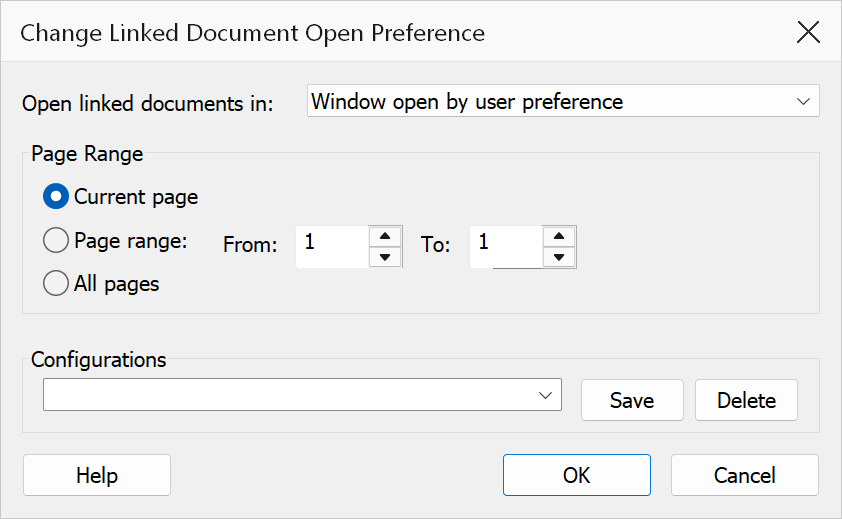
Change Linked Document Open Preference controls how external documents referenced by links in the current PDF are opened. You can set links to open in a new window, reuse the existing window, or follow the user’s Acrobat preference.
This is useful when preparing documents for distribution where you want a consistent user experience—for example, ensuring that cross-referenced PDFs always open in a new window so that the reader does not lose their place.
How to use
- Open a PDF that contains links to external documents.
- Go to .
- Select the desired open preference from the dropdown.
- Choose which pages to apply the change to: Current page, a Page range, or All pages.
- Click OK to apply the changes.
Open preference options
| Option | Description |
|---|---|
| Window open by user preference | Defers to the reader’s Acrobat settings. The linked document opens however the user has configured Acrobat to handle external documents. |
| New Window | Always opens the linked document in a new Acrobat window, preserving the current document’s position. |
| Existing Window | Opens the linked document in the same window, replacing the current document view. The reader can use the back button to return. |
Page range
| Option | Description |
|---|---|
| Current page | Applies the change only to links on the page currently displayed in Acrobat. |
| Page range | Applies the change to links within a specified range. Enter the start and end page numbers. |
| All pages | Applies the change to every link in the entire document. |
Tip
Setting links to New Window is recommended for documents with extensive cross-references, so readers can easily compare content side by side.
Note
This feature only affects links that open external documents (GoToR actions). Internal page links (GoTo actions) and web links (URI actions) are not modified.