Overview
Split by Pattern Change applies a regular expression to the full text of each page and extracts the first capture group. Whenever the captured value changes from one page to the next, a split point is created. This gives fine-grained control over what is compared — for example, extracting only the numeric part of a document code and splitting when that number changes.
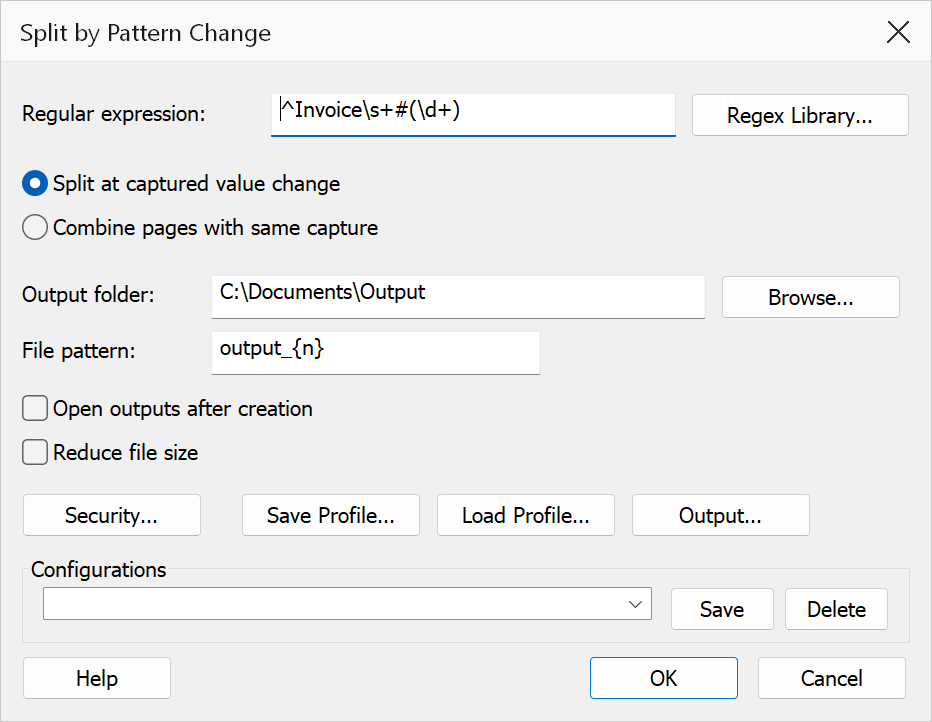
How to use
- Open the PDF you want to split.
- Go to Plug-Ins > Split > Split by Pattern Change.
- Enter a regular expression (optionally using the regex library).
- Choose whether to split at each value change or combine pages with the same value.
- Set the output folder and file pattern, then click OK.
Options
| Option | Description |
|---|---|
| Regular expression | A standard C++ std::regex (ECMAScript syntax) applied to the full text of
each page. The value used for comparison is the text of the first capture
group if the pattern contains parentheses (e.g. Invoice #(\d+)
captures just the number), or the entire match if there are no
capture groups. Pages where the pattern does not match are treated as having an
empty value. |
| Regex Library | Click the Regex Library button to open a library of saved regular expression patterns. Selecting a pattern from the library inserts it into the regular expression field. |
| Split at captured value change | A new output file begins each time the captured value differs from the previous page's value. Consecutive pages with the same value are placed in the same file. This is the default mode. |
| Combine pages with same capture | All pages sharing the same captured value (including non-contiguous pages) are merged into one output file named after the captured value. |
| Output folder | The folder where output files are saved. Click Browse to choose a folder. |
| File pattern | Controls the output filename. Default is output_{n}. Available tokens: |
| Token | Replaced with |
|---|---|
{n} | Sequential 1-based index |
{value} | Captured text value |
| Option | Description |
|---|---|
| Open outputs after creation | Opens each generated file in Acrobat after the operation completes. |
Tip
Use the Regex Library button to quickly select common patterns without having to write the regular expression from scratch.
Note
This command differs from Split by Text Pattern in that it compares the extracted value page-by-page rather than simply detecting the presence of a match. Use this when you need to detect changes in a value rather than just the existence of a pattern.