Overview
Split by Text Change monitors the text content of a fixed rectangular area on every page. Whenever the text in that area changes compared to the previous page, a split point is created. This is ideal for documents where a running header, footer, or field (e.g. account number, chapter title) changes at section boundaries.
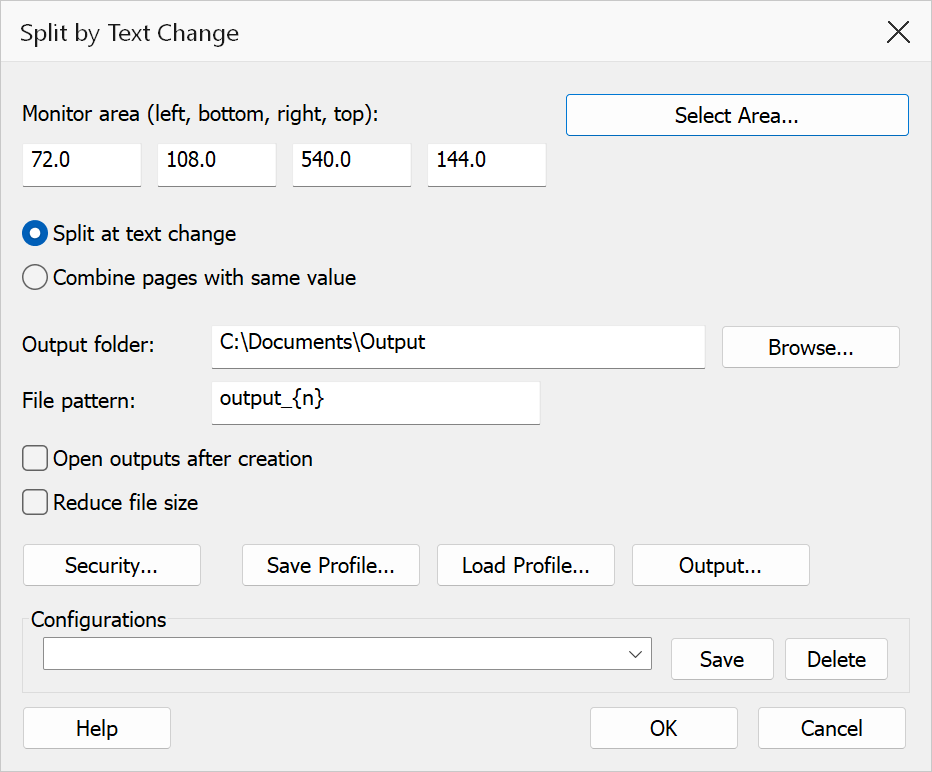
How to use
- Open the PDF you want to split.
- Go to Plug-Ins > Split > Split by Text Change.
- Define the monitor area by entering coordinates or using Select Area.
- Choose whether to split at each text change or combine pages with the same value.
- Set the output folder and file pattern, then click OK.
Options
| Option | Description |
|---|---|
| Monitor area | Enter the coordinates of the rectangle to watch: Left, Bottom, Right, Top in PDF user units (72 units per inch, origin at bottom-left of the page). The text extracted from this area is compared page by page. |
| Select Area | Opens an interactive page preview where you can drag a rectangle directly on the page. The coordinates are automatically filled in when you confirm the selection. Any existing coordinates in the fields are pre-loaded into the picker. |
| Split at text change | A new output file is started each time the text in the monitor area differs from the previous page. Pages with the same text are accumulated in the current output file. This is the default mode. |
| Combine pages with same value | All pages that share the same monitor-area text are combined into a single output file named after that text, regardless of whether they are contiguous in the document. |
| Output folder | The folder where output files are saved. Click Browse to choose a folder. |
| File pattern | Controls the output filename. Use {n} for a sequential index or
{value} for the monitored text value. Default is output_{n}. |
| Open outputs after creation | Opens each generated file in Acrobat after the operation completes. |
Tip
Use the Select Area button to visually pick the rectangle on the page instead of manually entering coordinates. This is much easier than using Acrobat's cursor coordinate display to determine the values.
Note
Leading and trailing whitespace is trimmed before comparison, so minor spacing differences are ignored. This command compares the raw text in the selected area — for regex-based comparison, use Split by Pattern Change instead.